
Table of Contents
- Prerequisites
- Part 1: Google Cloud Console
- Part 2: Google Admin Console
- Part 3: Humly Control Panel
- Optional: Group-based Access Control
- Troubleshooting
- Best Practices
Prerequisites
- Access to Google Cloud Console (console.cloud.google.com)
- Access to Google Admin Console (admin.google.com)
- Admin access to Humly Control Panel
Part 1: Google Cloud Console
Step 1 – Enable the Cloud Identity API
- Go to Google Cloud Console and open your project.
- Navigate to APIs & Services → API Library.
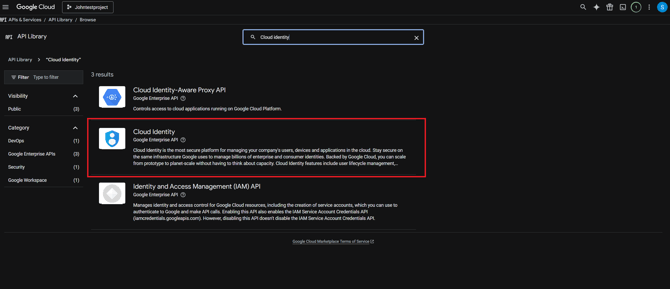
- Search for "Cloud Identity API" (not "Cloud Identity-Aware Proxy API").
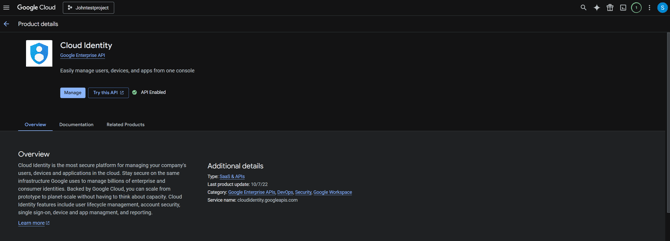
- Click on Cloud Identity and then click Enable.
This API is required for group membership checks during login.
Step 2 – Create an OAuth 2.0 Client ID
- Navigate to APIs & Services → Credentials, then search "Google Auth Platform" → Clients.
- If prompted, configure the OAuth consent screen first:
- Click "Configure consent screen".
- Set User Type to Internal.
- Fill in the required fields (App name, support email) and save.
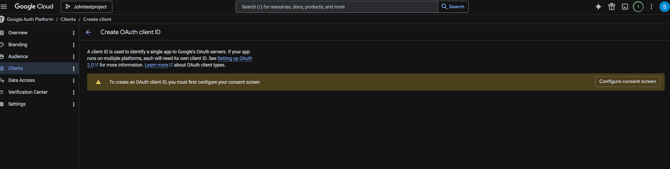
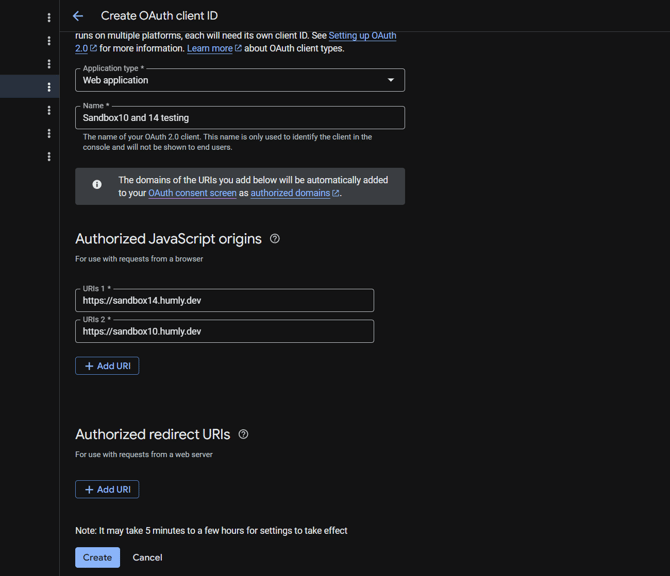
- Once the consent screen is configured, return to Clients and click "Create OAuth client".
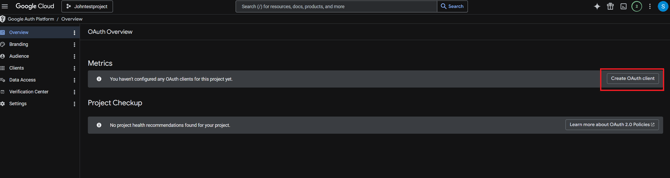
- Select Application type: Web application.
- Give it a descriptive name.
- Under Authorized JavaScript origins, add your HCP domain (without a trailing slash):
https://your-hcp-domain.com
- Leave Authorized redirect URIs empty.
- Click Create and copy the generated Client ID — you will need it in Part 3.
Part 2: Google Admin Console
Step 3 – Add the Cloud Identity Scope to Domain-wide Delegation
- Go to Google Admin Console (admin.google.com).
- Navigate to Security → Access and data control → API controls.
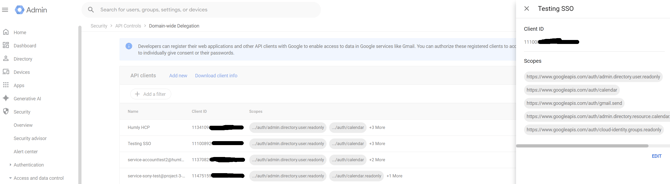
- Click "Manage Domain Wide Delegation".
- Find the existing service account used by HCP and click Edit.
- Add the following scope:
https://www.googleapis.com/auth/cloud-identity.groups.readonly
- Save the changes.
Part 3: Humly Control Panel
Step 4 – Configure Google SSO in HCP
- Log in to Humly Control Panel as an admin.
- Navigate to the SSO settings section.
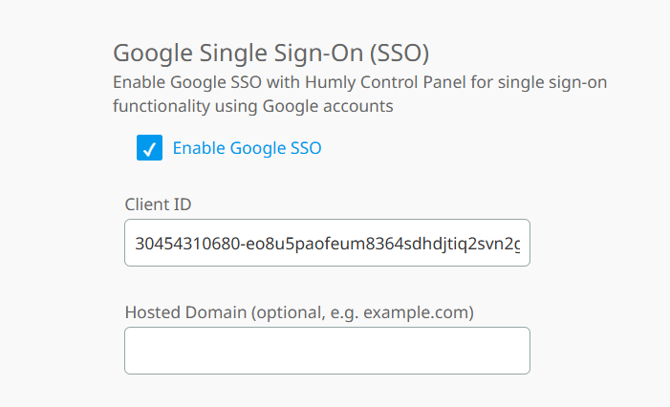
- Check "Enable Google SSO".
- Paste the Client ID from Step 2 into the Client ID field.
- Optionally enter your organization's domain in the Hosted Domain field (e.g.
example.com). This restricts login so that only users with a Google account on that domain can authenticate. - Save the settings.
Users who are already added locally in HCP can now log in using their Google account via the SSO button on the login page.
Optional: Group-based Access Control
If you want to control which HCP roles users receive based on their Google Group membership, follow these additional steps.
Step 5 – Create Google Groups
- In Google Admin Console, go to Directory → Groups.
- Click Create group for each HCP role you want to use with SSO (e.g. Global Admins, Local Admins, Users, etc.).
- Under Group settings, set:
- Access type: Restricted
- Who can join: Only invited users
- Click Create Group.
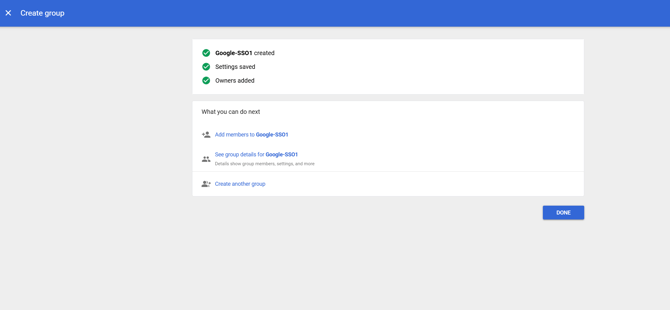
- Click "Add members" and add the relevant users to the group.
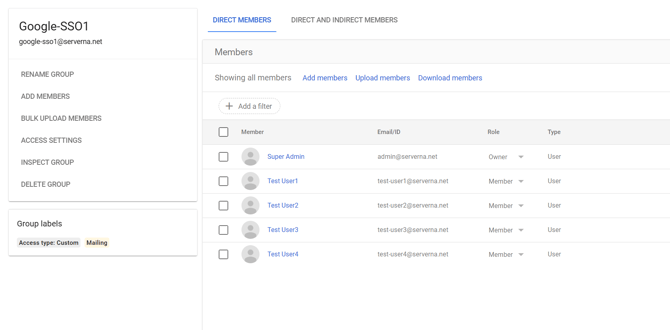
Step 6 – Map Google Groups to HCP Roles
- In Humly Control Panel, go to the SSO settings section.
- Under Google Workspace groups, enter the group email address for each HCP role you want to map. For example:
- Global Admins:
my-group-admins@example.com - Users:
my-group-users@example.com
- Global Admins:
- Save the settings.
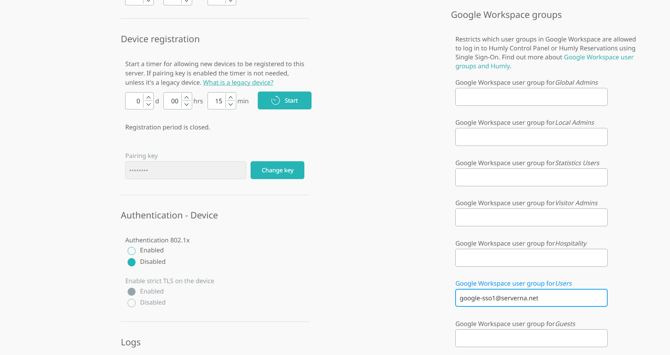
Users who belong to a mapped Google Group will automatically receive the corresponding HCP role when logging in via SSO.
Step 7 (Optional) – Mark the App as Trusted to Skip the Consent Screen
By default, users see a consent screen the first time they log in with Google SSO. To remove this screen entirely, mark the app as Trusted in Google Admin Console:
- In Google Admin Console, go to Security → Access and data control → API controls.
- Click "Manage App Access".
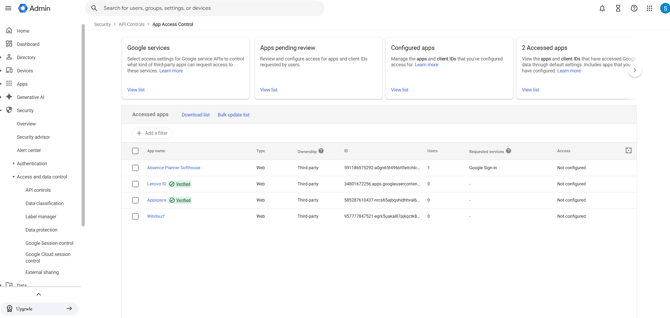
- Go to Configured apps → View list → Configure new app.
- Search for your app by name or OAuth Client ID and select it.
- Set scope to All users in your organization and click Continue.
- Set Access to Google Data to Trusted and click Continue.
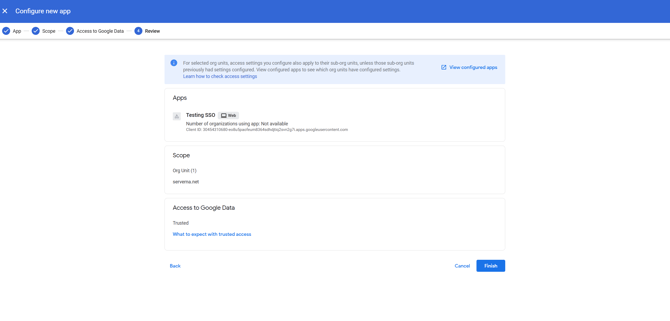
- Review the summary and click Finish.
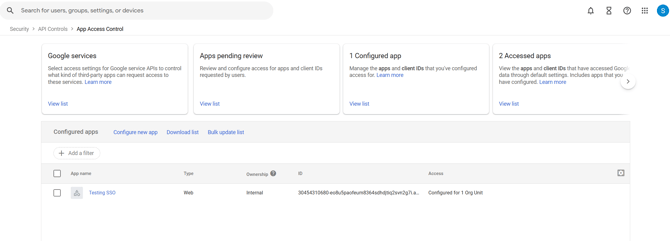
Note: It may take up to a few hours for this setting to take effect. Clear browser cookies and try again if the consent screen still appears.
Troubleshooting
- Consent screen still appearing after marking app as Trusted: Allow up to a few hours for the setting to propagate. Clear browser cookies and try again.
- User cannot log in via SSO: Verify that the user is either added locally in HCP or is a member of a mapped Google Group.
- User cannot log in via SSO: Verify that you are using the email of the group and not the group name in Humly Control Panel.
Best Practices
- Use a dedicated Google Cloud project for HCP SSO to keep credentials and API access isolated from other services in your organization.
- Set OAuth consent screen to Internal to ensure only users within your Google Workspace organization can authenticate. Never use External for an internal tool like HCP.
- Use Restricted access and invite-only for Google Groups to prevent users from adding themselves to groups and gaining unintended HCP roles.
- Create one Google Group per HCP role with a clear naming convention, for example
humly-sso-global-admins@example.com, to make group management easy and auditable. - Regularly review group memberships to ensure only the right users have access to each HCP role, especially when employees leave or change responsibilities.
- Mark the app as Trusted in Google Admin Console to provide a seamless login experience without consent prompts for your users.
- Test with dedicated test users before rolling out SSO to all users, to verify that group mappings, roles, and login flows work as expected.
- Document your group-to-role mappings internally so that future admins can easily understand which Google Groups correspond to which HCP roles.