
Introduction
This guide explains how to use Humly Floor Plan in Interactive Mode on standalone kiosk devices and self-service booking stations.
What is an Interactive Floor Plan?
The interactive floor plan allows users to view and book resources directly from a standalone floor plan screen without logging into Humly Control Panel. Users authenticate their bookings using a personal PIN code instead of a username and password.
Common Use Cases
Interactive Floor Plan is ideal for:
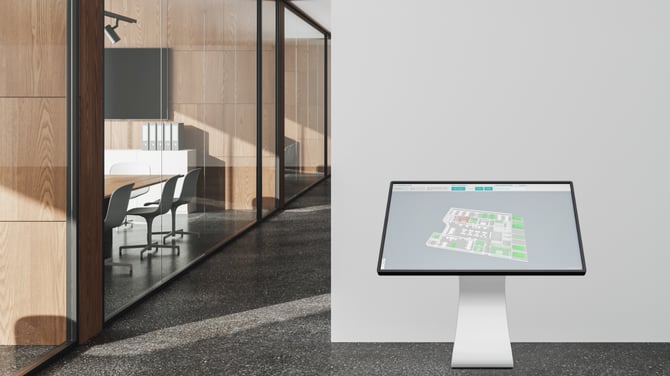
- Lobby Kiosks - Self-service booking stations in building lobbies
- Room and Desk Booking Station - Touch screens mounted outside meeting rooms
- Floor Wayfinding Displays - Interactive maps showing room availability
- Parking Space Kiosks - Self-service parking booking displays
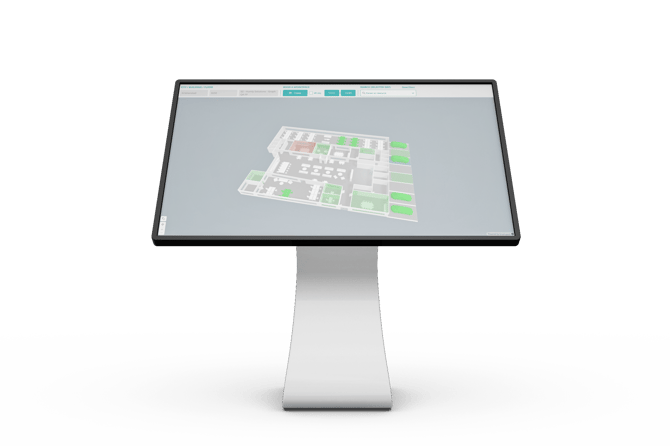
Recommended Hardware: For the best performance and user experience, we recommend running Interactive Floor Plan on a computer with a dedicated GPU or high-performance integrated graphics, using the latest version of Chrome or Edge with WebGL/WebGL2 and GPU acceleration enabled.
Portrait Mode Limitation: The Interactive Floor Plan is currently not optimized for portrait orientation. For the best experience, please use landscape mode. Portrait support will be added in a future update.
Key Features of Interactive Mode
PIN Authentication
- Book resources using a simple numeric PIN
- No need to remember username/password
- Quick and easy for frequent bookings
You can also allow anonymous bookings without a PIN. In the resource settings, the booking section lets you specify whether authentication is required or not.
Single Location View
- Floor plan displays one specific location (building/floor)
- Focused view prevents confusion in multi-building organizations
- Ideal for location-specific kiosks
Automatic Reset
- The screen automatically resets after 30 seconds of inactivity
- Returns to the default view and clears all selections
- Ensures privacy and readiness for the next user
Real-time Availability
- Live view of resource availability
- Updates every minute
- See bookings as they happen
Getting Started
Prerequisites
Before you can use the Interactive Floor Plan, ensure:
-
Valid PIN - You must have a valid PIN in Humly Reservations. The PIN is created when your user account is added in Humly Control Panel and is sent to your configured email inbox.
-
To reset your PIN:
- Log in to Humly Reservation
- Go to your user profile
- Reset your PIN code
-
Device is Authorized - The kiosk device must be authorized by your administrator
-
Floor Plan URL - You need the standalone floor plan URL (ask your administrator if needed)
Note: If you no longer remember which email you used for Humly Reservations, or if you’re unable to log in, please contact your Humly administrator.
Known limitation: The Interactive Floor Plan kiosk must be opened in a browser where no Global Admin is currently logged in to Humly Control Panel. If a Global Admin has previously logged in on the same browser, their session is stored in the browser's local storage and will interfere with the Interactive Floor Plan — bookings created through the kiosk will incorrectly show the Global Admin as the organizer instead of the user who made the booking.
To avoid this, always run the Interactive Floor Plan on a dedicated device or browser profile where no HCP admin session exists.
Understanding the Interface
Screen Layout
When you access the Interactive Floor Plan, you'll see:
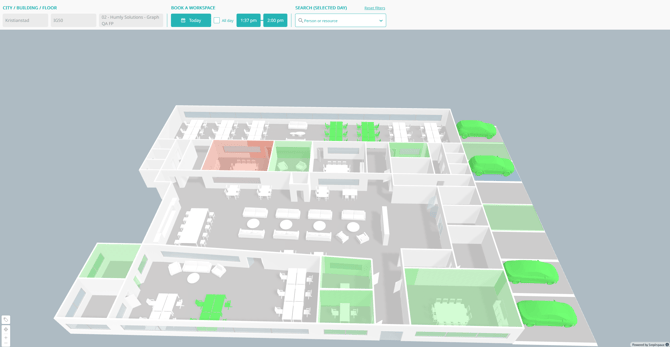
- Floor Plan View - 3D visualization of the office space
- Filter Bar - Date/time selection and search
- Resource Status - Color-coded availability indicators
- Navigation Controls - Zoom, rotate, and pan
Resource Color Coding
Resources are color-coded to show availability:
- Green - Available for booking
- Red - Currently booked/occupied
- Yellow - Booking ends soon (within 15 minutes)
- Gray - Not available for booking
Interactive Controls
- Click/Tap - Select a resource to view details or book
- Pinch/Scroll - Zoom in and out
- Drag - Pan around the floor plan
- Double-tap - Focus on a specific area
Making a Booking
Follow these steps to create a booking from the Interactive Floor Plan kiosk:
Step 1: Select Date and Time
- Look at the date filter at the top of the screen
- Click on the calendar icon to change the date if needed
- The default view shows availability for the current time
- Select your desired date if booking for the future
Step 2: Find an Available Resource
You can find resources in two ways:
Option A: Visual Selection
- Browse the floor plan visually
- Look for green (available) resources
- Click/tap on any green resource
Option B: Search
- Click the search field at the top
- Type the resource name
- Select from the dropdown suggestions
- Click on the highlighted resource
Step 3: Review Resource Details
When you click on an available resource, a dialog box appears showing:
- Resource name and location
- Available equipment (for meeting rooms)
- Current availability status
- Suggested booking time
Step 4: Configure Your Booking
In the booking dialog:
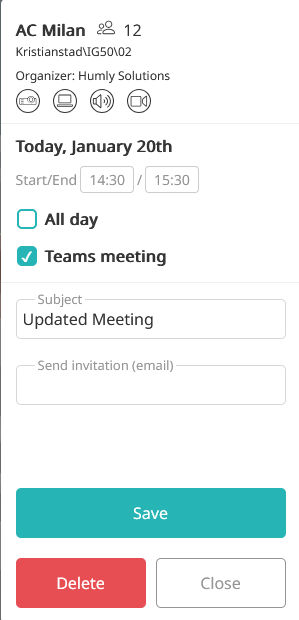
- Adjust Start Time - Click on the start time field and select your desired time
- Adjust End Time - Click on the end time field and select when the booking should end
- Add Subject - (Meeting rooms only) Enter a subject/title for your booking
- Add Attendees - (Meeting rooms only) Enter email addresses to send invitations
Tip: Only book the time you actually need to maximize resource availability for others.
Step 5: Enter Your PIN
- Click the Book button
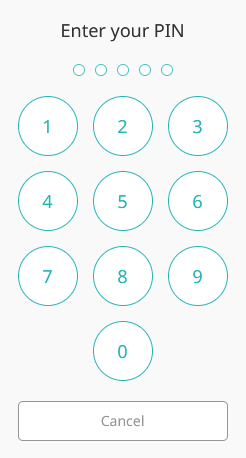
- The PIN entry screen appears with a numeric keypad
- Enter your personal PIN using the on-screen keypad
- The PIN displays as dots (•) for security
PIN Entry Tips:
- Enter digits carefully - you won't see the actual numbers
- Use the delete button (←) to remove the last digit if you make a mistake
- When you reach the required number of digits, the PIN submits automatically
Step 6: Confirm Success
After entering your PIN:
- The system verifies your PIN
- If correct, the booking is created immediately
- A success message appears briefly
- The resource changes to red (booked) on the floor plan
- The booking syncs to your calendar system
Error Handling:
- If your PIN is incorrect, an error message appears
- You can try again or click Cancel to abort the booking
- After 3 failed attempts, contact your administrator
Important: If check-in is required for the booked resource, make sure to confirm the meeting (check in) on the Humly Device outside the meeting room.
Modifying or Canceling an Existing Booking
You can change the time or details of your bookings:
Step 1: Find Your Booking
- Use the date filter to navigate to the booking date
- Look for red (booked) resources
- Click on the resource that contains your booking
Note: You can only modify bookings that you created, unless the resource settings allow users to edit or delete any meeting without authentication.
Step 2: Open Booking Details
- Open the booking dialog to view the current booking information
- Edit the meeting details as needed and click Update or Save, or choose to delete the meeting.
- If the booking was created by someone else, you may not be able to edit or delete it, and an error message will appear.
- You can adjust the start time, end time, subject, or attendees.
- Click Update or Save to apply your changes.
Step 4: Enter Your PIN
- The PIN entry screen appears
- Enter your PIN to confirm the changes
- The booking is updated immediately
Confirmation
- Success message appears
- Updated booking reflects on the floor plan
- Calendar invitations are updated (if attendees were modified)
Searching for Resources
The Interactive Floor Plan provides powerful search capabilities:
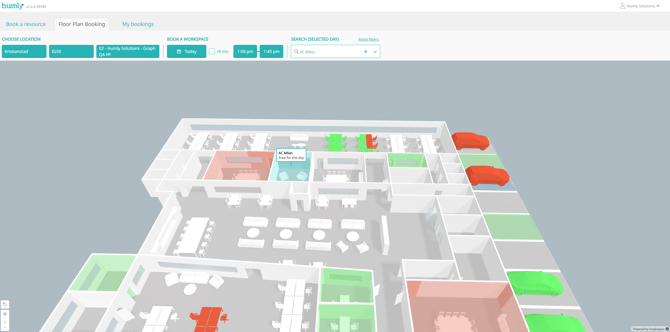
Search by Resource Name
- Click the search field at the top of the screen
- Start typing the resource name (e.g., "Conference Room A")
- Matching resources appear in a dropdown list
- Select the resource from the list
- The floor plan automatically zooms to that resource
- A marker appears showing the resource location and status
Search for Colleagues (if enabled)
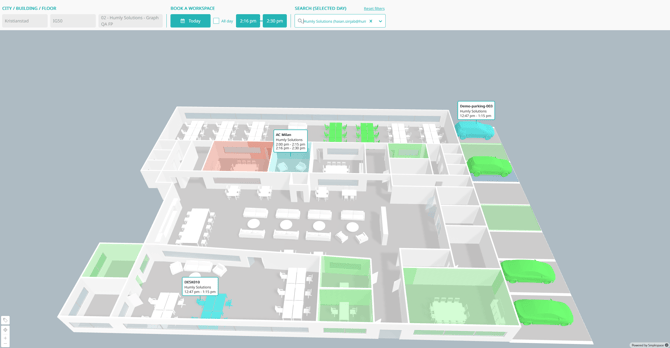
If privacy settings allow, you can find colleagues' bookings:
- Click the search field
- Type a colleague's email address
- Select from the dropdown suggestions
- The floor plan shows all resources they've booked
- Markers display booking times and resource names
Privacy Note: This feature may be disabled by your administrator to protect user privacy.
View Automatic Reset
Interactive Floor Plan kiosks automatically reset the view after a period of inactivity to protect privacy and ensure the screen is ready for the next user.
How Auto-Reset Works
Inactivity Timer: 45 Seconds
- The timer starts when you stop interacting with the screen
- Any touch, click, or interaction resets the timer
What Happens on Reset:
- All open dialogs close (booking dialog, PIN entry)
- Search filters are cleared
- Floor plan view returns to default position/zoom
- Any partially entered information is discarded
- The screen is ready for the next user
Avoiding Accidental Reset
If you need more time to complete a booking:
- Touch the screen occasionally to keep it active
- Complete your booking promptly
- Work through booking steps without long pauses
Tip: Have your PIN ready before starting the booking process to complete it quickly.
Tips for Efficient Booking
Quick Booking Tips
Have your PIN ready - Memorize it or have it accessible
Book only what you need - Don't reserve longer than necessary
Use search - Faster than browsing large floor plans
Act quickly - Avoid long pauses while booking.
Best Practices
Plan ahead - Book recurring needs in advance
Be realistic - Book appropriate durations
Cancel unused bookings - Free up resources for others
Invite attendees - Send calendar invitations for meetings
Note the location - Remember where your booked resource is