
Background
QR Booking allows users to book resources (such as desks or meeting rooms) instantly by scanning a QR code with their mobile device. This feature provides a flexible alternative for resources that do not have a dedicated Humly Room Display or Booking Device.
When a user scans the code, they are directed to the Humly Reservations interface to complete an instant booking or view current availability.
Table of contents:
- Common Use Cases
- Admin Guide: Enabling & Managing QR Codes
- User Guide: How to Book
- Availability Scenarios & Booking Logic
- Technical Details
- Troubleshooting
Common Use Cases
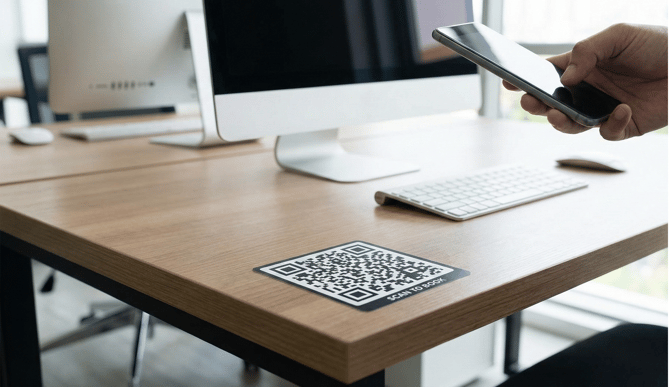
Desks: Apply a QR code sticker directly to the desk surface. This allows employees to claim a free spot immediately upon arrival.
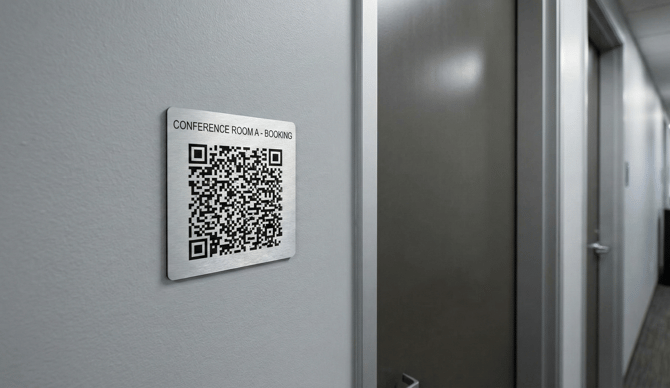
Meeting Rooms: Mount a QR code label on the wall or glass next to the room entrance. This enables ad-hoc booking for impromptu meetings without needing to open a laptop.
Parking Space: Affix a QR code to the parking post or wall. Drivers can claim the spot on the spot for instant parking, skipping the manual search in their booking software.
-jpg.jpeg?width=670&height=409&name=unnamed%20(1)-jpg.jpeg)
Admin Guide: Pre-Requisites & Managing QR Codes
This section covers how to locate and distribute QR codes for your resources.
Prerequisites
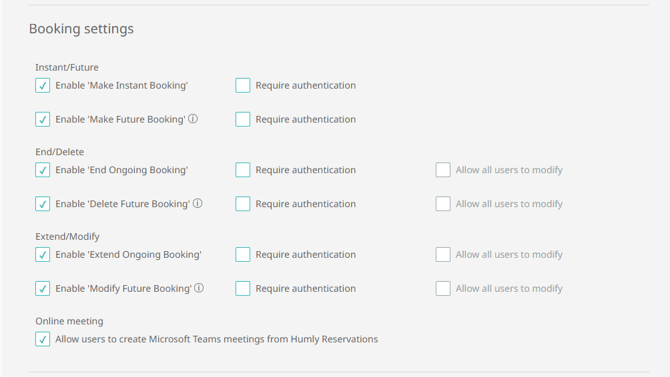
Before using QR codes for booking, ensure the resource has instant booking enabled:
- Navigate to the resource settings in Humly Control Panel
- Go to Booking Settings section
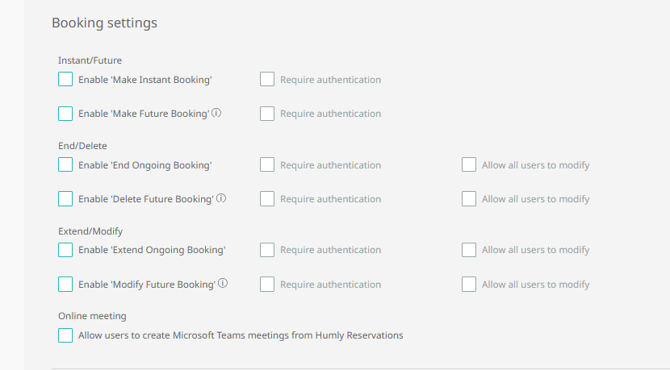
- Enable "Enable 'Make Instant Booking'" checkbox
- Save changes
Note: Without Enable Make instant booking enabled, non-admin users will not be able to book instant meetings using the QR code.
Managing QR codes
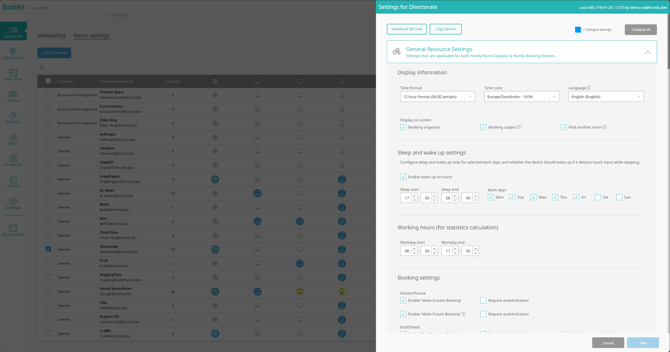
- Log in to the Humly Control Panel
- Navigate to Rooms or Desks settings
- Select the specific resource you wish to configure
- Click Edit Selected
- Access the QR code options at the top of room settings
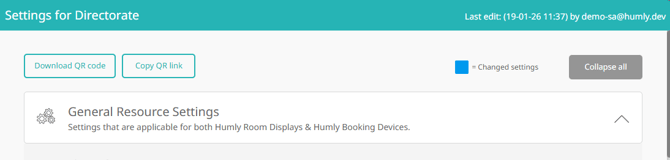
Options for Generating Codes
You have two options for deploying QR codes:
Option 1: Download QR Code
Clicking Download QR Code downloads a pre-generated PDF file optimized for printing.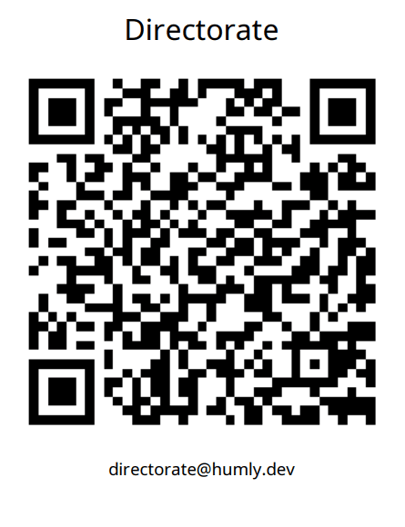
PDF Layout:
- Top: Room alias (resource name)
- Center: QR code (300×300 pixels)
- Bottom: Room email address
File Specifications:
- PDF page size: 340×440 points (approximately 4.72" × 6.11")
- QR code image: 300×300 pixels
- Color: Black and white
- Error correction: High (Level H)
Filename Format: The file is automatically named to help you identify the location:
{Country}-{City}-{Building}-{Floor}-{ResourceName}.pdf
Example:
Sweden-Stockholm-Sveagatan-05-P2-Room_30.pdf
Note: Spaces in names are replaced with underscores.
Option 2: Copy QR Link
Clicking Copy QR Link copies the direct resource URL to your clipboard.
Example URL:
https://12345.humly.cloud/sl/abc123
You can use this link with any third-party QR code generator to create your own codes.
Important: Each link ends with a unique 6-character code specific to that resource. This code never changes, so the link remains valid even if you modify the resource details (such as the name or location) later.
QR Code Persistence
The QR code is static and tied to the unique resource ID. This means:
- You can update the resource name without reprinting the QR code
- You can move the resource to a different location without reprinting
- You can change the resource email without reprinting
- You only need to download a new file if you want the updated resource name or email reflected on the printed PDF
The underlying link will continue to work regardless of these changes.
User Guide: How to Book
Step 1: Scan & Authenticate
- Scan the QR code located at the desk or room using your mobile device camera
- You will be redirected to Humly Reservations
- If you are not already logged in, you will be prompted to log in to the Humly Control Panel
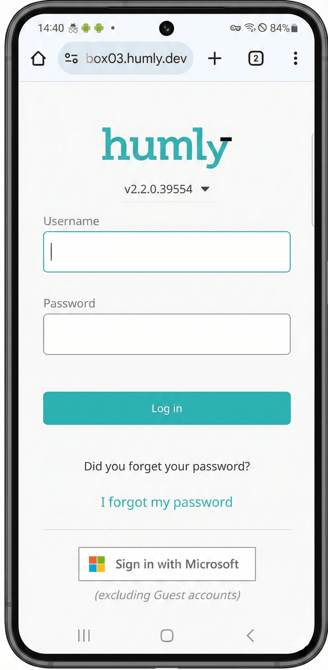
Step 2: Instant Booking
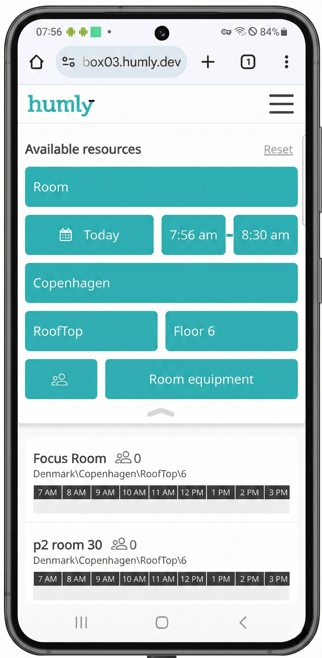
Once logged in, the system assesses the availability of the resource in real-time. If the resource is Available, a booking dialog appears automatically with the start time set to Now.
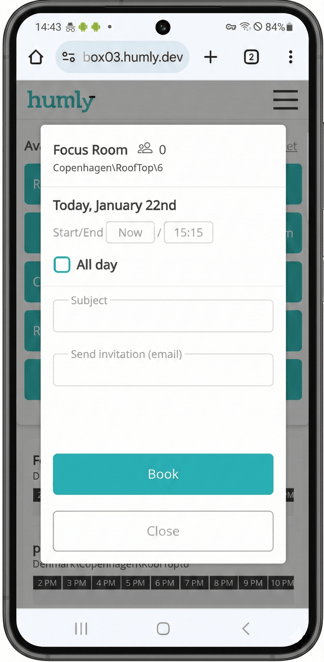
Default End Time Calculation
The system automatically calculates the end time for instant meetings by rounding the current time UP to the nearest 15-minute interval, then adding 30 minutes.
Example:
- You scan at: 14:43 as seen in the image above.
- Start time rounds up to: 14:45
- Default end time: 15:15 (30 minutes later)
Conflict Handling
If a future meeting blocks the default 30-minute window, the system adjusts the end time to an earlier 15-minute mark.
Example:
- Current time: 15:35pm
- Upcoming meeting: 16:15 - 17:15
System Logic:
- Start time rounds up to: 15:45
- Adding 30 minutes would push to: 16:15 (exactly when next meeting starts)
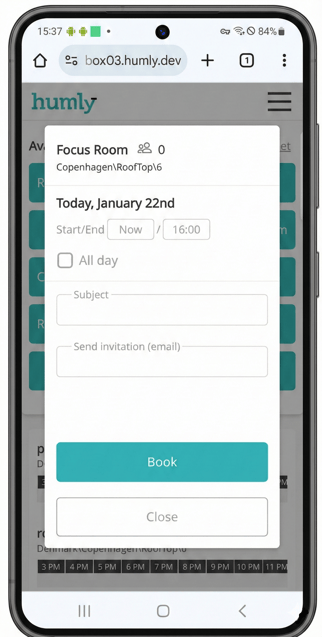
Note: This is just a default safety buffer. You can manually edit the end time in the dialog and extend it up to 16:15 to fill the entire available gap.
Availability Scenarios & Booking Logic
The interface changes depending on the status of the resource and who booked it.
Scenario A: Resource Already Booked by Another User
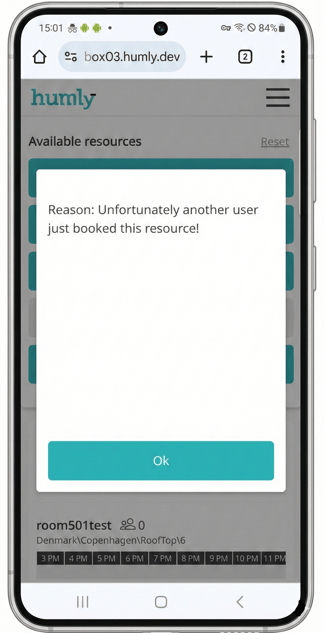
If the resource is currently in use by another person, or if a future meeting is scheduled to start so soon that it overlaps with the minimum possible end time of a new instant meeting, the system prevents the booking.
What you see:
- An error or status modal indicating the resource is "Already Booked" or busy
- No instant booking option available
Scenario B: Resource Already Booked by You
If the resource is currently booked by you:
- The system recognizes you as the owner
- You are redirected to the My Bookings tab in Humly Reservations
- The Edit Booking modal opens automatically
- You can extend or modify your meeting as seen below
Technical Details
Short Link Format
URL Pattern:
https://{cloud ID OR DOMAIN name}/sl/{code}
Code Format:
- Length: 6 characters
- Characters: Lowercase alphanumeric (a-z, 0-9)
- Pattern:
/^[a-z0-9]{6}$/
Example:
https://xxxxx.humly.cloud/sl/abc123
Query Parameters (After Redirect)
When the short link redirects to the booking interface, it includes these parameters:
| Parameter | Description | Example Values |
|---|---|---|
resource |
Resource identifier (email or ID) | room123@company.com |
resourceType |
Type of resource | room, desk, parking_space |
open |
Auto-open booking modal | true |
Full Redirect Example:
https://xxxxx.humly.cloud/reservations?resource=room123@company.com&resourceType=room&open=true
PDF File Structure
Page Dimensions:
- Width: 340 points
- Height: 440 points
Layout Elements:
-
Top Section (60pt from top):
- Resource alias (room name)
- Font size: 24pt
- Alignment: Center
- Max length: 30 characters (truncated with "...")
-
Center Section:
- QR code image: 300×300 pixels
- Positioned: 20pt from sides, calculated from top
- Error correction: High (Level H)
-
Bottom Section (35pt above QR code):
- Resource email address
- Font size: 14pt
- Alignment: Center
- Max length: 35 characters (truncated with "...")
Colors:
- Background: White (RGB: 255, 255, 255)
- QR code/text: Black (RGB: 0, 0, 0)
Short Link Generation
Deterministic Algorithm:
- Each resource gets a unique code based on its ID and properties
- Uses SHA-256 hash with resource ID and type as input
- Converts hash to 6-character alphanumeric code
- If collision detected, adds resource properties (email, name, etc.) as salt
- Guarantees uniqueness across all resources
Troubleshooting & Common Issues
QR Code Not Scanning
- Ensure adequate lighting when scanning
- Clean the camera lens on your mobile device
- For printed codes: ensure QR code is not wrinkled, faded, or damaged
- Recommended print size: At least 300×300 pixels for best results
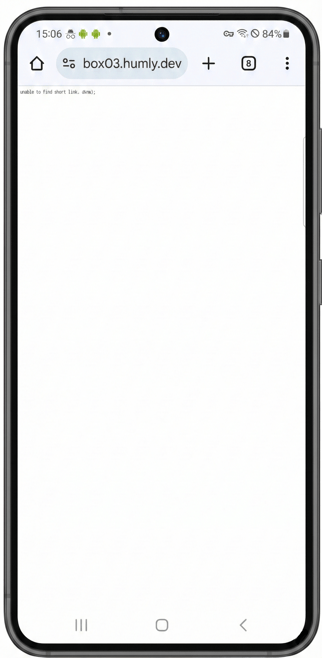
"Unable to find short link" Error
- This error appears when scanning a QR code for a resource that has been deleted from the system
- Solution: Generate a new QR code if the resource was recreated, or remove the old QR code sticker
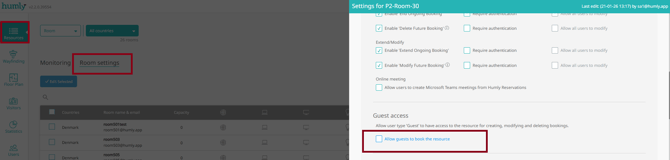
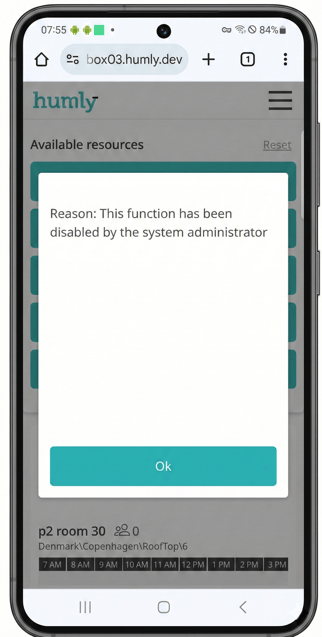
Instant Booking pop-up not available after scanning as guest user
- Ensure that the global admin user has enabled allow guests to book resource in the resource settings.
Function disabled by administrator error
- Tell the admin user to enable all the required resource settings to allow you to create, edit or delete a booking.
Redirect Issues
- Clear browser cache and cookies
- Try scanning with a different device or browser
- Ensure you have network connectivity
- Verify the Humly Control Panel URL is accessible
PDF Download Not Working
- Check browser pop-up blocker settings
- Ensure sufficient storage space on your device
- Try a different browser if the issue persists
Getting Help
If you continue experiencing issues:
- Contact your Humly administrator
- Provide the resource name and QR code URL
- Include screenshots of any error messages
- Specify the device and browser you're using
Best Practices
For Administrators
QR Code Placement:
- Mount at eye level (approximately 1.5m / 5ft) for easy scanning
- Ensure adequate lighting in the area
- Avoid placing on reflective surfaces that may cause glare
- Use weather-resistant materials for outdoor or high-humidity areas
Labeling:
- Include the resource name on or near the QR code for visual confirmation
- Consider adding simple instructions: "Scan to book this room"
- For desks: attach QR codes to a visible, stable surface
Maintenance:
- Periodically check QR codes for wear and tear
- Replace faded or damaged codes promptly
- Keep a digital record of which codes are deployed where
For End Users
Booking Etiquette:
- Only book resources you intend to use immediately
- Release bookings if plans change to free up the resource
- Be mindful of the default 30-minute duration and adjust as needed
- Check existing bookings before scanning to avoid conflicts