
Background
Available from Humly Version 2.5
The Self-Hosted Perpetual License is a license type for customers running Humly Control Panel (HCP) on their own infrastructure rather than Humly's cloud. Unlike Humly's other licenses, it does not expire in the traditional sense. Once uploaded, it remains valid indefinitely. Instead of an expiration that revokes access, it carries a validity date that defines a cut-off: HCP itself, and the firmware running on your Humly devices, must have been released on or before that date to be covered.
In practice, this means the Self-Hosted Perpetual License answers one question continuously in the background: "Is what I'm currently running old enough to be covered by what I purchased?" If yes, everything behaves normally. If a newer HCP build or device firmware version appears one released after your license's validity date the system holds it back rather than silently installing something outside what you're licensed for.
This license is only relevant for self-hosted deployments. It has no meaning in Humly's Cloud-hosted mode, and every check described in this article is automatically skipped there.
Table of Contents
- Common Use Cases
- Admin Guide: Installing & Managing the License
- How the License Affects Devices & Bookings
- License Status Scenarios & System Behavior
- Technical Details
- Troubleshooting & Common Issues
- Best Practices
Common Use Cases
1. On-premises deployments without cloud connectivity requirements A customer runs HCP entirely on their own servers and wants a license model that doesn't depend on continuous validation against Humly's cloud portal.
2. Long-term infrastructure planning Because the license is perpetual, an organization purchasing it is not committing to a recurring renewal purely to keep the system running but the validity date still governs which HCP/firmware releases they can move to without a corresponding license extension.
3. Controlled upgrade environments An admin who does not want HCP or device firmware to silently jump to versions released after a certain date (for change-control or compliance reasons) gets that boundary automatically enforced by the license's validity date, rather than needing to manage it manually.
4. Firmware rollout awareness Where automatic firmware acquisition and rollout are enabled, the license transparently prevents the system from pulling in firmware released after the validity date — without an admin needing to babysit every automatic upgrade cycle. (See the confirmed gap under Troubleshooting for the one rollout path this does not yet cover.)
Admin Guide: Installing & Managing the License
Prerequisites
- HCP must be running in self-hosted mode (not Cloud-hosted mode). The license and all its checks are inactive in Cloud mode.
- You need the license file provided by Humly for your installation, except you can fetch the licenses directly from our cloud licensing portal.
Uploading the License
- Go to Settings → Licenses in HCP.
- Use the license upload control to add your Self-Hosted Perpetual License file.
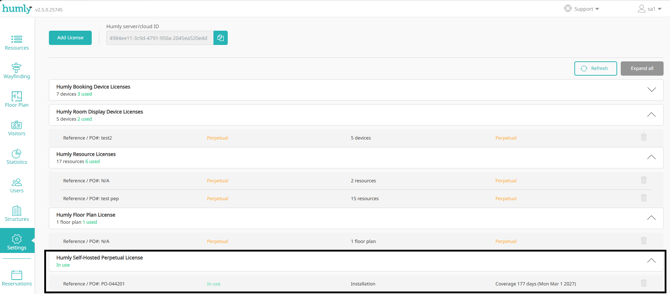
- Once uploaded, the license appears in the License panel under its own entry.
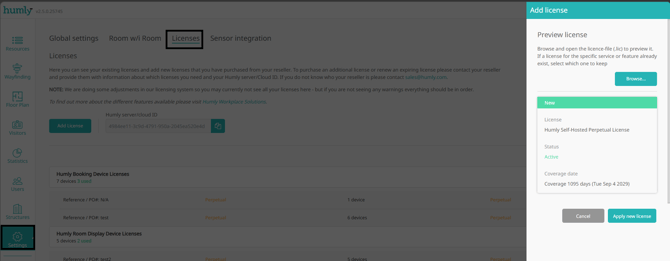
If you hold multiple Self-Hosted Perpetual Licenses at once, HCP always evaluates coverage against whichever one has the latest validity date. The others are effectively dormant as far as coverage checks go. There is currently no UI indication of which license is the one actually in effect when more than one exists: see Troubleshooting.
Configuring Firmware Settings
The Self-Hosted Perpetual License interacts directly with HCP's firmware settings, found under Settings → Firmware:
| Setting | Purpose |
|---|---|
| Firmware URL | Read-only. The portal endpoint HCP queries for firmware metadata (defaults to https://api.humly.cloud) |
| Firmware search location | Remote (query the portal) or Local (read a local firmware folder on the HCP server). |
| Maximum simultaneous firmware downloads | Caps how many devices can be transferring firmware at once (range 5–50, default 20). |
| Enable automatic firmware upgrade | Master switch for both automatic firmware acquisition into HCP and automatic rollout to devices. |
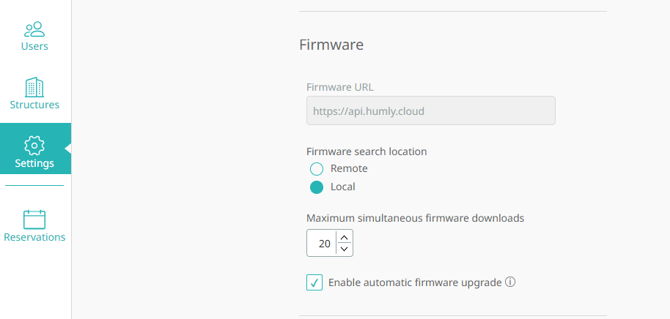
With automatic firmware upgrade enabled, HCP runs two independent background jobs:
- Acquisition — every 30 minutes, loads the latest available firmware for each device type currently in use into HCP (from the portal or the local folder, per the search-location setting).
- Rollout — every 5 minutes, pushes any already-acquired firmware to eligible online, idle devices.
Both are subject to the license's coverage check at the acquisition stage — see Technical Details.
How the License Affects Devices & Bookings
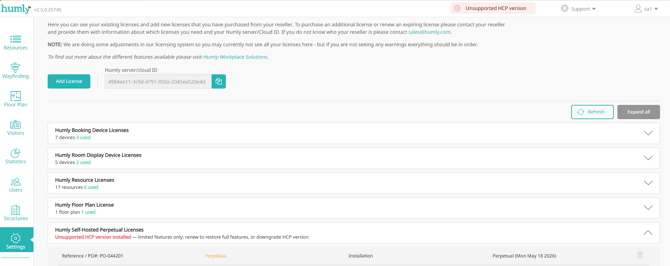
HCP version coverage. Every HCP build has a release date stamped into it at build time. If a Self-Hosted Perpetual License is present, that release date must fall on or before the license's validity date. If it doesn't:
- HCP is flagged internally as running an unsupported version.
- The License panel shows: "Unsupported HCP version installed — limited features only; renew to restore full features, or downgrade HCP version."
- Newly assigned resources are not activated (rooms/desks added to a structure while the HCP version is uncovered are created inactive, regardless of whether license capacity is otherwise available).
Device firmware coverage. Each connected device reports its firmware version. If that version was released after the license's validity date, the device is flagged with an "unsupported license" warning, and:
- Booking operations initiated from that device are blocked: The device receives an authentication-level error (Unsupported Device Version) rather than being allowed to create/modify a booking.
- Manual or bulk firmware upgrade actions targeting that device's firmware type are blocked before any upgrade command is issued, if the stored firmware itself isn't covered.
Firmware acquisition. HCP will not download or load any firmware version whether from the portal, the delivery network, or a local folder whose embedded release date is after the license's validity date. This applies equally to the automatic 30-minute acquisition job and to a manual "check for updates" action.
License Status Scenarios & System Behavior
| Scenario | HCP Behavior | Firmware Acquisition | Device Bookings | New Resource Activation |
|---|---|---|---|---|
| No Self-Hosted license present, on-prem | No restrictions — treated the same as before this license type existed | Unrestricted | Unrestricted | Governed only by normal license capacity |
| Self-Hosted license present, HCP version covered, firmware covered | Normal operation | Latest covered firmware acquired automatically | Unrestricted | Governed only by normal license capacity |
| Self-Hosted license present, HCP version not covered | "Limited features only" banner shown in License panel | Not affected by this specific check | Not affected by this specific check | Blocked — new resources activate only when both capacity allows and HCP version is covered |
| Self-Hosted license present, device firmware not covered | No global banner; per-device warning only | That firmware type is skipped during acquisition | Blocked for that specific device | Not affected |
| Running in Cloud-hosted mode | Self-Hosted license (if any) is ignored entirely | Unrestricted | Unrestricted | Unrestricted |
| Multiple Self-Hosted licenses uploaded | Only the one with the latest validity date is evaluated; others are inert | Governed by the latest-validity license | Governed by the latest-validity license | Governed by the latest-validity license |
Technical Details
How coverage is determined. Both HCP version coverage and firmware version coverage work the same way: a release date is compared against the license's validity field. The release date is on or before the validity date → covered. After it → not covered. If a release date can't be determined at all, the system defaults to treating it as covered — coverage checks fail open, not closed, when the date is missing.
Where the firmware release date comes from. It's embedded directly in the firmware version string as YYYY-MM-DD_vMAJOR.MINOR.PATCH.BUILD (the imx6solotinto firmware family uses underscores in the date instead of dashes: YYYY_MM_DD_v...). This applies to both remotely-fetched firmware and firmware loaded from a local folder. Local files must follow the same device-type-specific filename convention (e.g. hrd-image-imx6dlhrd1-2025-03-14_v1.31.0.12.uhupkg) for the embedded date to be read correctly.
Firmware delivery paths. When "Remote" search is selected, HCP queries the Firmware URL (default https://api.humly.cloud) for metadata. Depending on that response, the actual firmware image is delivered one of two ways:
- Via the Humly Delivery Network (HDN) — HCP never downloads the image itself, it asks HDN to cache and serve it, and records the firmware as "Downloaded" without the file ever existing locally in HCP.
- Direct download — HCP downloads and stores the image locally, then serves it to devices from that local copy.
Either way, the license coverage check happens before either path is triggered — an uncovered version is filtered out before HDN is ever asked to cache it and before any local download begins.
Scheduler cadence:
| Job | Interval | Gated by license |
|---|---|---|
| Automatic firmware acquisition | Every 30 minutes | Yes |
| Automatic firmware upgrade rollout (push to devices) | Every 5 minutes | No — see Troubleshooting |
| Device auto-upgrade eligibility window | Device must have reconnected within the last 3 hours | N/A |
Manual firmware checks. The "check for updates" action available from the device monitoring view applies the same license filter as the automatic job, but does so silently. An uncovered firmware version simply doesn't appear as available; no explicit "blocked by license" message is shown to the admin in the UI. Confirmation that a version was filtered is only visible in the server logs.
Troubleshooting & Common Issues
"A device stopped being able to book/check in" Check whether that device's firmware version was released after your Self-Hosted Perpetual License's validity date. If so, this is expected behavior, the device is blocked from device-initiated booking operations until either its firmware is rolled back to a covered version or the license is renewed/replaced with a later validity date.
"HCP shows 'Unsupported HCP version installed' and features feel limited" The installed HCP build was released after your license's validity date. Either downgrade to a covered HCP version or obtain a license with a later validity date. Note this also silently blocks activation of any newly assigned resources until resolved.
"A device shows as upgradeable but I don't see any firmware loaded in HCP" This is expected when firmware is being served via the Humly Delivery Network rather than downloaded locally a firmware record can be fully "Downloaded" and available to devices without a matching file existing on the HCP server's disk.
"I dropped a new firmware file in the local folder and nothing happened" Two silent failure modes to check first:
- The filename doesn't match the exact pattern required for that firmware type: HCP won't recognize it at all.
- The version number in the filename isn't higher than what's already loaded: HCP sees nothing new to acquire. If the filename and version are correct but the firmware's embedded release date is after your license's validity date, HCP will also silently skip it. Check the server logs for a line noting the skip, since nothing is surfaced in the UI.
Known gap: automatic upgrade rollout is not license-checked. The 5-minute rollout scheduler that pushes already-downloaded firmware to devices does not itself verify license coverage. It relies entirely on acquisition having already filtered out uncovered versions. In the normal case this is safe, since uncovered firmware is never acquired in the first place. However, if a firmware version was acquired while covered, and the license situation later changes so that version becomes retroactively uncovered (e.g. replaced by a license with an earlier validity date), the already-downloaded firmware can still be pushed to devices, since the rollout step has no license awareness of its own.
"An expired Self-Hosted license row still says 'Perpetual'" The License panel's status label logic currently shows "Perpetual" for a Self-Hosted license row even when that license is in an expired state, rather than showing "Expired." This is working as designed, it does not affect actual coverage enforcement, only the label shown.
Best Practices
For Administrators
- Before upgrading HCP to a new version, confirm its release date falls within your license's validity date. An uncovered upgrade will put HCP into limited-features mode.
- If you maintain multiple Self-Hosted Perpetual Licenses, be aware only the one with the latest validity date is actually in effect; remove or replace superseded ones rather than accumulating them, since there's no UI indicator of which is active.
- When testing or validating license coverage behavior in a non-production environment, use the server logs (not the UI) to confirm whether firmware was filtered by the license. Several of these checks are silent by design.
- Treat the "automatic upgrade rollout is not license-checked" gap as a reason to periodically re-verify device firmware coverage manually if your license's validity date or the license itself changes after firmware has already been acquired.
For End Users / Device Operators
- If a device suddenly stops allowing bookings, this may be a license coverage issue rather than a device fault, check the device's firmware version against your organization's license validity date before troubleshooting further.