
Humly Visitor – Microsoft Teams Integration
This guide describes how to configure Microsoft 365 and Power Automate to automatically forward Humly Visitor check-in notifications to Microsoft Teams. Two delivery options are available depending on the customer's needs:
- Personal chat – each host receives a private Teams message when their visitor checks in
- Channel notification – all check-ins are posted to a shared Teams channel
Both options use the same foundation: an Exchange transport rule that copies all Humly check-in emails to a shared mailbox, and a Power Automate flow that monitors that mailbox and posts to Teams.
Prerequisites
Before starting, ensure the following are available:
- Microsoft 365 admin access (Exchange Admin Center and Microsoft 365 Admin Center)
- Power Automate access (included in most Microsoft 365 plans)
- A user account with a Teams license to connect Power Automate (e.g. a dedicated service account)
- For the personal chat option: all hosts must have a Teams license and a Teams account matching their Humly email address
Step 1: Create a Shared Mailbox
A shared mailbox will receive a copy of every Humly check-in notification, regardless of which host the visitor selected. This is required for both delivery options.
- Go to Microsoft 365 Admin Center: https://admin.microsoft.com
- Navigate to Teams & groups > Shared mailboxes
- Click Add a shared mailbox and create it with an appropriate name and email address, for example:
visitor-notifications@yourcompany.com - After creating the mailbox, click Edit members and add the service account that will be used for Power Automate
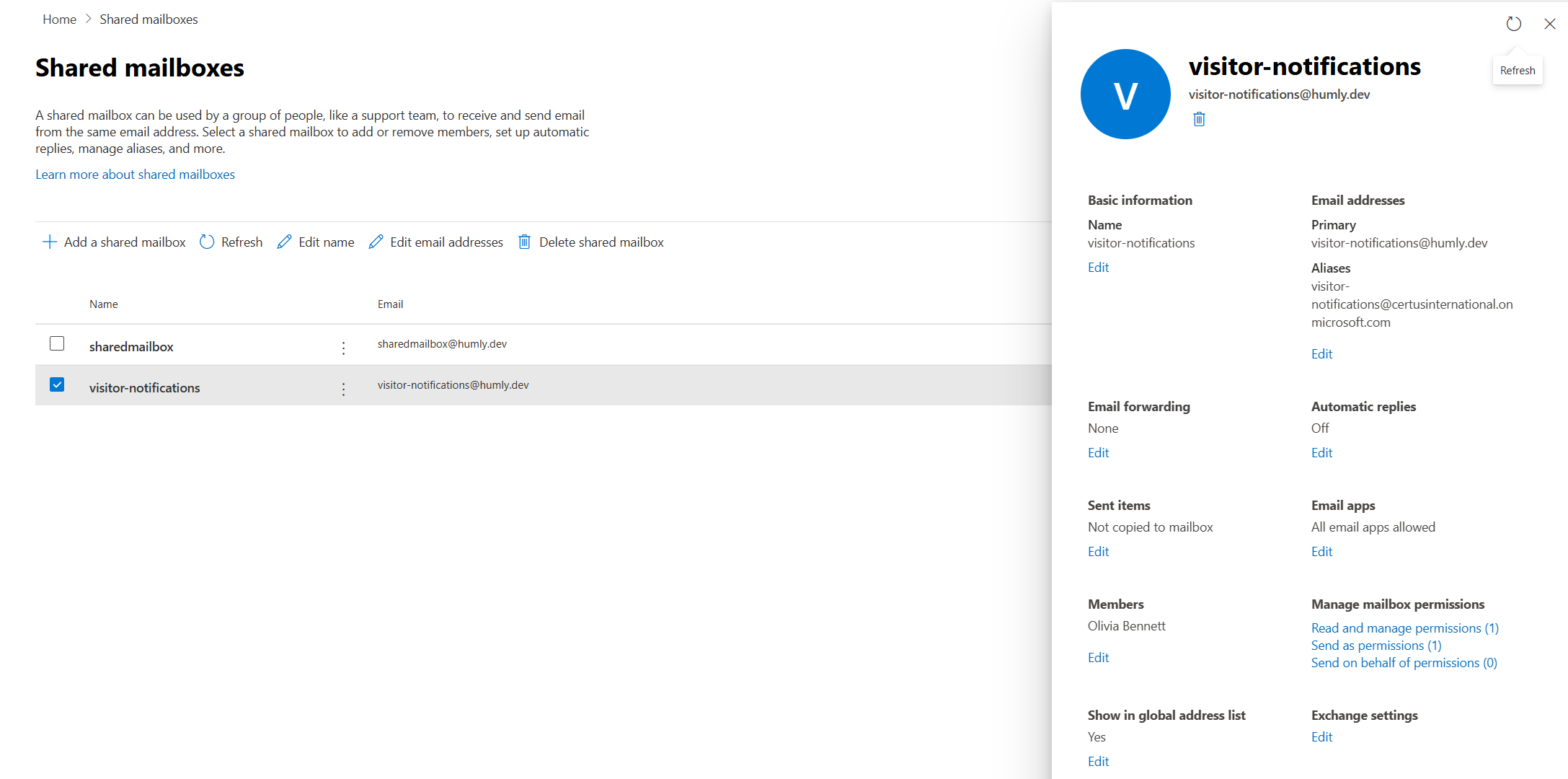
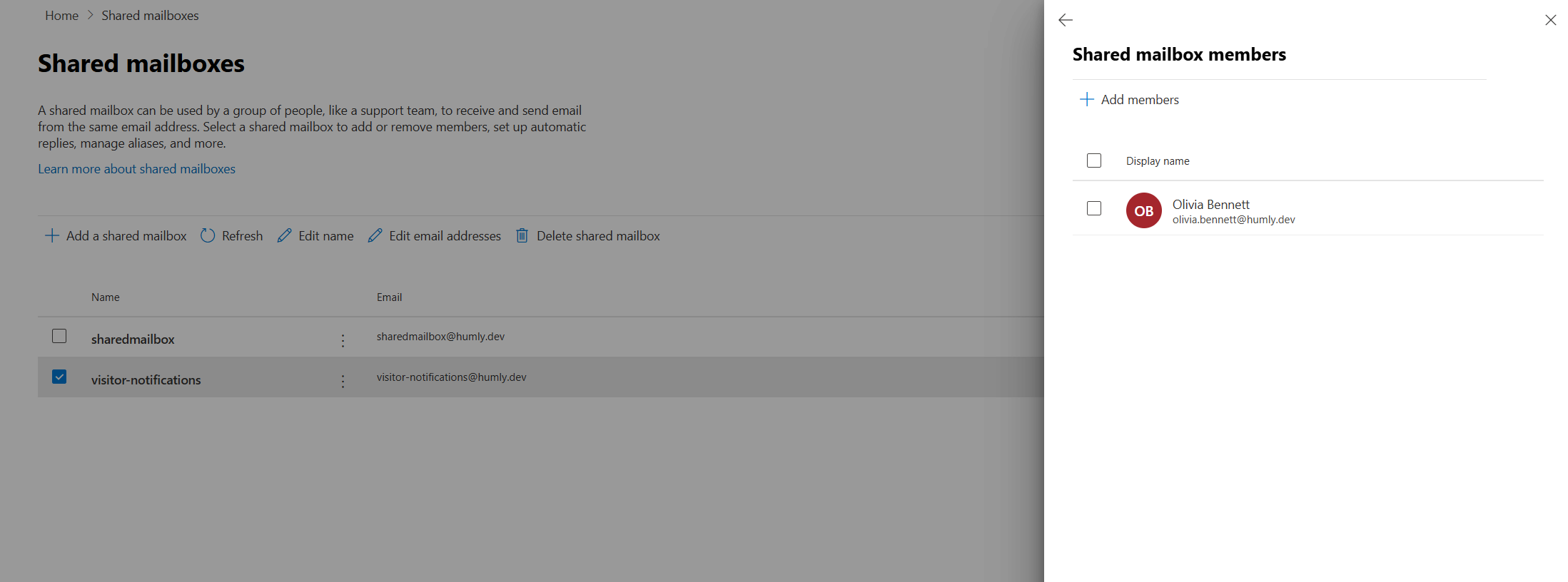
Note: The service account added as member must have a Microsoft 365 / Teams license, as it will be used to authenticate Power Automate and post messages in Teams.
Step 2: Create an Exchange Transport Rule
This rule automatically BCC's every Humly check-in notification to the shared mailbox. It applies to all users in the organization, so no individual configuration is needed per host.
- Go to Exchange Admin Center: https://admin.exchange.microsoft.com
- Navigate to Mail flow > Rules and click Add a rule > Create a new rule
- Configure the rule with the following settings:
| Field | Value |
|---|---|
| Name | Humly - Forward check-in to shared mailbox |
| Apply this rule if | The subject matches: Hello! You have a visitor who just checked in and is waiting for you. |
| Do the following | Add recipients > to the Bcc box: visitor-notifications@yourcompany.com |
| Mode | Enforce |
| Severity | Low |
- Click Finish and then enable the rule from the Rules list
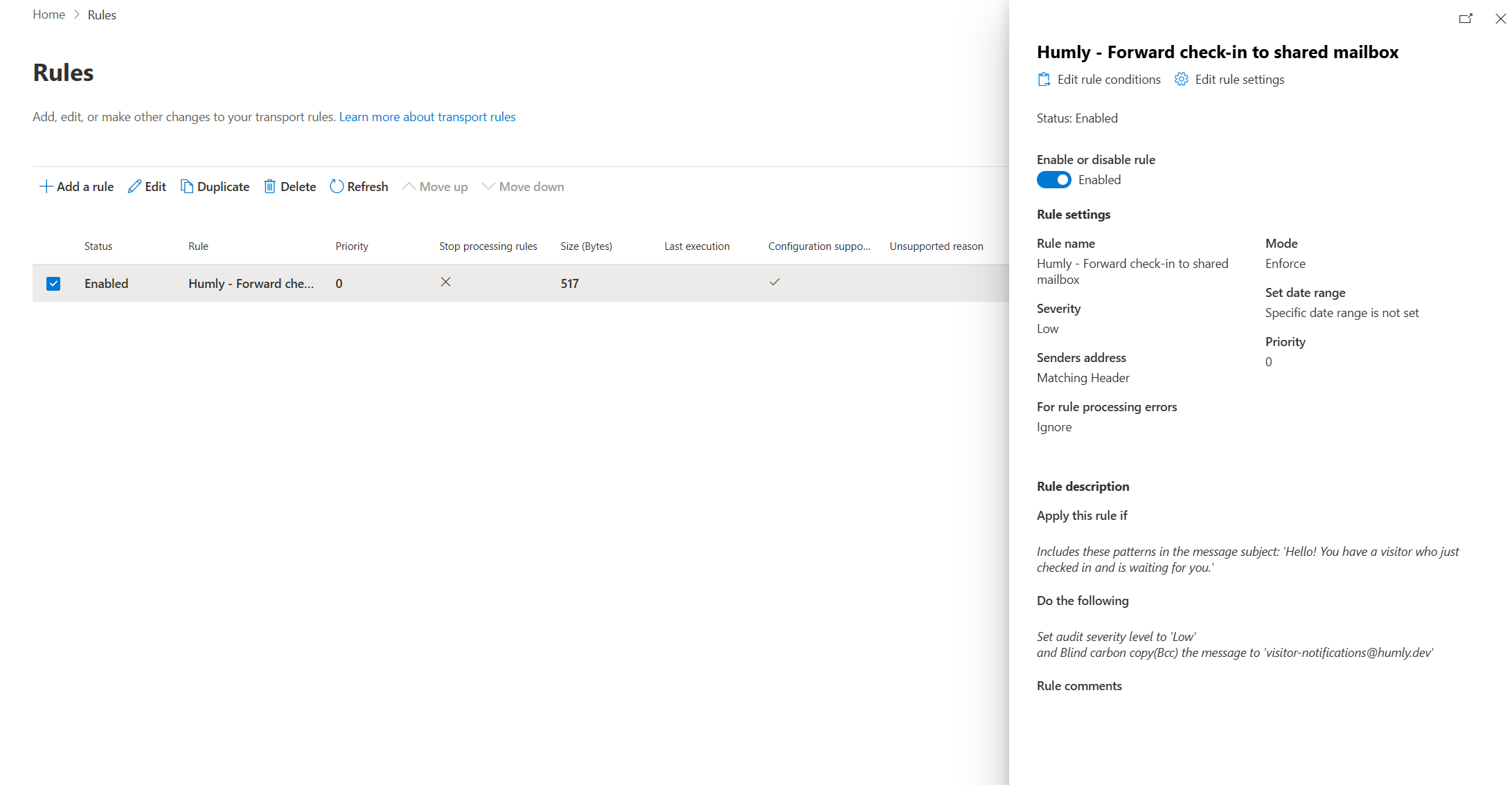
Note: The host will still receive their own email notification as normal. The BCC only adds a silent copy to the shared mailbox.
Step 3: Create a Power Automate Flow
Power Automate monitors the shared mailbox and posts a message in Teams whenever a new check-in notification arrives. Follow the steps below, then choose either Option A or Option B depending on the desired delivery method.
- Go to Power Automate: https://make.powerautomate.com
- Click Create > Automated cloud flow
- Give the flow a name, e.g. Humly - Visitor Check-in, and search for shared mailbox
- Select the trigger: When a new email arrives in a shared mailbox (V2) from Office 365 Outlook
- Click Create to open the flow editor
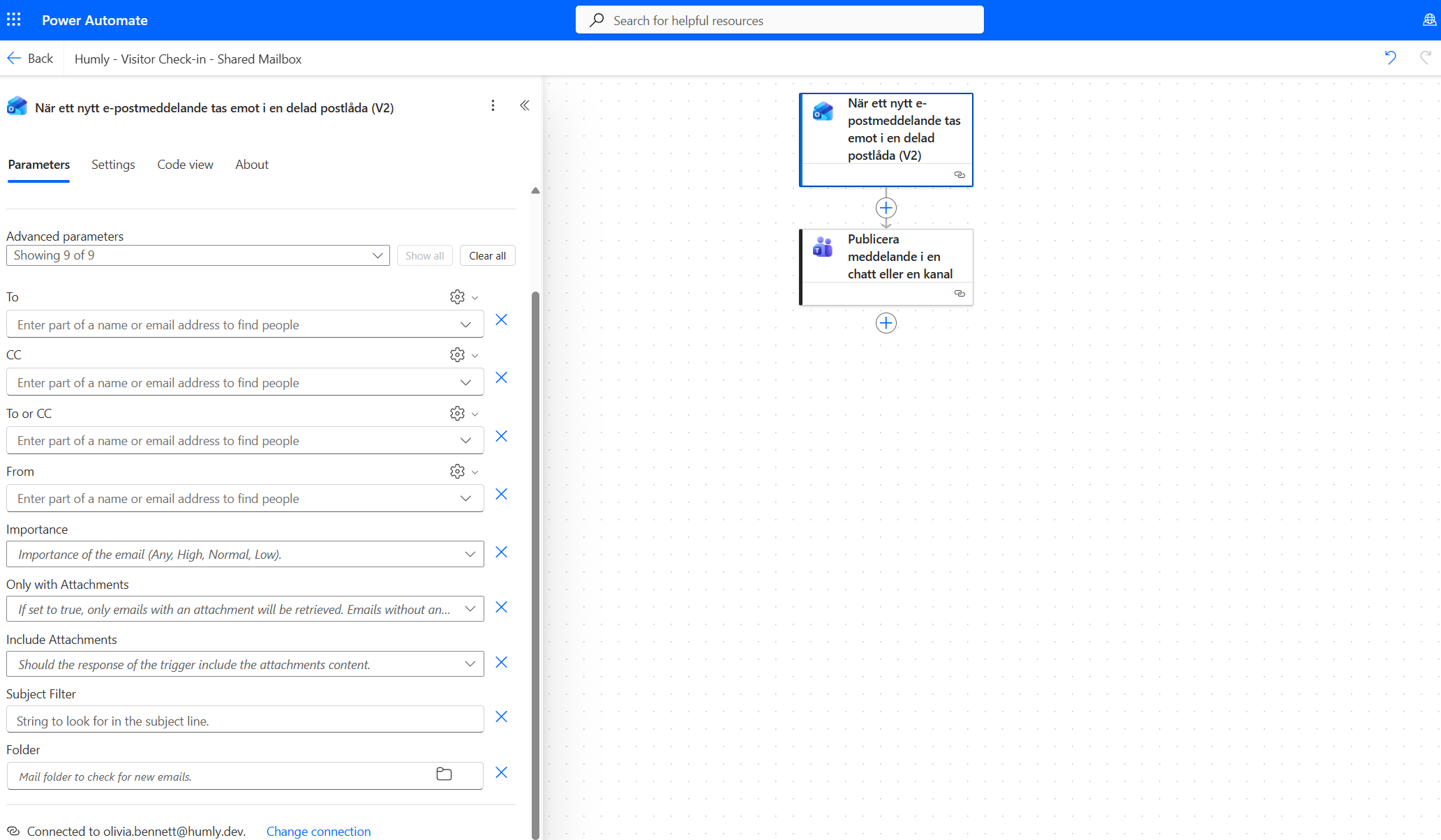
Configure the trigger
- Connect with the service account that has access to the shared mailbox (click Change connection if needed)
- Set Original Mailbox Address to:
visitor-notifications@yourcompany.com - Click Show all advanced parameters and set Subject filter to:
Hello! You have a visitor who just checked in and is waiting for you. - Set From to the Humly sender address (e.g. your configured Humly service account)
- Leave Folder empty — this monitors the inbox of the shared mailbox automatically
Option A: Personal Chat Notification (Recommended)
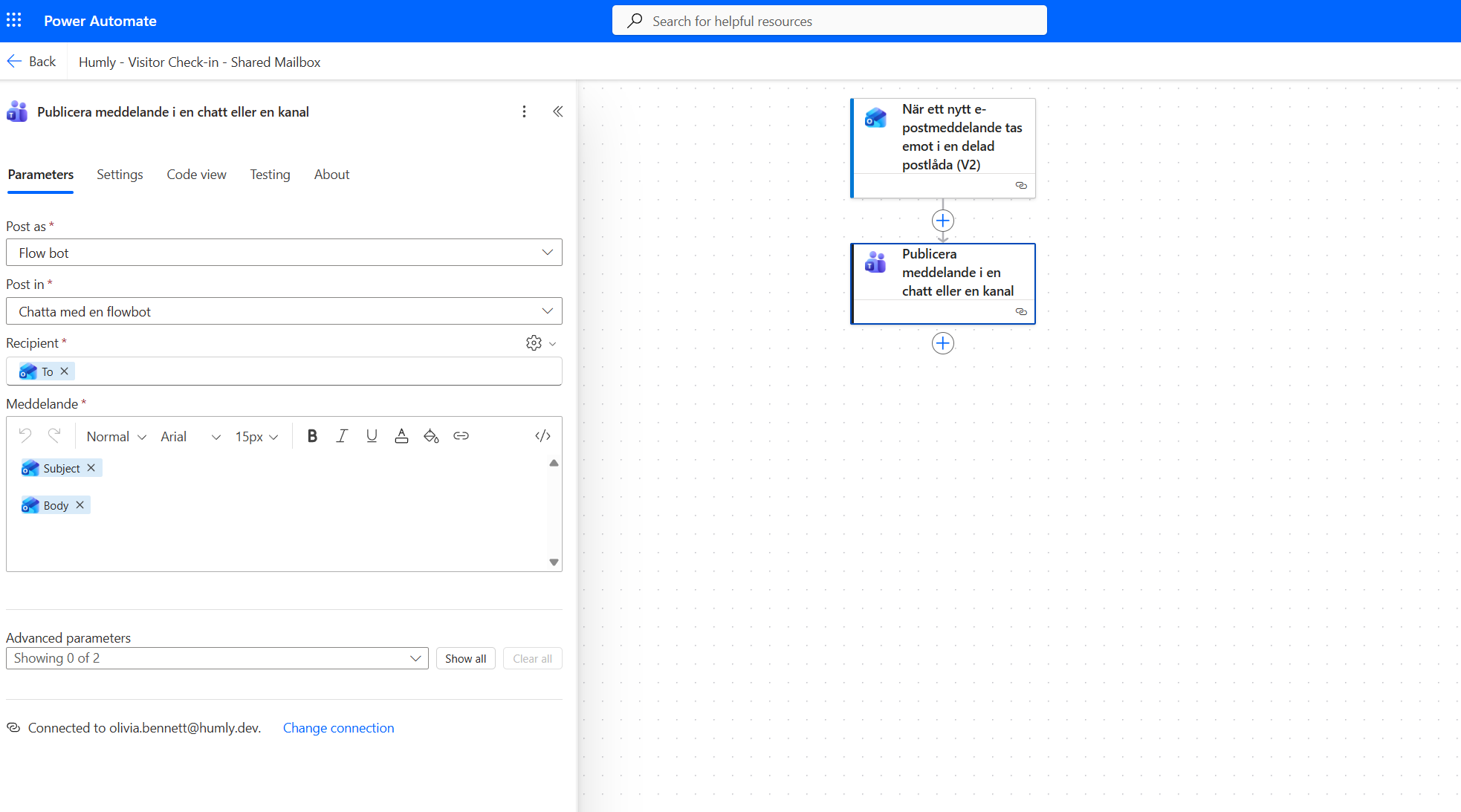
Each host receives a private Teams message directly from the Flow bot when their visitor checks in. Power Automate automatically extracts the host's email address from the Humly notification and routes the message to the correct person.
- Click + below the trigger and search for Post a message in a chat or channel (Microsoft Teams)
- Configure the action as follows:
| Field | Value |
|---|---|
| Post as | Flow bot |
| Post in | Chat with Flow bot |
| Recipient | Select the dynamic field To from the email trigger — this is the host's email address |
| Message | Enter a message text and use the dynamic field Body from the email trigger to include visitor details |
- Click Save to activate the flow
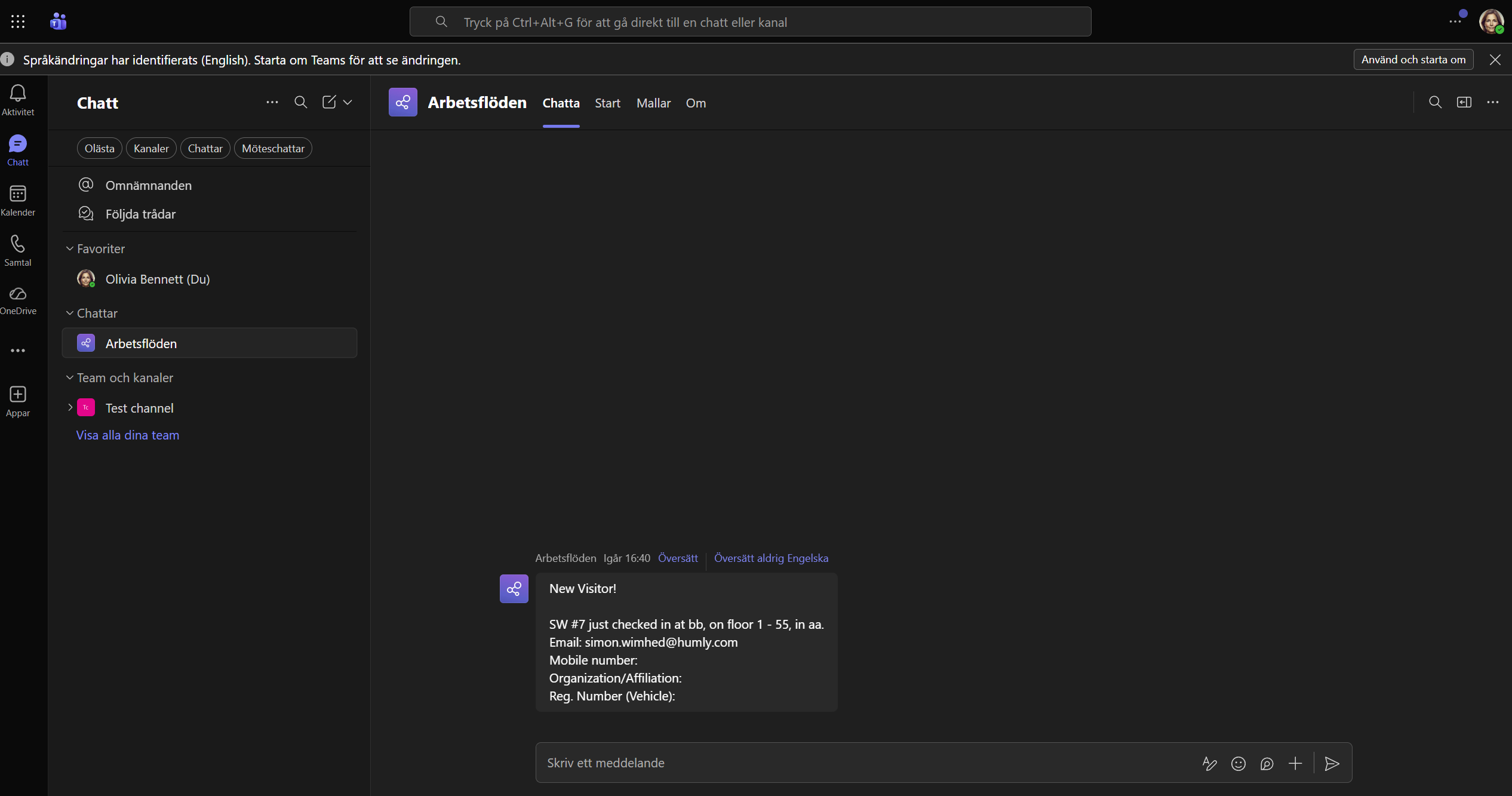
Note: This option requires that each host has an active Teams account with the same email address they are registered with in Humly Visitor. Hosts without a Teams license will not receive the notification.
Option B: Shared Channel Notification
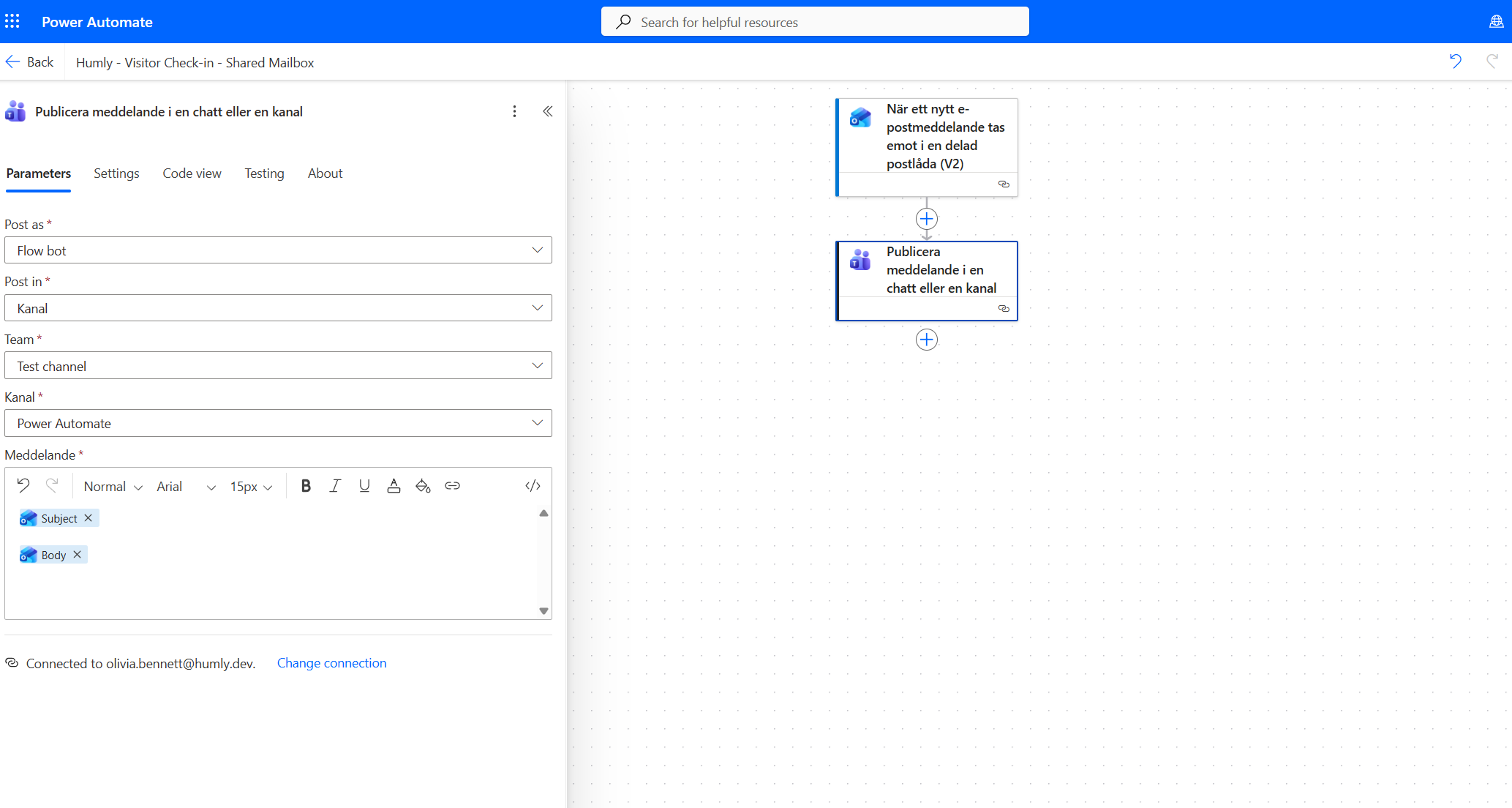
All check-in notifications are posted to a shared Teams channel. This is useful when a team or reception desk should have visibility of all visitor arrivals, regardless of who the host is.
- Click + below the trigger and search for Post a message in a chat or channel (Microsoft Teams)
- Configure the action as follows:
| Field | Value |
|---|---|
| Post as | Flow bot |
| Post in | Channel |
| Team | Select your Teams team |
| Channel | Select your Teams channel |
| Message | Enter a message text and use the dynamic field Body from the email trigger to include visitor details |
- Click Save to activate the flow
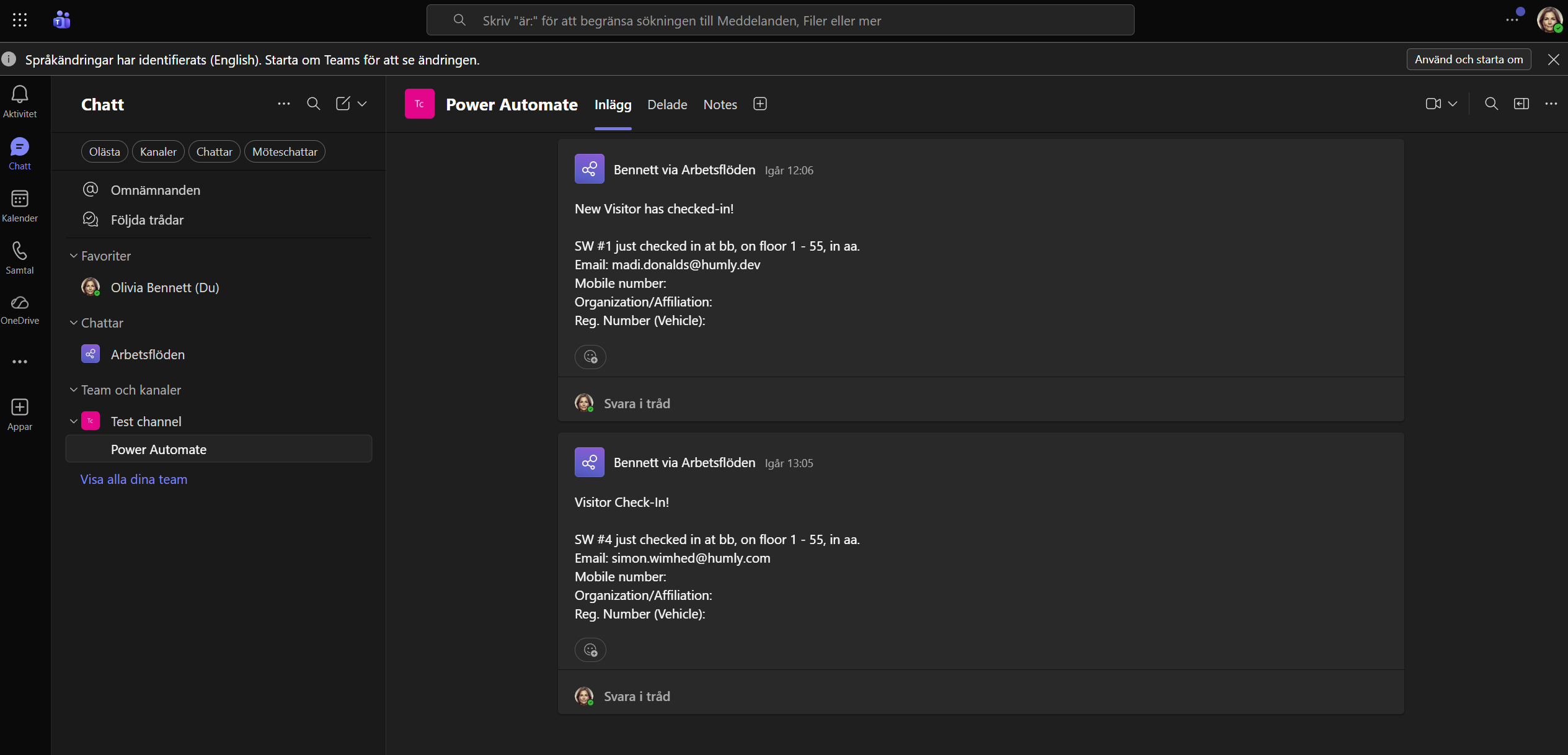
Note: The Teams message will be posted as [name] via Workflows, where [name] is the connected service account. This is expected behavior.
Troubleshooting
No message appears in Teams after a check-in
- Check that the email arrived in the shared mailbox
Log in to outlook.office.com with the service account and open the shared mailbox. If the check-in email is not there, the Exchange transport rule is not working — continue to next step. - Verify the Exchange transport rule is enabled
Go to Exchange Admin Center > Mail flow > Rules and confirm the rule has Status: Enabled. Note that newly created rules can take up to 30 minutes to take effect. - Check the Power Automate flow run history
Go to Power Automate > My flows, open the flow and check Run history. A failed run will show an error message indicating which step failed. - Verify the subject filter matches exactly
The subject filter in both the Exchange rule and the Power Automate trigger must match the Humly notification subject exactly, including punctuation:Hello! You have a visitor who just checked in and is waiting for you.
Option A: Host does not receive a personal Teams message
- Verify that the host has an active Teams account with the same email address as registered in Humly Visitor
- Verify that the host has an active Teams license
- Check that the Recipient field in the Power Automate action uses the dynamic To field from the email trigger — not a hardcoded address
Option B: The flow runs but no channel message is posted
- Verify that the service account connected to the Teams action has access to the target team and channel
- Re-authenticate the Teams connection in Power Automate: open the flow, click the Teams action and click Change connection
The shared mailbox does not appear in the Power Automate trigger
- Make sure the service account has been added as a member of the shared mailbox in Microsoft 365 Admin Center
- Use the trigger When a new email arrives in a shared mailbox (V2) — not the standard email trigger, which only monitors personal mailboxes
- Type the shared mailbox address manually in the Original Mailbox Address field if it does not appear in the dropdown
Notifications stopped working after working previously
- Power Automate connections can expire. Go to Power Automate > My flows, open the flow and re-authenticate both the Outlook and Teams connections
- If Humly has updated the subject line format of check-in emails in a product update, the subject filter in both the Exchange rule and the Power Automate trigger must be updated to match the new format
Notes and Limitations
- Option A (personal chat) requires all hosts to have an active Teams license. Hosts without a license will not receive the notification.
- Option B (channel) does not require individual Teams licenses for hosts, but all check-ins are visible to everyone in the channel.
- Both options can be combined by adding two Teams actions to the same flow — one for personal chat and one for a channel.
- The customer owns and maintains the Power Automate flow and Exchange rule. Humly does not support these components.
- If Humly changes the subject line format of check-in notifications in a future update, the subject filter and Exchange rule must be updated accordingly.