
The Monitor Sync feature in the Humly Control Panel gives administrators a clear, per-room view of whether each room is successfully syncing with the connected booking system. It adds a sync-status indicator for every room so that a room which has stopped syncing is immediately visible, instead of silently falling out of sync in the background.
Table of Contents
- Common Use Cases
- What Monitor Sync Is
- Why It Exists
- Sync Status Indicators
- Where to Find It
- Booking System Support
- Best Practices
- Troubleshooting
Common Use Cases
- Quickly confirming that all rooms are syncing correctly with the booking system after initial setup or after adding new rooms.
- Spotting a single room that has stopped syncing — for example after its mailbox address changed or its permissions were lost — without having to check each room manually.
- Diagnosing a reported booking problem by seeing, per room, whether the issue is a sync failure and what the underlying error is.
What Monitor Sync Is
Monitor Sync adds a sync-status column to the room monitoring view in the Humly Control Panel. Each room gets its own status indicator that reflects the current state of its synchronisation with the booking system. When a room fails to sync, its indicator changes and a tooltip explains what went wrong, so administrators can identify and act on the specific room and the specific cause.
Why It Exists
Previously, if an individual room stopped syncing with the booking system, there was no clear per-room signal in the Humly Control Panel — the room could quietly fail to update while everything appeared normal. This typically happened when a room's email (SMTP) address changed, when the service account lost permission to the room, or when the room resource was removed on the booking-system side.
Monitor Sync surfaces these situations at the room level, so that a single failing room stands out immediately while all healthy rooms remain clearly marked as working.
Sync Status Indicators
Each room displays one of three sync statuses:
- Synced (green): The room is syncing correctly with the booking system. No action is needed.
- Sync error (red): The room failed to sync. Hovering over the indicator shows a tooltip with the error details — including a timestamp and the specific reason reported by the booking system (for example, a permissions or impersonation error). This is the status to investigate.
- Deactivated (grey): Sync monitoring is not active for the room, for example because the room has been deactivated. This is an expected state and does not indicate an error.
- No sync / not applicable (empty circle): The room has no external booking system to sync against — this is shown for Standalone rooms, where Humly itself is the booking backend. There is no sync state to report, so this is an expected state and not an error.
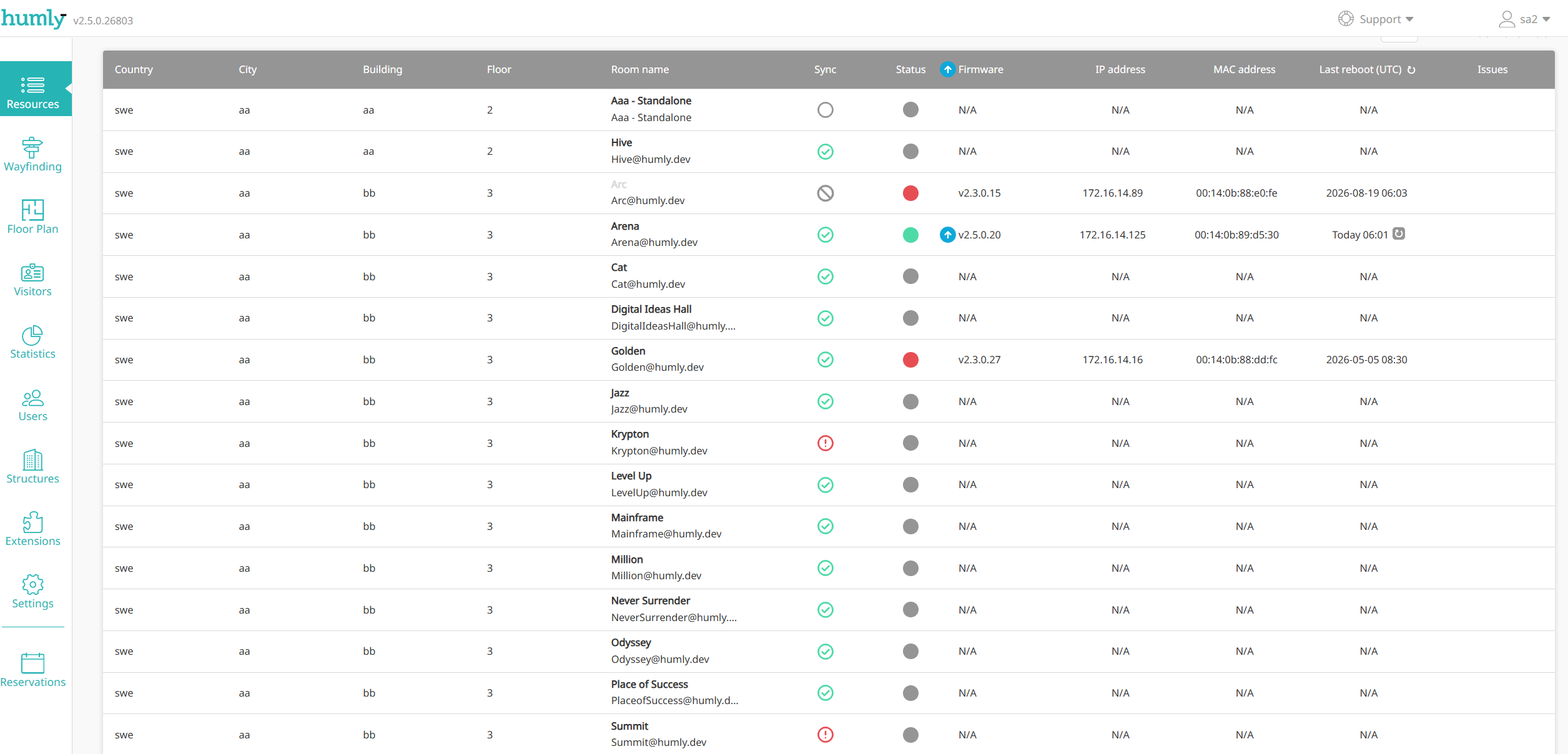
Where to Find It
The sync-status column appears in the room monitoring view in the Humly Control Panel, alongside the other per-room information. No additional configuration is required — the status is populated automatically as rooms sync.
Booking System Support
The sync-status column is shown for booking systems where sync status can be tracked at the individual room level:
- Shown: Microsoft Exchange (on-premise), Microsoft Graph / Microsoft 365, Google, and Standalone.
- Not shown: Nexudus, Appspace and TopDesk. For these systems the sync operation does not support resource-level status tracking, so the column is intentionally hidden rather than showing a status that could be misleading.
Best Practices
- Check the sync-status column after onboarding or changes. After setting up the integration or adding rooms, confirm that all rooms show the green synced status.
- Read the tooltip before acting. When a room shows a red sync error, the tooltip names the underlying cause — start troubleshooting from that message rather than guessing.
- Treat a grey (deactivated) status as expected. It reflects a room that is not actively being monitored, not a failure.
- Use it as a first diagnostic step for booking issues. If a user reports that a room's bookings aren't appearing, the sync status quickly tells you whether a sync failure is the cause.
Troubleshooting
A room shows a red sync error
- Hover over the indicator to read the tooltip — it includes a timestamp and the specific reason reported by the booking system.
- A permissions or impersonation error usually means the service account can no longer access that room's mailbox or resource. Verify the service account still has the required access to the room.
- If the room's email (SMTP) address or resource was changed or removed on the booking-system side, the address Humly syncs against no longer matches. Confirm the room's address/resource and update it if needed.
The sync-status column is not visible at all
The column is intentionally hidden for Nexudus and Appspace, because sync status cannot be tracked per room for those booking systems. If you are using one of these, this is expected behaviour.
All rooms show a sync error at once
A failure affecting every room usually points to an integration-wide problem rather than a single room — for example an expired credential or client secret, or a service account that has lost access entirely. Check the booking-system connection settings and credentials in the Humly Control Panel.