
Background
Automatic firmware upgrade keeps your devices on the latest firmware without any manual action. When Humly Control Panel downloads a newer firmware version, it rolls that version out to your devices gradually, a few at a time, and only when each device is least likely to be in use.
The feature is available from Humly Control Panel 2.5.0.
Prerequisites
- Humly Control Panel 2.5.0 or later
- Firmware available in Humly Control Panel, either downloaded automatically or uploaded manually
- Devices online
Admin Guide
Enabling automatic firmware upgrade
Navigate to Settings > Global settings > tick Enable automatic firmware upgrade.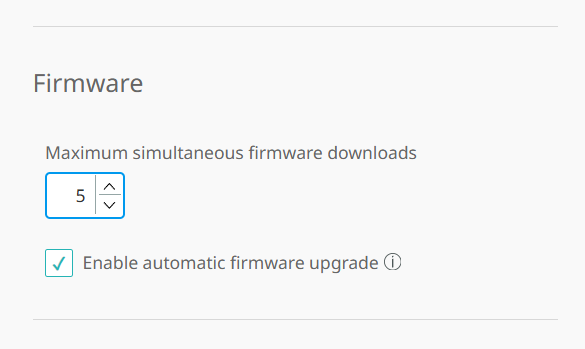
Once enabled, Humly Control Panel checks every five minutes for devices that need upgrading. No further action is required.
Controlling how many devices upgrade at once
In the same section, set Maximum simultaneous firmware downloads. This limits how many devices download firmware at the same time, so your network is not saturated during a rollout.
The value can be between 5 and 50. The default is 20.
Note: Devices beyond the limit are not skipped. They are picked up automatically as earlier downloads finish.
How devices are selected
A device is upgraded when all of the following are true:
- It is online
- It has connected within the last three hours, meaning it recently woke or restarted
- It is running an older firmware version than the one available
Upgrading shortly after a device wakes is the least disruptive moment, which is why the three-hour window exists. A device that has been running longer than that waits until it next wakes, typically the following morning.
Devices already on the latest version, or on a newer version, are left alone. Devices that are offline or sleeping are upgraded after they next connect.
Upgrade statuses
While a rollout is in progress, the Firmware column on the Resources page shows each device's state:
| Status | Meaning |
|---|---|
| Downloading | Receiving the firmware file |
| Retrying to download | Downloading again after a failed attempt |
| In queue for retrying | Waiting for a free slot to retry after a failure |
| Upgrading | Installing the firmware and restarting |
A green tick means the device is on the latest available firmware.
When a device cannot be upgraded
If an upgrade fails, Humly Control Panel retries automatically. After three failed attempts, it stops trying and leaves the device on its current firmware.
This is intentional. It prevents a device that cannot accept a particular firmware version from restarting repeatedly.
The device is included again automatically when either of the following happens:
- A newer firmware version becomes available
- An administrator starts an upgrade for that device manually, from the device's row on the Resources page
Note: Manual upgrades are always available and are not affected by the automatic schedule.
Troubleshooting
New firmware has been published but Humly Control Panel has not picked it up. Firmware is collected every 30 minutes. To collect it immediately, use the Upgrade available link in the Monitoring header. Note that restarting Humly Control Panel restarts the 30-minute timer rather than triggering a check.
No firmware is offered at all. Confirm the Enable automatic firmware upgrade is ticked firmware is not collected while it is off.
A device is online but has not upgraded. Check when it last restarted. Only devices that connected within the last three hours are selected. A device that has been running longer waits until it next wakes.
A device shows "Retrying to download". A download attempt failed and Humly Control Panel is trying again. Up to three attempts are made.
A device has stopped upgrading and remains on older firmware. Three attempts have failed and the device has been left alone deliberately. It will be included again when newer firmware arrives, or immediately if you start the upgrade manually from its row.
Only some devices are upgrading at once. This is the Maximum simultaneous firmware downloads limit. The remaining devices upgrade on later cycles.
Best practices
- Leave automatic firmware upgrade enabled so devices stay current without administration
- Adjust the Maximum simultaneous firmware downloads as per your network speed, and if it is a constrained network, leave the maximum devices to 5.