
Background
Note: This feature is only available from Humly 2.5 version
Many meetings happen on a regular rhythm, such as a weekly team call, a monthly review or a daily stand up. Without recurring reservations, each of those meetings has to be booked separately, which takes time and is easy to forget.
Recurring reservations let you describe that rhythm once. Humly Reservations then creates every occurrence, keeps them in step with the room's calendar, and sends guests one invitation for the whole series. Catering and custom requests can also be ordered for a series, so the supplier receives one clear summary instead of one email per meeting.
Each occurrence appears in the calendar and on the booking screens, so anyone looking at the room or desk sees the same schedule.
Table of Contents
- Common Use Cases
- Admin Guide: Enabling & Managing Recurring Reservations
- User Guide: Booking a Recurring Reservation
- Notification Scenarios & Email Logic
- Technical Details
- Troubleshooting & Common Issues
- Best Practices
Common Use Cases
Weekly team meeting: The same room every Tuesday from 10:00 to 11:00 for three months.
Monthly board meeting: The first Monday of every month, ending on a set date.
Daily standing meeting: A 15 minute slot every weekday for a project period.
Recurring catering: A series with catering ordered for every occurrence.
Regular desk booking: A desk held on the same days each week, if recurring reservations are enabled for that desk.
Admin Guide: Enabling & Managing Recurring Reservations
What you need
Recurring reservations are available for rooms and desks connected to Microsoft 365, Exchange, Google Calendar, or Humly Reservations standalone rooms (no external booking system).
They are not available with Nexudus, Topdesk or Appspace. On those systems, a user who tries to repeat a booking sees "Recurring reservations are not supported by this booking system."
Turning recurring reservations on or off
- Open the room or desk settings in HCP and go to Recurring reservations.
- Tick or untick "Allow users to create recurring reservations from Humly Reservations", then save.
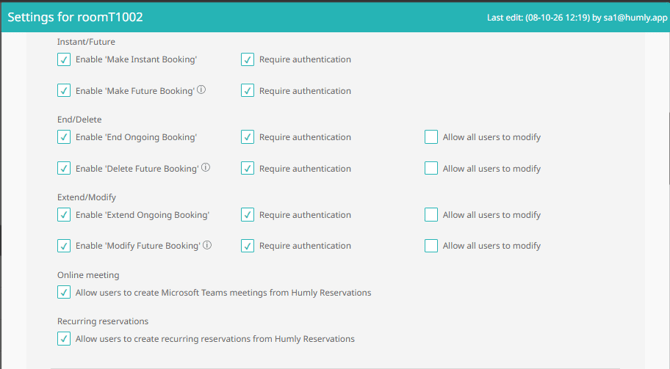
When it is switched off:
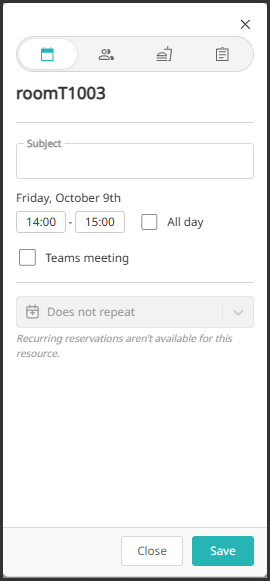
- Users cannot create a new recurring reservation on that room or desk. The repeat control stays visible but locked.
- Users cannot change the repeat pattern of an existing series on that room or desk.
- Existing series keep running. Their time, subject, guests and orders can still be edited, and they can be deleted.
Synchronization window
Recurring reservations are created only as far ahead as the synchronization window allows. The default is 365 days. A series must end inside that window, so use an end date or a number of occurrences rather than an open ended series.
Limits
- A repeat pattern can produce at most 2,000 meetings.
- A pattern that produces no meetings at all, for example a Wednesday pattern that ends on the Thursday of the same week, is refused.
User Guide: Booking a Recurring Reservation
Create a series
- Go to Humly Reservations and choose a room or desk and a time slot.
- In the Details tab, open the repeat selector and choose Does not repeat, Repeat daily, Repeat weekly, Repeat monthly, Repeat yearly, or Custom.
- Set the pattern in the Repeats window:
- Daily: every N days.
- Weekly: every N weeks, on the days you choose.
- Monthly: on a day of the month, or on a weekday position such as the first Monday or the last Friday.
- Yearly: on a day in a chosen month.
- Press Done. The summary line updates, for example "Every 2 weeks on Tue, Thu".
- Set when the series ends in the Ends window: On date (the chosen day is included) or After N occurrences. Press Done, then Save.
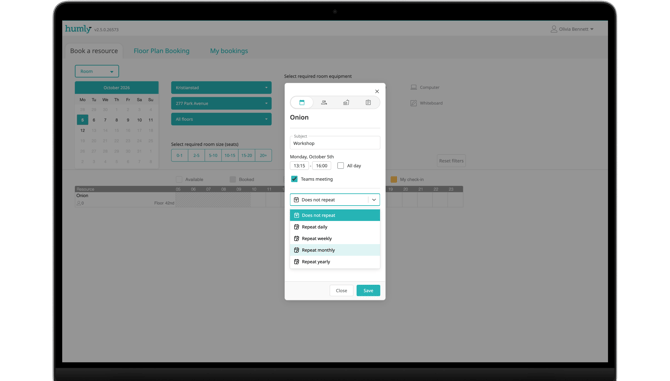
Below are the different dialog options for selecting the recurrence type and when it ends.
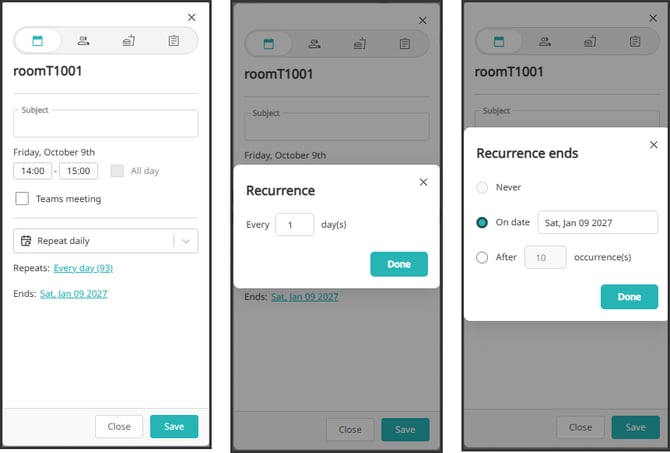
Note: changes in the Repeats and Ends windows apply only when you press Done. Pressing the close button discards them.
Choosing the start day
The series starts on the day you select if that day matches the pattern. If it does not, the series starts on the first day that does. A Monday booking set to repeat on Wednesdays begins on the first Wednesday, and the invitation starts on that day.
Edit a recurring reservation
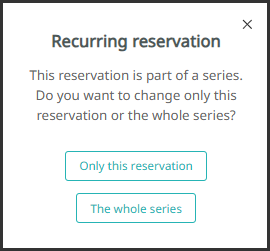
Open an occurrence and you are asked what to change:
- Only this reservation: changes that one occurrence only.
- The whole series: changes the occurrence you opened and every occurrence after it. Earlier occurrences are never changed.
What each change does:
| What you change | Scope | What happens |
|---|---|---|
| Subject, description, guests | The whole series | Upcoming occurrences update in place. Orders stay attached. |
| Time of day or length | The whole series | The series is split. Earlier occurrences keep their times. The new times start at the occurrence you opened. Orders on upcoming occurrences get new numbers. |
| Repeat pattern (frequency, interval, weekdays, end) | The whole series | The series is split, as above. |
| All day on or off | The whole series | The series is split. |
| Online meeting option | The whole series | Applies to the series. |
| Any change | Only this reservation | Changes only that occurrence. |
| Set to Does not repeat | The whole series | Past occurrences stay as history, upcoming ones are removed, and the opened one remains as a single booking. |
Important: when a series is split, its upcoming occurrences get new order numbers. The supplier is told the old orders are cancelled and the new ones placed.
Delete a recurring reservation
- Only this reservation: removes that occurrence. The rest of the series is kept, and the gap is not filled.
- The whole series: removes every upcoming occurrence and cancels their orders. Meetings that already took place are kept as history.
Orders on a recurring reservation
- Adding or changing an order with The whole series selected applies it from the opened occurrence onward.
- With Only this reservation selected, the order applies to that occurrence only.
- Opening the series shows the series' own orders, not those of a single occurrence.
Notification Scenarios & Email Logic
| Scenario | Who is notified | What they receive |
|---|---|---|
| Series created | Guests | One calendar invitation for the series. It states the repeat pattern and the first reservation. When the series ends inside the synchronization window, it also gives the last reservation and the total count. |
| Single occurrence changed | Guests | An update for that occurrence only. |
| Series changed in place (subject, guests) | Guests | One updated invitation for the series. |
| Series split (time, length, pattern, all day) | Guests | A cancellation of the old series or meeting, and an invitation for its replacement. |
| Series changed by someone else | The person who booked the series | One notification of the change. |
| Single occurrence deleted | Guests | A cancellation for that date. |
| Series deleted | Guests | A cancellation for the series. |
| Catering or custom request order on a series | Supplier notification address | One email per order type, room and supplier, covering the series. Sent after the series has settled, normally within a few minutes. |
| Order changed | Supplier | An updated order email only when something the supplier needs has changed, such as the time. |
| Order cancelled | Supplier | A cancellation for orders the supplier was already told about. |
Time zones: a series is calculated in the room's time zone. Across a daylight saving change, occurrences keep the same local time.
Technical Details
Where a series lives
Each series is stored as one recurring event in the connected calendar system, which expands the occurrences. Humly keeps a copy of each occurrence, so the booking screens and devices show the same schedule.
Time zone
Series are calculated in the room's time zone, not the booker's. An all day series covers whole days in the room's time zone.
Changes made directly in the calendar
Humly picks these up at the next synchronization.
Moved and removed occurrences
Humly remembers occurrences that were moved or removed individually, so a later series edit does not bring them back.
Series from someone else's calendar
If the meeting was organized in another person's calendar and the room was invited, the repeat pattern is read only in Humly Reservations. Guests can be edited with The whole series. The online meeting option is unavailable.
Synchronization window
The maximum is 365 days. A series must end inside it.
Troubleshooting & Common Issues
| Message or symptom | What it means | What to do |
|---|---|---|
| "Recurring reservations are not supported by this booking system." | The booking system does not support recurring reservations. | Use a supported booking system, or book single meetings. |
| "N of M occurrences in this series conflict with existing reservations. The first conflict is on [date]." | Another booking takes one or more slots. Nothing was changed. | Choose another time, or free the slot. |
| "This series extends beyond the synchronization period for this resource. Set an end date or number of occurrences within the synchronization period." | The series runs past the synchronization window. | Set an end date or a number of occurrences inside the window. |
| "This series exceeds the maximum number of occurrences." | More than 2,000 meetings. | Choose a less frequent pattern, or set an earlier end date. |
| "This series generates no occurrences before the end time of this series." | The pattern and end date leave no occurrence. | Check the repeat days and the end date. |
| "This change cannot be applied in Humly Reservations because the series was created in the connected booking system." | The series belongs to someone else's calendar, so its repeat pattern cannot be changed here. | Ask the organizer to change the pattern, or edit single occurrences. |
| "This type of recurrence is not supported by Humly Reservations, so the series cannot be changed here." | The series uses a pattern Humly Reservations cannot represent. | Edit the series in the calendar where it was created. |
| "This series cannot currently be retrieved from the connected booking system." | The calendar did not respond. Nothing was changed. | Try again in a few minutes. |
| "Only N of M occurrences in this series could be updated because the connected booking system did not accept all changes." | The calendar accepted part of the change. | Check which occurrences changed, then repeat the edit. |
| Catering order for a series has not arrived | Series orders are sent once the series has settled. The notification job runs every few minutes. | Wait a few minutes. If it still has not arrived, contact your administrator. |
| A meeting is in the calendar but not in Humly Reservations | The calendar has not synchronized yet. | Wait for the next synchronization, or contact your administrator. |
Best Practices
- Set an end date or a number of occurrences for regular bookings. Open ended series are not available.
- Use Only this reservation for single changes, such as one cancellation or one moved meeting. Use The whole series for changes that should apply to every upcoming meeting.
- Expect guests to receive a new invitation when you change the time or the pattern, because the series is split.
- Use clear subjects. The subject appears on every occurrence and in every invitation.
- Order catering after the series is set up, so the supplier receives one email covering the whole series.
- Ask your administrator if recurring reservations are switched off for a desk or room you need.