
Background
Available from Humly Version 2.4
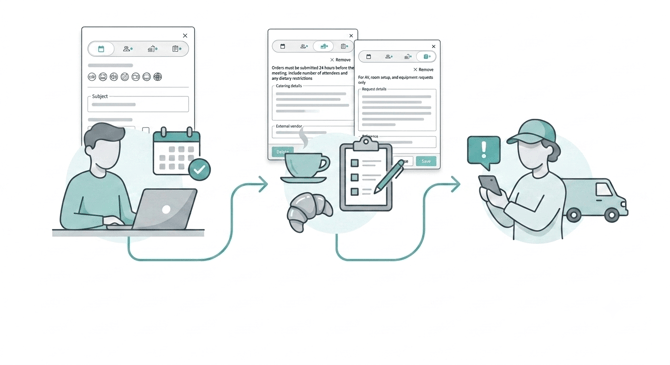
Humly Services lets users add extra services to a booking made in Humly Reservations, directly from the same booking dialog they already use to reserve a room, desk, or parking space. The first two services available are Catering and Other (custom requests).
When a resource has a service enabled, anyone booking that resource can request it as part of their reservation, for example, ordering coffee and lunch for a meeting, or requesting AV equipment to be set up in a training room. The team responsible for fulfilling the request (kitchen staff, facilities, an external vendor) is automatically notified by email whenever a request is created, changed, or cancelled. No separate emails or phone calls are needed.
Table of Contents
- Common Use Cases
- Admin Guide: Enabling & Managing Services
- User Guide: Booking with Services in Humly Reservations
- Notification Scenarios & Email Logic
- Technical Details
- Troubleshooting & Common Issues
- Best Practices
Common Use Cases
Catering for a meeting
A user books a boardroom for an executive meeting. Because the admin has enabled Catering for that room, a Catering tab appears in the booking dialog. The user adds an order describing what's needed and, since external catering is enabled for the room, fills in the name of the outside vendor. When the booking is saved, the order is sent to the recipients configured in the resource's catering settings, who then place the order with the named outside vendor.
Custom request (Other) for room setup
A user books a training room and needs the furniture and AV rearranged before the session. Because Other is enabled for that room, an Other tab appears alongside Catering. The user describes the request, and facilities receives an automatic email notification.
Admin Guide: Enabling & Managing Services
Prerequisites
- You must be a Global Admin or Local Admin (with the relevant structure assigned) to configure Services.
- Services can be enabled for structures, a selection of resources, or an individual resource. Rooms, desks, and parking spaces are all supported.
- Services are supported with the following booking systems, Microsoft 365, Exchange, Google.
- Go to Resources → Select Room → Room Settings.
- Scroll to the Services section.
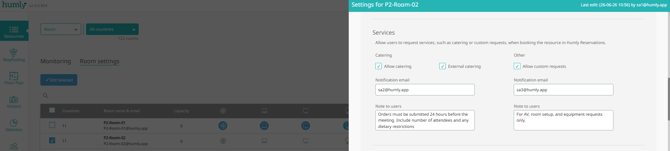
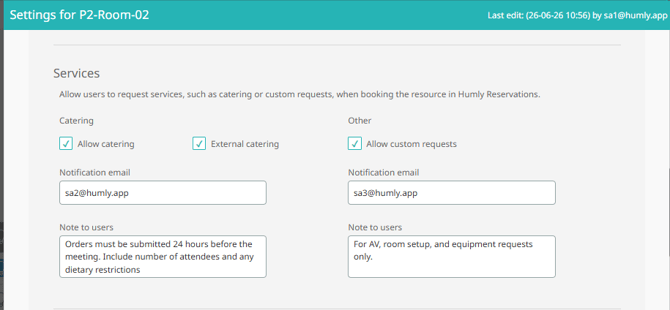
- Under Catering, check Allow catering. This enables:
- Notification email: the email address that receives every catering order for this resource. (Required while Catering is enabled.)
- Note to users: an optional note shown to users in the booking dialog (e.g. lead time, deadline, what's included).
- External catering: check this if an outside vendor (not internal kitchen staff) fulfills catering for this resource. This reveals an External vendor field to the user in the booking dialog.
- Under Other, check Allow custom requests. This enables the same Notification email and Note to users fields for custom requests.
- Click Save.
Note: Unchecking a service disables its fields but keeps any previously entered email, note, and vendor settings, so you can temporarily turn a service off without losing the configuration.
User Guide: Booking with Services in Humly Reservations
Starting a booking
You can start a booking in a few different ways, depending on how your organization has set up Humly Reservations:
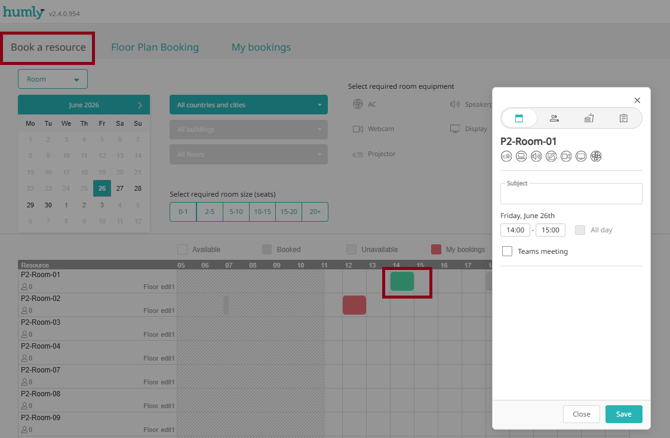
Booking a Room, Desk, or Parking Space from the list/calendar view
- Select the resource type, Room, Desk, or Parking Space, from the navigation.
- Choose a resource from the list, or filter by location/equipment to find one.
- Click an available time slot on the resource's calendar, or click New booking.
Booking from the Floor Plan view
- Open Floor Plan for your location.
- Click directly on the desk, room, or parking space you want to book on the visual map.
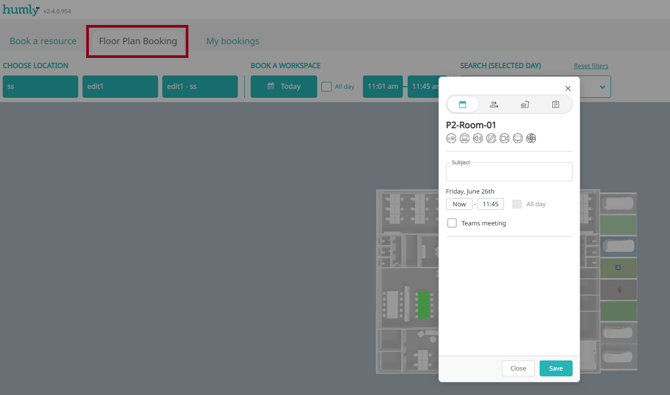
Either way, this opens the booking dialog. If the resource you selected has Catering and/or Other enabled, you'll see those as additional tabs alongside the regular booking details.
Adding a service to your booking
- In the booking dialog, open the Catering and/or Other tab click Add Catering/Other
- Fill in your request:
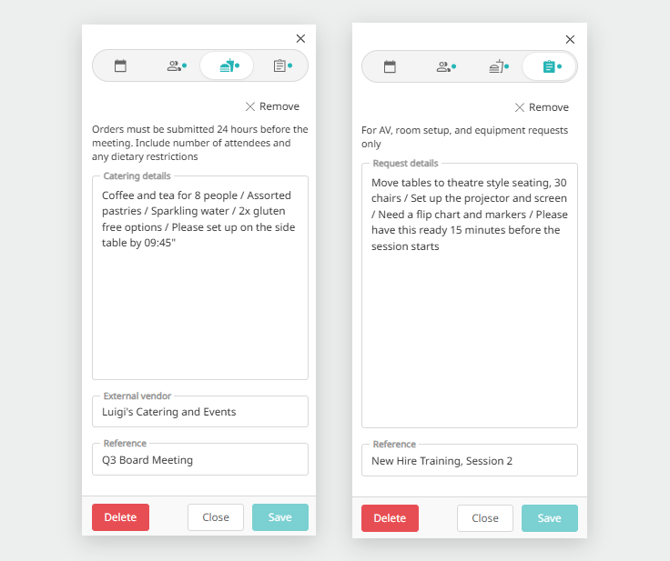
- For Catering: describe your order in Order details, fill in External vendor if the room uses one, and optionally add an Order reference (e.g. a cost center, PO number, or meeting name).
- For Other: describe your request in Details, and optionally add a Reference.
- Click Save. The Save button stays disabled until you've actually changed something, so you can't accidentally save it again with no changes.
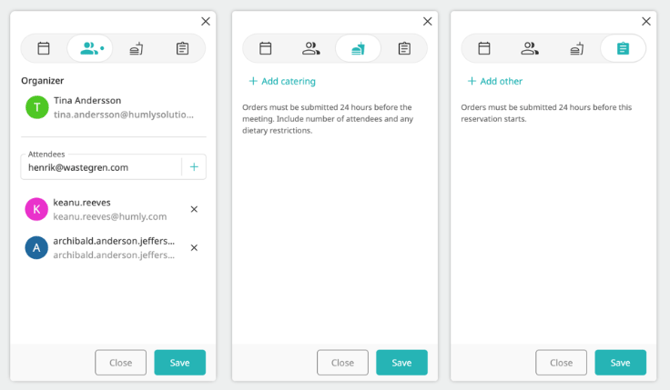
Below are the different tabs of the booking dialog, with the last 2 respectively for catering and other services
Below are the catering and other tabs side by side respectively after entering the necessary details.
Changing or removing a service
- To change a request later, reopen the booking, edit the relevant tab, and click Save again.
- To remove just the service, without cancelling the whole booking, open its tab, select remove and click Save.
Notification Scenarios & Email Logic
Whenever you click Save, Humly automatically decides whether to send a New order, Updated order, or Cancelled order email, you never send these manually.
| Booking situation | New order email | Updated order email | Cancelled order email |
|---|---|---|---|
| Future booking: service added, changed, or removed | Yes | Yes | Yes |
| Ongoing booking: service added, changed, or removed | Yes | Yes | Yes |
| Ongoing booking ended early from the device | N/A | N/A | No |
| Ongoing or future booking deleted from Reservations | N/A | N/A | Yes |
| Booking automatically ended due to a missed check in | N/A | N/A | No |
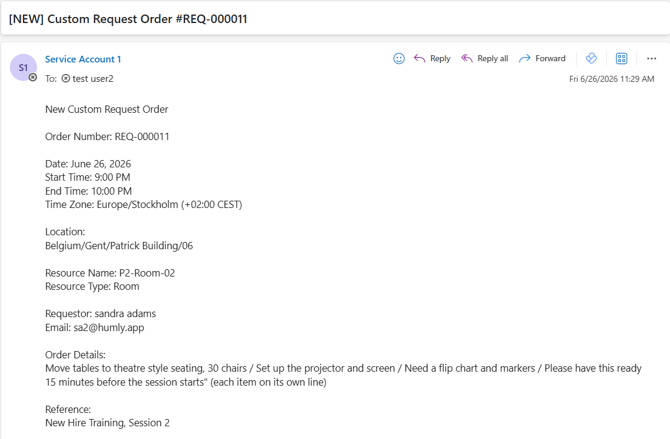
New order
Sent the moment a service is added to a booking, whether the booking is brand new, or an existing booking is edited to add a service it didn't have before.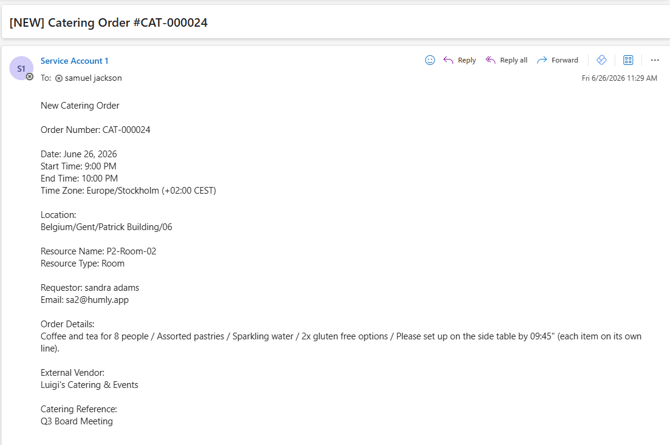
Updated order
Sent when a booking that already has an active service is changed in a way that affects it, and the booking hasn't ended yet. This includes:
- Changed start time
- Changed end time
- Changed to/from a full day reservation
- Changed the order description, reference, or external vendor for a service
Example: a user edits their upcoming meeting and pushes the start time back by an hour. The booking includes Catering, so the kitchen receives an Updated order email with the new time.
Cancelled order
Sent when an active service is removed from a booking that hasn't started, or when the whole booking is deleted from Reservations before it has ended.
Example: a user deletes a meeting from Reservations that included a custom request. Facilities receives a Cancelled order email.
Important: If a booking is ended early from the device, or automatically ends because the organizer missed check in, no Cancelled order email is sent, even if it included Catering or Other. By that point the service may already be in progress or delivered, so it isn't treated as cancelled.
Note: Notification emails are sent in batches, processed roughly every 3 minutes. It's normal for an email to take a few minutes to arrive after you click Save, this isn't a sign of a problem.
Technical Details
| Service | Reference label | Supports external vendor |
|---|---|---|
| Catering | Catering Reference | Yes |
| Other (Custom Request) | Reference | No |
- Supported resource types: Room, Desk, Parking Space.
- Supported booking systems: Microsoft 365, Exchange, Google
- Each order is tracked independently per service type, a booking can have an active Catering order and an active Other order at the same time, each with its own notifications.
- Notification emails include: resource name and type, date/time (with time zone), organizer name and email, the service's order description, reference, and (for Catering with an external vendor) the vendor name.
Troubleshooting & Common Issues
"I don't see a Catering or Other tab when booking" The service hasn't been enabled for this specific resource (or the structure/group it belongs to) in Resource Settings, or it's only enabled at a level that doesn't include this resource. Check the resource room settings and ensure services are enabled
"I can't save my Resource Settings: it says I need a Notification email" The Notification email field is required while its service (Catering or Other) is checked. Either fill it in, or uncheck the service if you don't want it active yet.
"My Resource Settings won't save: it says the email format is invalid" The Notification email field must contain a single, valid email address (e.g. name@company.com). It doesn't currently support multiple addresses separated by commas. If several people need to be notified, use a shared distribution list address instead (e.g. catering@company.com) that forwards to several inboxes.
"The kitchen/facilities never got the notification email"
- Wait at least 3 minutes after saving. Notifications are sent in batches roughly every 3 minutes, not instantly, so a short delay is expected.
- Check the Notification email address configured in Resource Settings is correct, has no typos, and is still actively monitored.
- Check spam/junk folders.
- Confirm the service wasn't unchecked again on the booking before the email had time to go out.
- Confirm the booking hadn't already ended (a booking ended from the device, or auto ended due to a missed check in, doesn't send cancellation emails by design, see the Notification Scenarios section above).
"Notifications are going to the wrong person" Each service's notification email is configured per resource (or per structure/group of resources) in Resource Settings, not organization wide. Check the Resource Settings → Services and confirm the correct address is set for Catering and/or Other on that specific resource.
"Can more than one person receive the same notification?" Not directly. Each service supports a single Notification email address per resource. To notify several people, point it at a shared mailbox or distribution list rather than an individual's inbox.
"I disabled Catering or Other in Resource Settings, but an existing booking still has an active order" Disabling a service in Resource Settings only stops it from being offered on new bookings going forward. It doesn't automatically cancel a request that was already added to an existing booking. To cancel an existing request, open that specific booking, go to its Catering or Other tab, and remove the service there directly.
Best Practices
For Administrators
- Use a shared/monitored mailbox (e.g. catering@yourcompany.com) as the Notification email, not a personal inbox, so requests are never missed if someone is out.
- Use the Note to users field to set expectations: lead time required, deadline times, what's included by default.
- Only enable External catering if an outside vendor, not your own kitchen staff, fulfills the order.
For Users
- If you only need to remove a service (not the whole meeting), uncheck it instead of deleting the booking, this keeps your reservation and notifies the right team that the service is no longer needed.
- Add or change a service any time before the meeting ends, updates are sent automatically.
- If you end a meeting early from the device, remember that any catering or request already in progress won't be automatically cancelled, contact the vendor or facilities directly if needed.