
Calendar processing is the set of Microsoft 365 and Exchange settings that decide how a resource mailbox answers booking requests. Those answers decide what Humly Control Panel shows on a Humly Room Display.
Contents
- Recommended settings
- How Humly decides what to show
- Troubleshooting
- A meeting is in Outlook but not on the display
- My meeting shows as Tentative in Outlook
- Humly says the room is free, Outlook says busy
- Which settings make a request stay pending
- Our rooms require approval for every booking
- Nobody approves the pending requests
- A pending request was approved later
- Two people ended up with the same slot
- What you see in your own calendar
- Collecting information for support
Recommended settings
Run this command once for every resource mailbox you use with Humly. There is no equivalent in the Microsoft 365 admin centre, so you have to use PowerShell.
Set-CalendarProcessing <room1@domain.com> -AddOrganizerToSubject $False -DeleteComments $False -DeleteSubject $False -RemovePrivateProperty $FalseEach setting does one thing:
- AddOrganizerToSubject $False keeps the organiser's name out of the meeting title. Without it, every meeting on the display is titled with a person's name.
- DeleteSubject $False keeps the real subject, so the display shows what the meeting is.
- DeleteComments $False keeps the meeting body.
- RemovePrivateProperty $False keeps private meetings private in Humly.
Also check that AutomateProcessing is set to AutoAccept. A room that does not answer for itself cannot show a reliable status on the wall.
How Humly decides what to show
Humly shows a booking once the room itself has accepted it. Not when the meeting simply exists on the calendar.
Two situations look the same in Outlook but are not the same thing:
- You set Show as: Tentative on your own meeting, and the room accepted it. Humly shows it.
- The room has not accepted the request. It is waiting for a delegate to approve. Humly does not show it.
Both appear with the same hatched pattern in Outlook, which is why this is easy to misread. Humly looks at the room's answer, not at how the meeting looks in your calendar.
This behaviour applies from Humly 2.4.2. Earlier versions also showed requests the room had not accepted, so a room could appear busy for a booking nobody had approved.
Troubleshooting
A meeting is in Outlook but not on the display. Why?
The room has not accepted it. It is waiting for a resource delegate to approve. Ask the organiser which reply they received. "Accepted:" means the room took the booking. "Tentative:" means it is still pending.
My meeting shows as Tentative in Outlook. Will Humly show it?
Yes, as long as the room accepted it. Show as: Tentative is your own availability setting. It says nothing about the room's answer. Two meetings can look identical in your calendar while only one reaches Humly.
Humly says the room is free, but Outlook shows it as busy.
Outlook counts pending requests in its availability view. Humly does not, because nobody holds the room yet. Anyone can book it, and the delegate should then decline the pending request.
Which settings make a request stay pending?
Any of these, when you also use AllRequestOutOfPolicy $True, AddNewRequestsTentatively $True and at least one ResourceDelegates entry:
- AllowConflicts $False holds anything that overlaps an existing booking.
- AllowRecurringMeetings $False holds every recurring series.
- BookingWindowInDays with EnforceSchedulingHorizon $True holds anything booked further ahead than the window.
- AllRequestInPolicy $True holds every request, whether it conflicts or not.
- AutomateProcessing AutoUpdate means the room never answers at all.
Our rooms require approval for every booking. What happens?
With AllRequestInPolicy $True or AutomateProcessing AutoUpdate, the room never accepts on its own. Those rooms appear empty in Humly until each booking is approved. If you run approval-moderated rooms, confirm this is what you want.
Nobody approves the pending requests. Does it matter?
Yes. Requests stay pending indefinitely, and the room stays bookable in Humly the whole time. People who booked in Outlook believe they have the room, while the display offers it to anyone walking past. If you use a delegate approval policy, someone has to work that queue.
A pending request was approved later. Does it appear?
Yes. Once the delegate approves it, the room's answer becomes Accepted and Humly shows it at the next synchronisation. Nothing needs to be booked again.
Two people ended up with the same slot. How?
A delegate approved a request for a slot someone had already taken. Microsoft allows this even with AllowConflicts $False, because the delegate is the one deciding. Humly detects the overlap and reads the room again, but it cannot undo an approval. Approvers should check the room's calendar before they accept.
What you see in your own calendar
Whether a booking reaches your own calendar depends on the Invite authenticated user setting in Humly Control Panel. If your administrator has turned it off, the booking exists on the resource only and nothing is sent to you.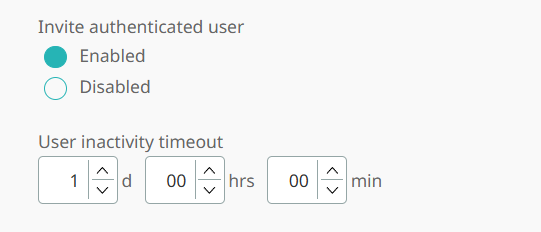
When it is on, what arrives depends on the resource:
- A resource with a mailbox — you receive a meeting invitation from the resource. It appears in your calendar and stays tentative until you respond. Accept it and your calendar shows you as busy for the booking. Leave it unanswered and it does not block your time, so you can see the booking without making yourself unavailable to colleagues.
- A standalone resource — you receive a confirmation email with an
invite.icsattachment. It does not appear in your calendar automatically. Open the attachment if you want it added.
A standalone resource is one created in Humly Control Panel only, with no resource mailbox behind it. Desks and parking spaces are often standalone, which is why a desk booking can behave differently from a room booking at the same site.
The resource itself is always busy for the length of the booking, whichever of these applies. Nothing about your own calendar entry affects whether other people can book the room, desk or parking space.
Collecting information for support
When you contact Humly support about a booking that is missing or behaving unexpectedly, send both of the outputs below. Run them in Exchange Online PowerShell, or in the Exchange Management Shell for an on-premise server.
Room configuration
This shows every setting that decides whether the room answers for itself. Run it first, because it explains most cases on its own.
Get-CalendarProcessing -Identity <room1@domain.com> | Format-List AutomateProcessing, AllowConflicts, AllowRecurringMeetings, BookingWindowInDays, EnforceSchedulingHorizon, All*Policy, AddNewRequestsTentatively, TentativePendingApproval, ResourceDelegatesA room that accepts its own bookings shows AutomateProcessing : AutoAccept and AllRequestInPolicy : False. If ResourceDelegates has an entry, find out who works that approval queue.
Calendar log export
This exports what the room mailbox actually did with each request, which shows whether it accepted a booking or held it for approval.
Get-CalendarDiagnosticObjects -Identity <room1@domain.com> -StartDate "2026-08-26" -EndDate "2026-08-29" | Export-Csv .\calendar-log.csv -NoTypeInformationKeep the date range to the few days around the problem. A wide range produces a very large file and takes a long time to run.
To look at a single meeting instead of a date range, use the subject:
Get-CalendarDiagnosticObjects -Identity <room1@domain.com> -Subject "Weekly team meeting" -ExactMatch $True | Select-Object LogTimestamp, CalendarLogTriggerAction, ShortClientInfoString, ResponseType, ResponsibleUserNameThe ResponseType column is the one that matters. On the rows written by ResourceBookingAssistant, Accept means the room took the booking and Tentative means it was held for a delegate.
The command is available in Exchange Online and in Exchange 2016 CU3 or later. On an older on-premise server it does not exist. Run Get-Command *CalendarDiagnostic* to see which version is available, and send the room configuration output instead.
The export contains meeting subjects, organisers and attendee names.