Q-SYS is an advanced control system that can manage everything from speakers, screens, and projectors to blinds, ventilation, and door locks – fully automated through sensors or panels such as the Humly Room Display.
Humly is a Certified Technology Partner with Q-SYS. This is a part of evolving Humly Sense, the sensor integration platform that connects third-party sensors.
Humly devices and software can now also be integrated directly through drag-and-drop in Q-SYS Designer, using a dedicated plugin that simplifies installation and configuration.
Introduction
In this guide, we will walk you through how to download and install Humly Plug-in to Q-SYS Designer, configure it with Humly Control Panel, and integrate it with the resources inside Humly Control Panel
Features and Use Cases
- Two-way communication: Sensors can trigger actions, and panels can control other devices.
- Automations: For example, start a projector, adjust lighting, lower blinds when the meeting starts or is checked in.
- Flexible integration: Supports third-party sensors and adapts to various environments like meeting rooms, universities, museums, and arenas.
- Access control: enables door unlocking based on bookings or check-ins
- Investment: requires a Q-SYS processor, network switch, and sensors.
Important: Integrating Humly and Q-SYS must be carried out by a certified Q-SYS technical engineer and cannot be performed directly by the end customer.
In this section, we will show you how to download and install the Humly plug-in in Q-SYS Designer, configure your Humly Control Panel credentials, and assign resources to the plug-in.
Getting Started
Prerequisites
-
Go to the Q-SYS Library.
-
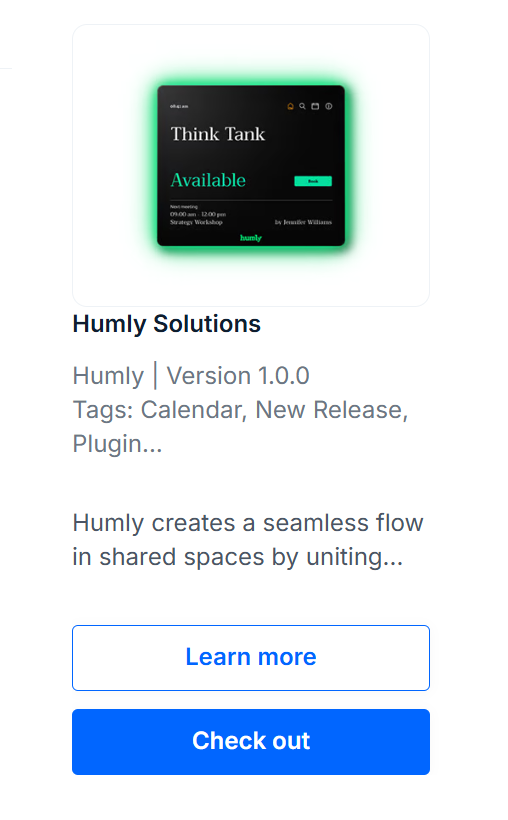
Sign in and Search for “Humly.
-
Add the Humly plug-in and check out.
Once the Humly plug-in has been added to your library, you are ready to download and install it in Q-SYS Designer.
Q-SYS Designer - Humly Plug-in configuration
Ensure you are using the latest version of Q-SYS Designer
-
Open Q-SYS Designer
- From the Tools menu, select Asset Installer. The new Humly plug-in should now be visible and available for installation.
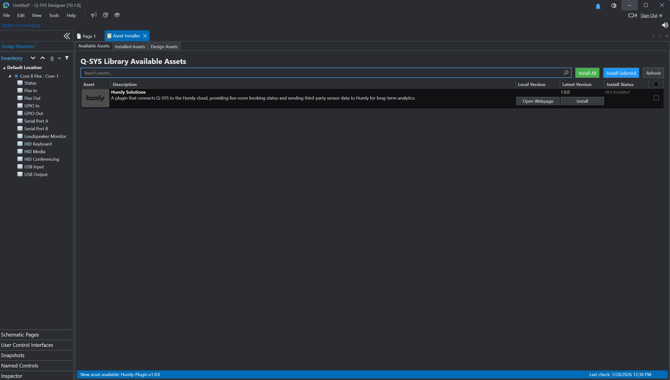
- Click install, and ensure the plug-in installation is completed

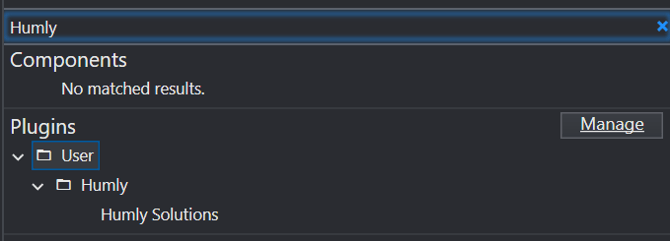
- Now the plug-in is installed and ready to be configured. Search for Humly in the component section, drag and drop the plug-in to your design page.
- Start the emulator, and double click on the plug-in, you should see the setup page
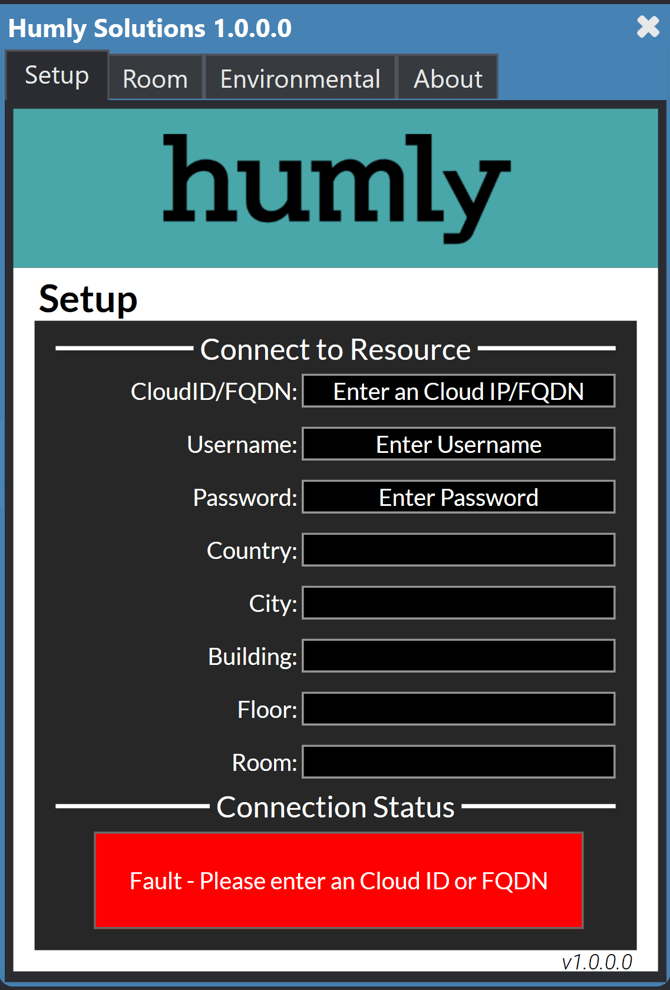
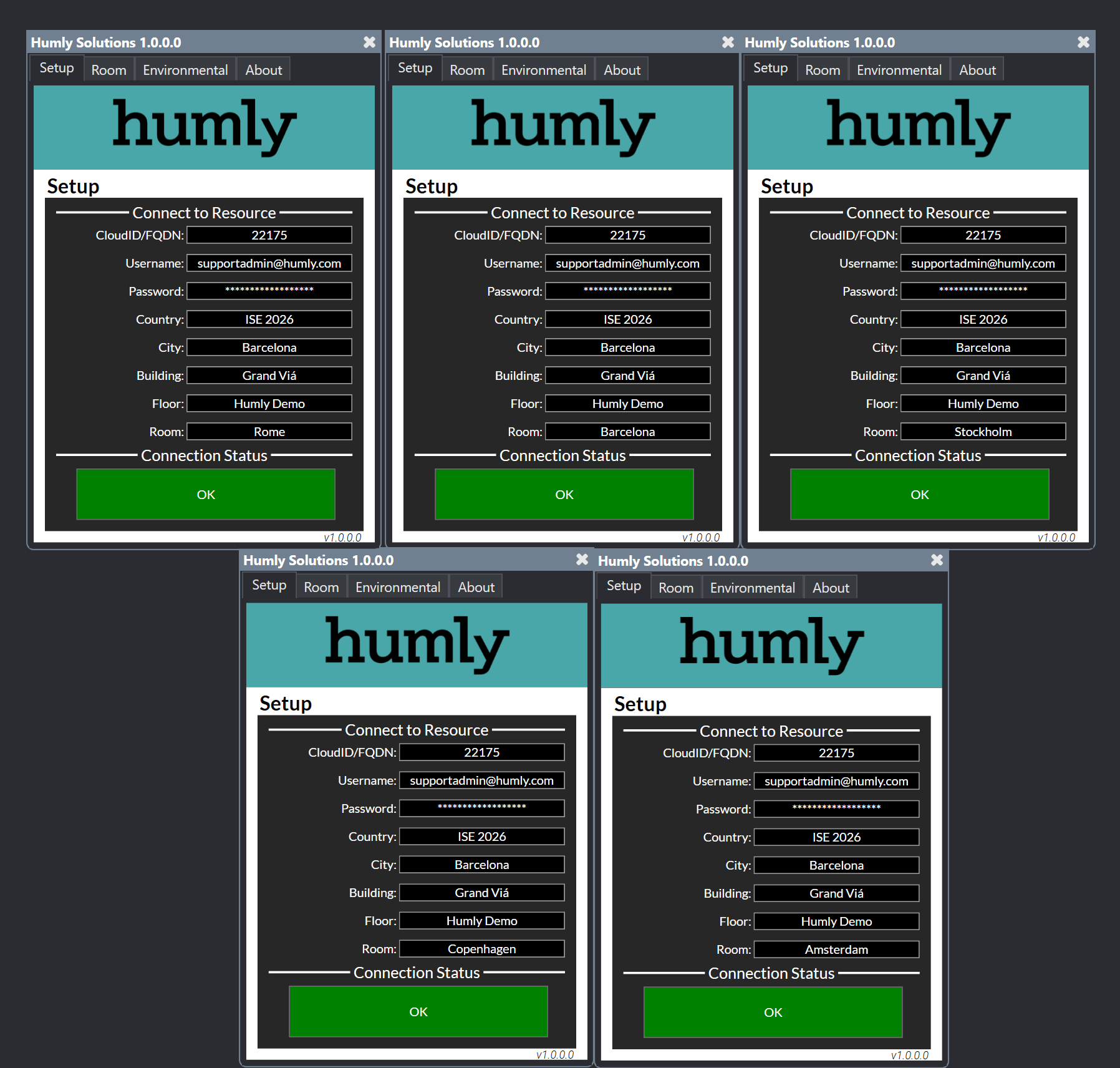
- In the setup, you have to configure the below values:
- Cloud ID or the FQDN of your Humly Control Panel
for example: 12345, or your-hcp.domain.com - Username: The user name of a Humly Control Panel Global Admin
- Password: The Password of the selected global admin account
Once the previous three values are entered correctly, you should see the connection status change to green and OK.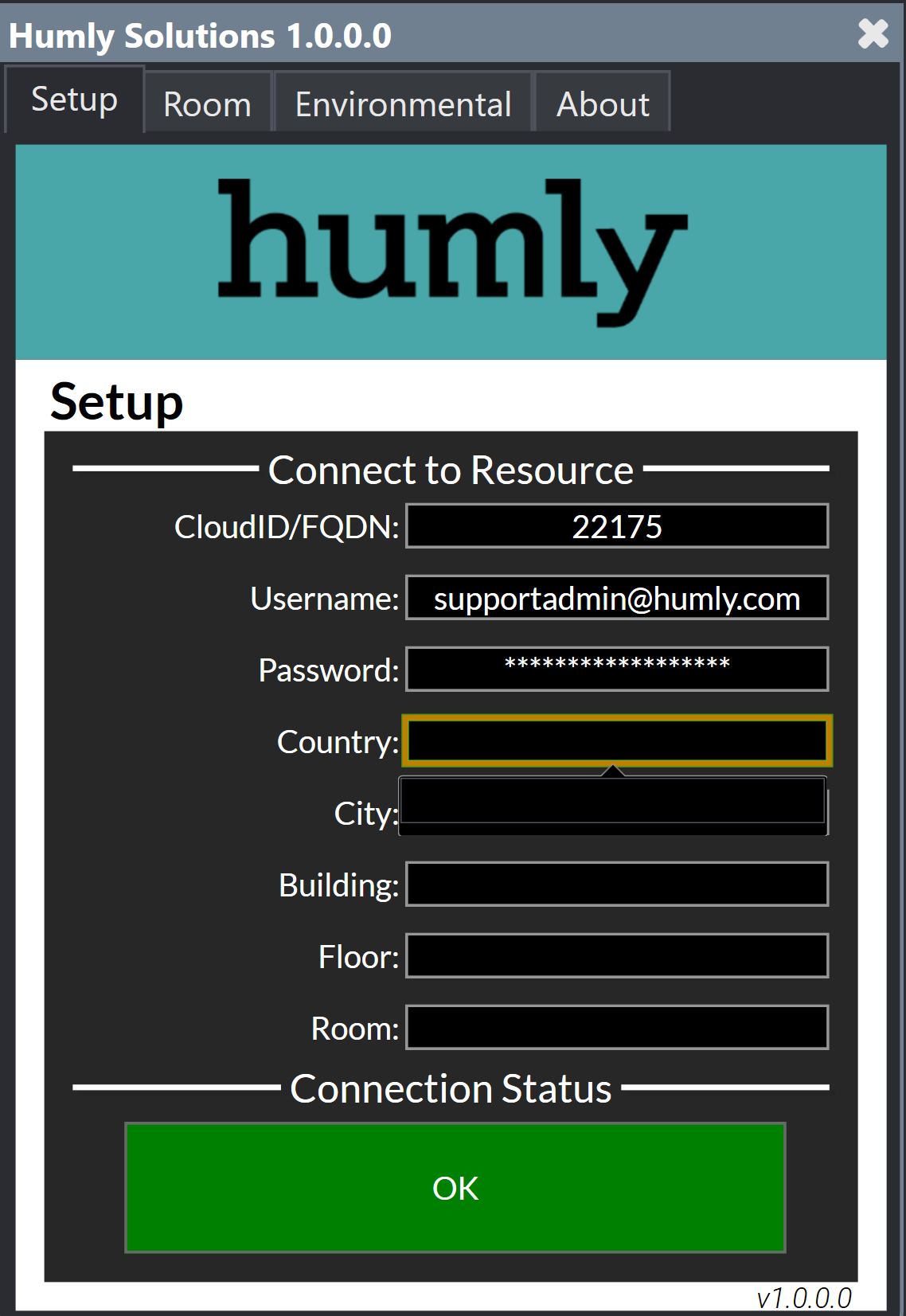
- Cloud ID or the FQDN of your Humly Control Panel
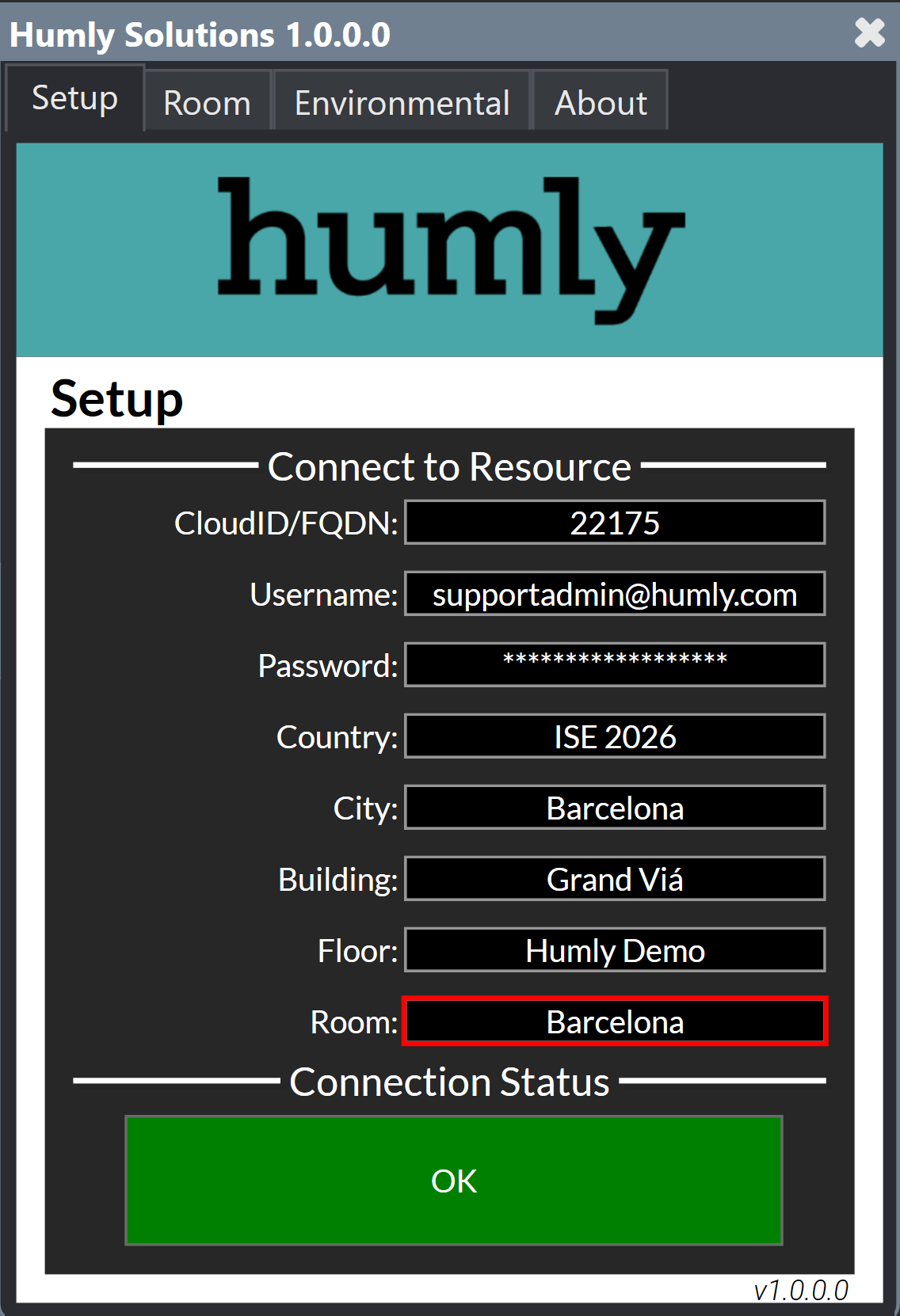
- Once the status is green and connected, you can select the resource that you want to configure the plug-in to use. You can achieve that by selecting the resource from the structure (Country>City>Building>Floor>Room)
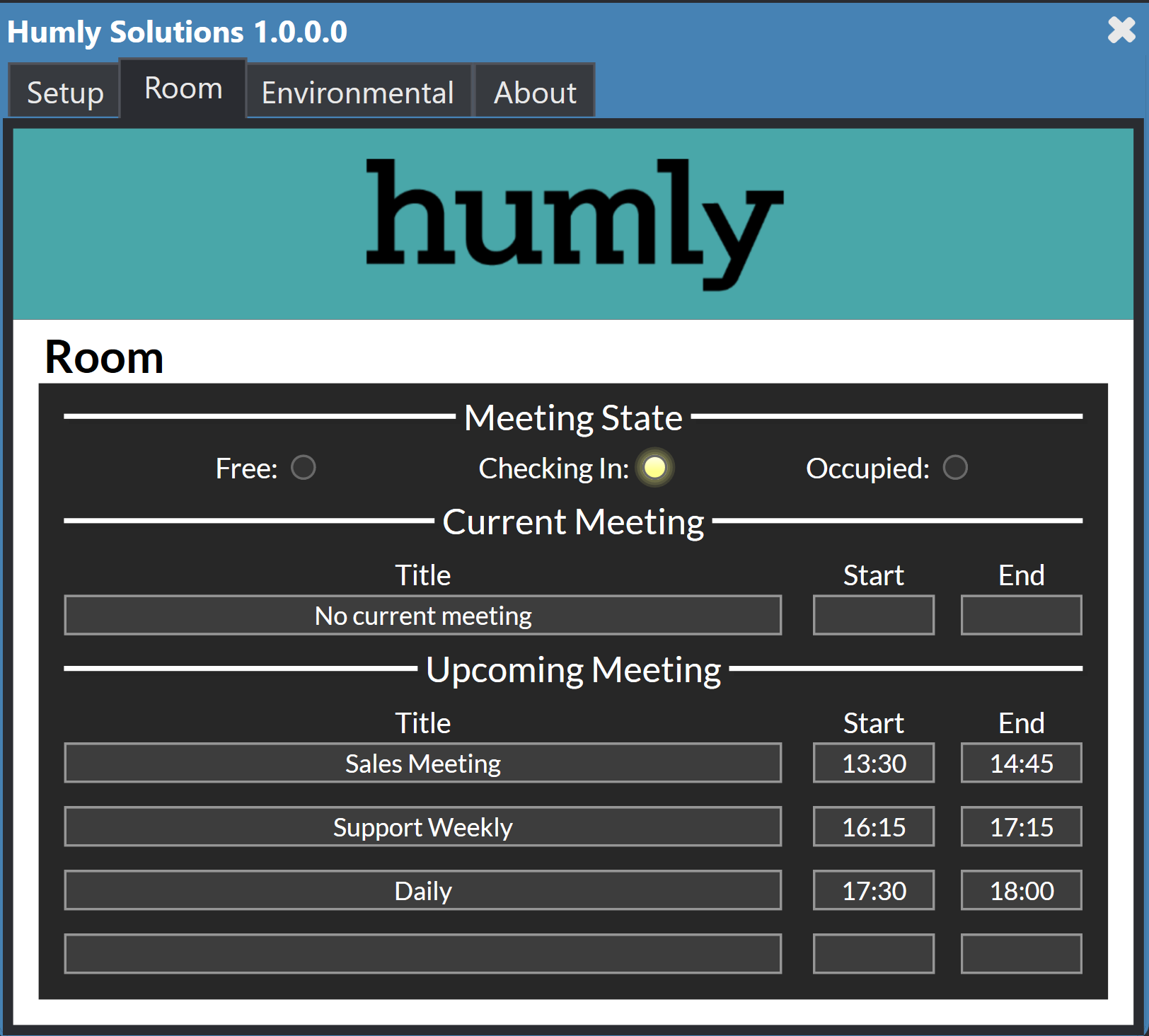
- Once the resource is configured, Q-SYS plug-in should be able to fetch the meeting and room status from Humly Control Panel
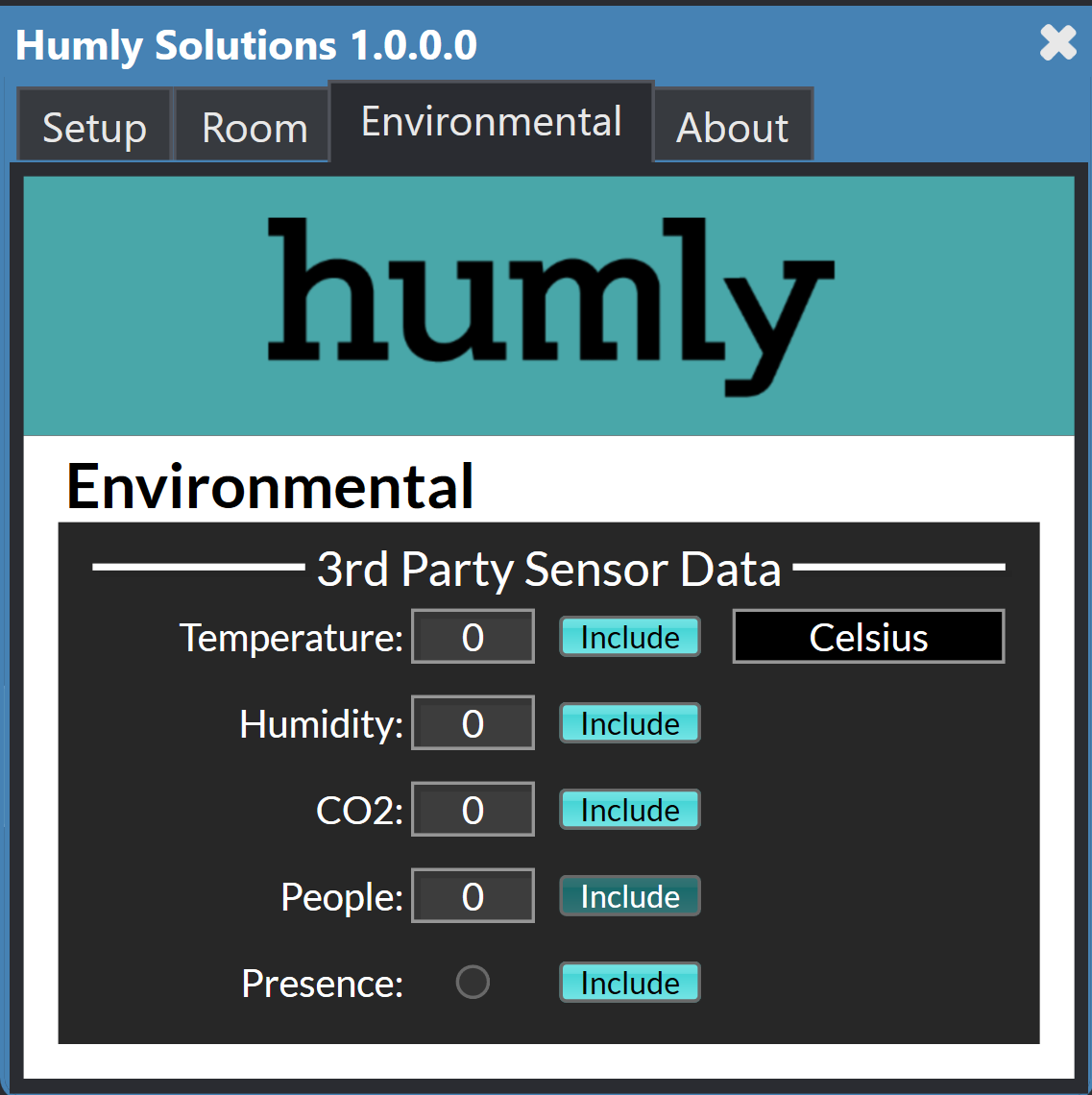
- From the enviroment tab, you can select which data you want to push from Q-SYS to Humly Control Panel resource, these data should be fetched from the sensors based on the actual design.
- It is possible to duplicate the configuration for each resource you want to configure