
Humly connects your Humly Room Displays and Humly Booking Devices to Xyte, a cloud platform for deploying, monitoring, and managing connected devices. When the integration is enabled, your devices automatically appear in your Xyte portal, where you can view their status and run a set of remote commands.
This article explains what you set up in the Humly Control Panel (HCP) and what you can do with Humly devices in the Xyte portal.
Availability: The Xyte integration is supported starting with Humly version 2.4.
In this article
- Before you start
- Set up the integration in Humly Control Panel
- What you can do in the Xyte portal
- Supported devices
- FAQ
- Related documentation
Before you start
You need your own Xyte account (tenant) and an API key from it. Humly does not provide the Xyte account; you create and manage it with Xyte.
- Sign in to your Xyte tenant.
- Create an API key in Xyte under Settings → API Keys. Follow Xyte's own guide: Xyte – API Keys.
- Copy the API key. You will paste it into the Humly Control Panel in the next section.
Tip: the API key links HCP to your Xyte organization. Keep it private, like a password.
Set up the integration in Humly Control Panel
1. Open the Xyte integration settings
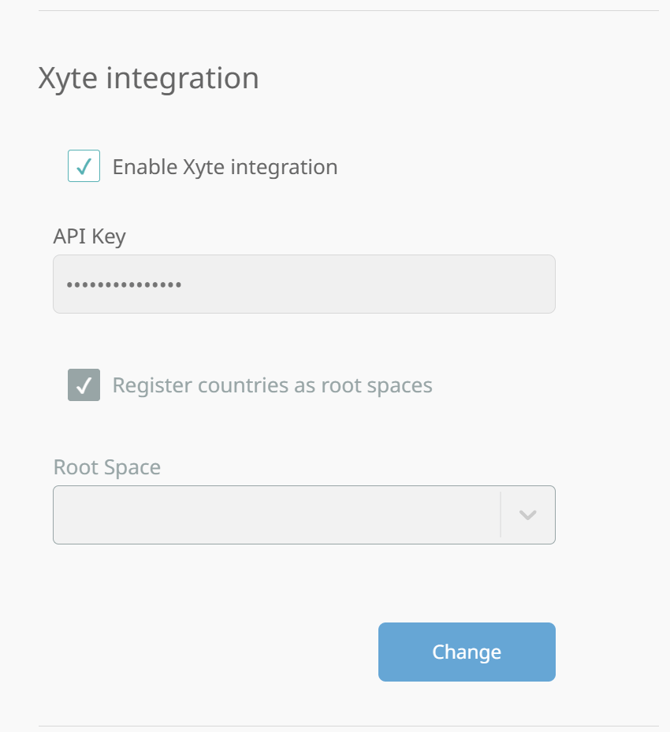
In the Humly Control Panel, go to Settings → Global Settings and find the Xyte integration section.
2. Enter your API key
Paste the API key you copied from your Xyte tenant into the API Key field.
3. Choose where your rooms appear in Xyte
Xyte organizes devices into spaces. You choose how your Humly structure maps to those spaces:
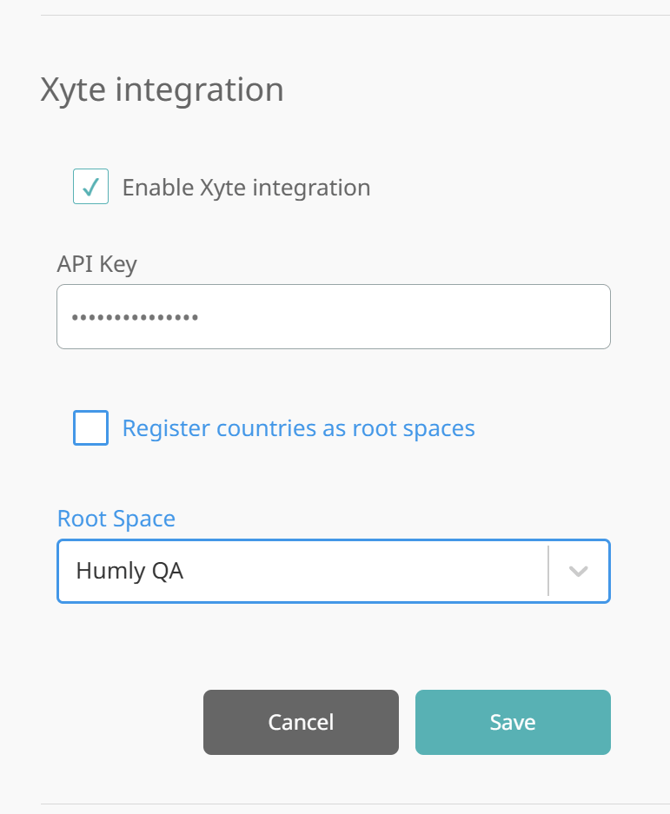
- Root Space – select an existing Xyte space to place your structure under. Your Humly structure (countries, buildings, rooms) is recreated as spaces beneath it.
- Register countries as root spaces – turn this on to make each country in your Humly structure its own top-level space in Xyte instead of nesting everything under one root.
4. Enable and save
Turn on Enable Xyte integration and save. HCP validates the API key when you save.
What happens after you enable
- HCP registers your online Humly devices with Xyte automatically. You do not register devices one by one.
- Your Humly structure is recreated as spaces in Xyte, and each device is placed in the space that matches its room.
- HCP keeps Xyte up to date with each device's status (for example free/busy and the current meeting).
- New Humly devices added later are registered automatically.
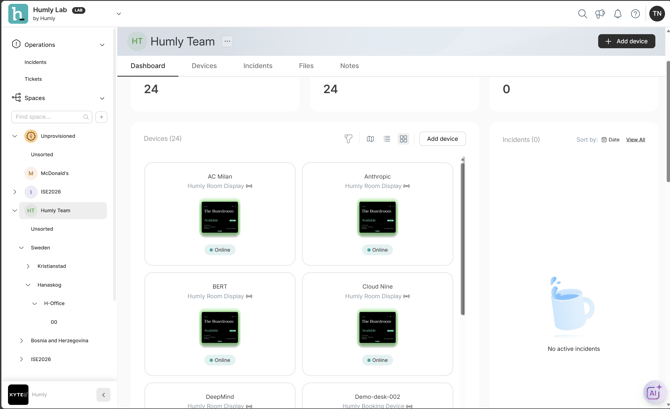
Key point: Registration is automatic and can take a few minutes to appear in the Xyte portal.
Disabling the integration
When you turn the integration off and save, HCP stops sending updates and disconnects the devices from Xyte. The devices stay registered in your Xyte portal and will show as offline there after a short while. If you turn the integration back on, the same devices reconnect automatically — you do not have to set them up again.
Key point: disabling pauses the integration. It does not remove your devices from Xyte.
What you can do in the Xyte portal
This section covers the Humly-specific things you can do with your devices in Xyte. For how the Xyte portal itself works (navigating, spaces, account and users, incidents), see Xyte's own documentation.
View device status and telemetry
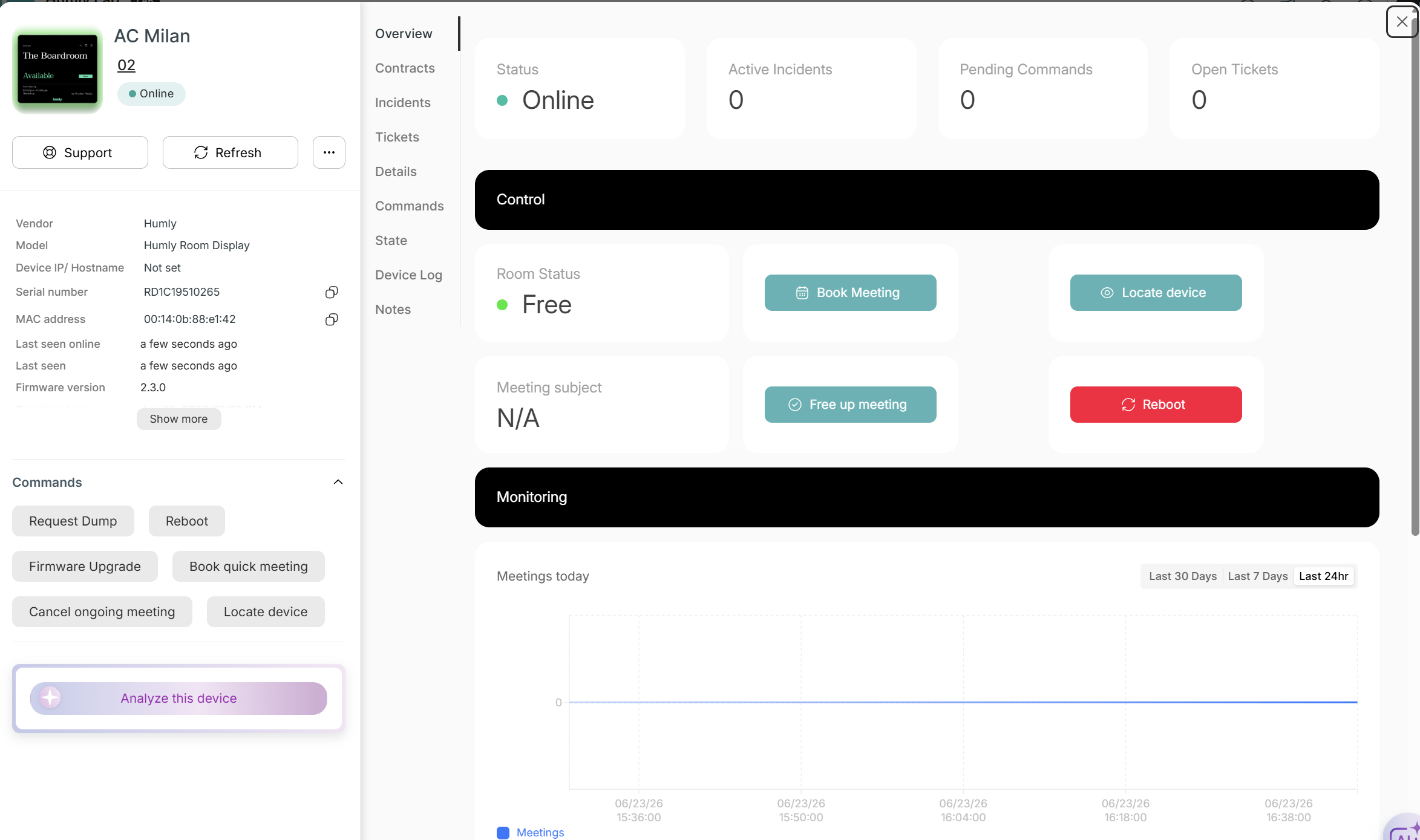
For each Humly device, the Xyte portal shows live information sent from HCP:
- Room status – free or busy
- Resource name and type
- Current meeting – subject, organizer, start and end time
- Number of meetings today
- Temperature and CO₂ – on devices that have these sensors
Send commands to a Humly device
From a Humly device in the Xyte portal you can run these commands:
| Command | What it does |
|---|---|
| Reboot | Restarts the device. |
| Locate device | Flashes the device's LED ring for about 10 seconds so you can find it. |
| Book 15-minute meeting | Creates a short ad-hoc booking on the device's room. |
| Cancel meeting | Ends the room's current meeting. |
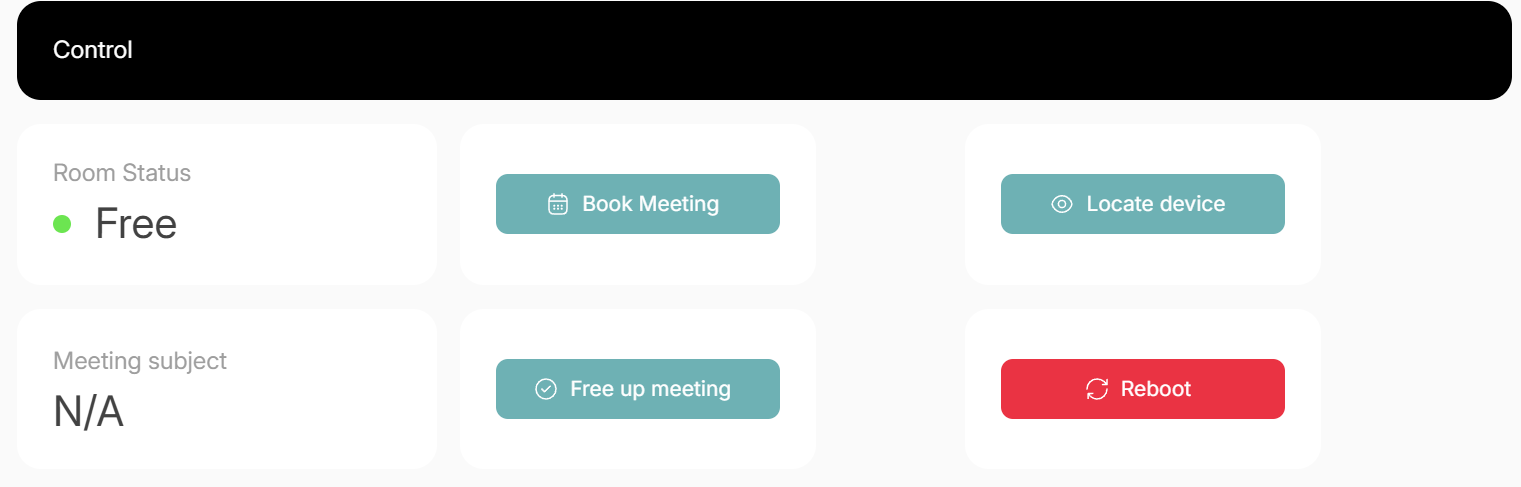
Note: commands only work while the integration is enabled. When the integration is disabled, the device is disconnected from Xyte, so commands will not reach it.
Supported devices
- Humly Room Display - HRD
- Humly Booking Device - HBD
FAQ
Do I need my own Xyte account?
Yes. You create and manage the Xyte account, and you generate the API key there. See Xyte – API Keys.
Do I have to register each device in Xyte myself?
No. After you enable the integration, HCP registers your online Humly devices automatically.
I disabled the integration but my devices are still in the Xyte portal. Is that wrong?
No. Disabling pauses the integration and keeps the devices registered so they can reconnect later. They show as offline in Xyte after a short while. To remove a device, delete or re-pair it from the Monitoring page in HCP.
Why don't commands from the Xyte portal work?
Commands only work while the integration is enabled. If it is disabled, the device is disconnected from Xyte and cannot receive commands.
Can I move devices to a different space in Xyte?
HCP places each device in the space that matches its room in your Humly structure and keeps that in sync. Manage your Humly structure in HCP rather than moving devices manually in Xyte.