
Table of Contents
- Common Use Cases
- Accessing the Editor
- Editor Overview
- Editing Layers
- Publishing Changes
- Best Practices
- Troubleshooting
Common Use Cases
- A new wall or partition has been added to an office and the floor plan needs to reflect the change.
- Furniture has been rearranged and you want desks on the floor plan to match the physical layout.
- A new door or window has been added to a room.
- A room has been renamed or repurposed and the floor plan annotation needs updating.
- You want to add or adjust a staircase element after an office renovation.
Accessing the Editor
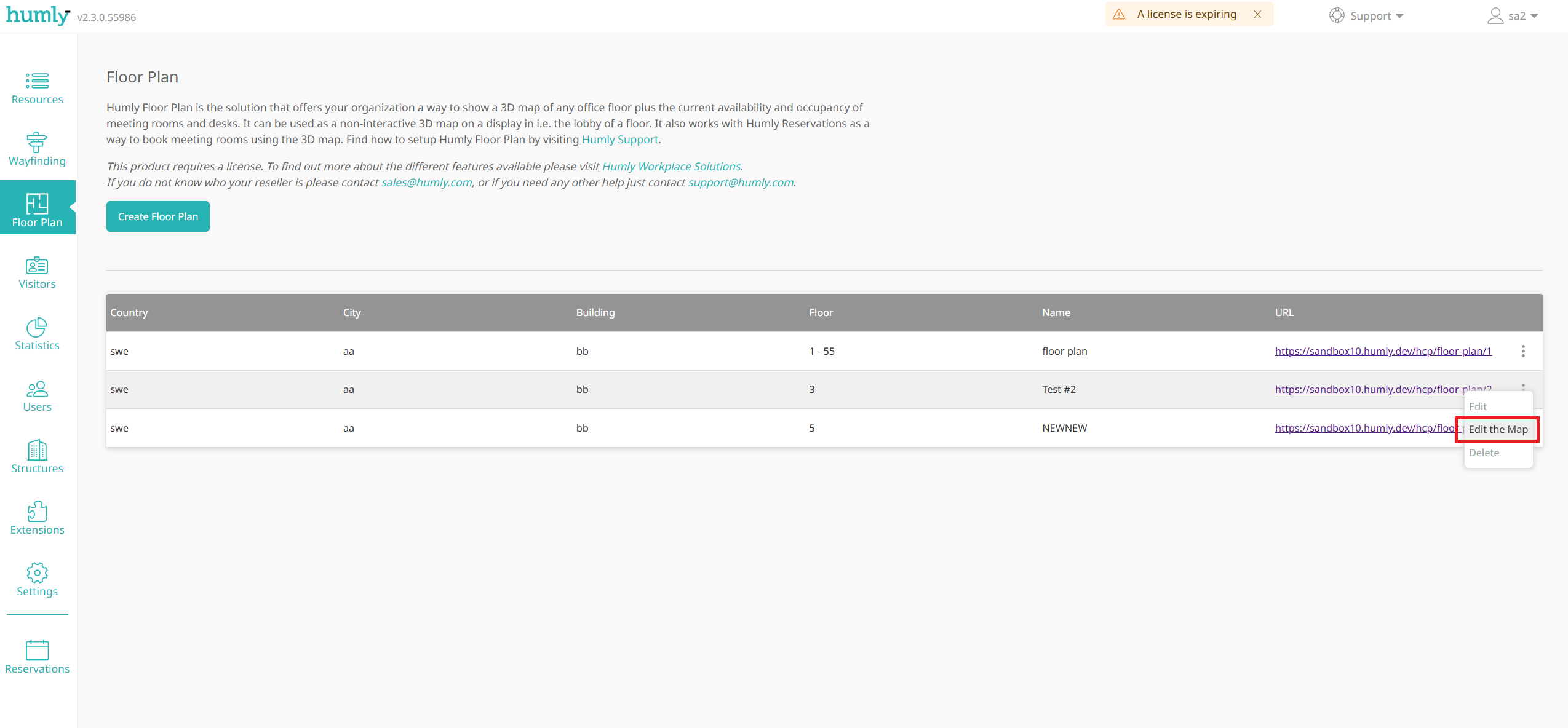
- Log in to Humly Control Panel as a Global Admin.
- Navigate to Floor Plan in the left-hand menu.
- Select the floor plan you want to edit.
- Click Edit the Map.
- The Smplrspace editor will open in a modal overlay directly within HCP.
Editor Overview
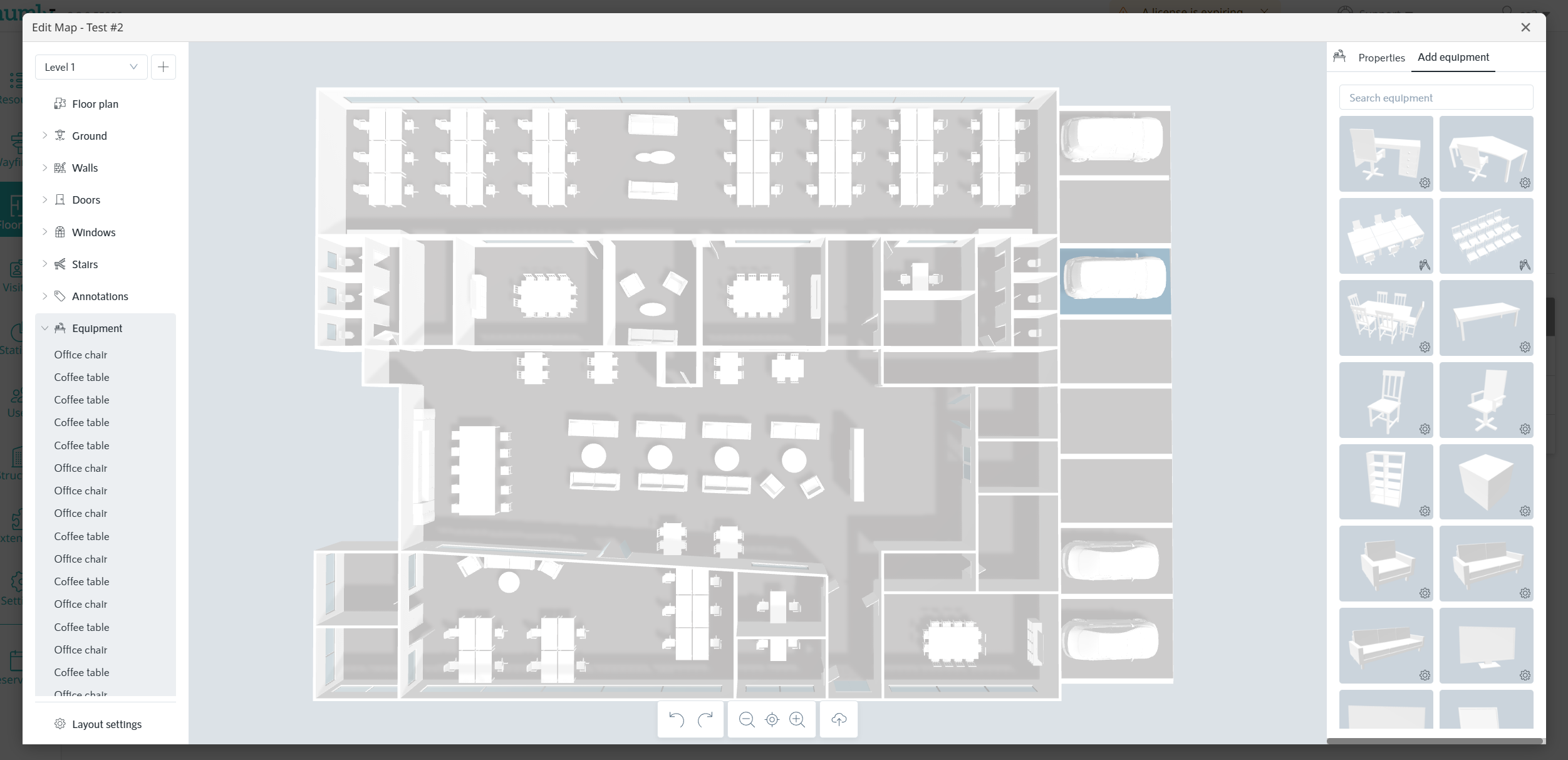
The editor consists of three main areas:
- Left panel – Layers: lists all editable layers of the map (Floor plan, Ground, Walls, Doors, Windows, Stairs, Annotations, Equipment). Click any layer to expand and edit its elements.
- Centre canvas: the interactive 2D/3D view of your floor plan. Click, drag and drop elements directly on the canvas.
- Right panel – Settings: contains display options (Show lower floor, Show grid, Compass direction) and the Publish new version and Discard unpublished changes buttons.
Editing Layers
The following layers are available in the editor. All changes are applied immediately to the canvas but are not visible to end users until you publish.
- Floor plan – the overall floor outline and level structure.
- Ground – the base ground surface of the space.
- Walls – internal and external walls. Add, move or remove wall segments.
- Doors – door placements and swing direction.
- Windows – window positions along walls.
- Stairs – staircase elements between levels.
- Annotations – text labels and markers for navigation or informational purposes.
- Equipment – furniture and fixtures such as desks, chairs, tables and whiteboards.
Use the toolbar at the bottom of the canvas to switch between the select tool, polygon tool, pan, undo/redo, zoom and other actions.
Publishing Changes
Changes made in the editor are saved as a draft and are not visible to end users until you explicitly publish them.
- When you are satisfied with your edits, click Publish new version in the right panel.
- The updated map will become live in Humly Floor Plan shortly after publishing.
- If you want to discard all unpublished changes and revert to the last published version, click Discard unpublished changes.
Note: Publishing a new version does not affect existing room or desk assignments in HCP. Your previously mapped resources remain linked to their positions on the floor plan.
Best Practices
- Preview before publishing. Use the Full preview button in the right panel to see a 3D render of your changes before making them live.
- Make one type of change at a time. For example, complete all wall edits before moving on to furniture, so it is easier to discard changes if something goes wrong.
- Keep furniture placement accurate. Desk positions on the floor plan should match the physical layout as closely as possible — this improves the experience for users booking via the Interactive Floor Plan.
- Re-verify room assignments after major edits. If you significantly change the shape or position of a room, check that the room is still correctly assigned in the Floor Plan configuration in HCP. See Humly Floor Plan – Admin Guide.
- Use the grid and compass. Enabling Show grid in the right panel helps with precise placement of walls and furniture.
Troubleshooting
The Edit the Map button is not visible
Only Global Admins have access to the map editor. If you do not see the button, verify that your account has Global Admin privileges in HCP.
The editor does not load or shows a blank screen
- The editor requires access to Smplrspace's servers. If you are on an on-premise installation, ensure that your firewall allows outbound connections to Smplrspace. Smplrspace uses Cloudflare — see the full list of IP ranges at cloudflare.com/ips.
- Try reloading the page and opening the editor again.
- Ensure you are using a supported browser (Chrome, Edge, Firefox or Safari — latest version recommended).
Changes are not visible after publishing
- Allow a few minutes for the new version to propagate.
- Perform a hard refresh in the browser (Ctrl+Shift+R on Windows, Cmd+Shift+R on Mac) to clear any cached version of the floor plan.
Room assignments are broken after editing the map
If a room's boundary was moved or reshaped significantly, the existing assignment in HCP may no longer align with the room's new position. Go to the Floor Plan configuration in HCP and re-assign the affected rooms. See Humly Floor Plan – Admin Guide, Step 6–8.