
Table of Contents
- Background
- Common Use Cases
- Requirements
- Admin Guide
- Network Configuration Options
- Troubleshooting
- Best Practices
Background
In addition to the mobile app provisioning method, Humly Booking Devices (HBD) can be provisioned directly from the Humly Control Panel (HCP) using Bluetooth Low Energy (BLE).
This method allows administrators to configure an HBD device entirely from their web browser, connecting via Bluetooth, scanning for WiFi networks, and assigning the device to a resource without needing the mobile provisioning app.
Note: Both provisioning methods use the same underlying BLE connection to communicate with the device. The HCP method provides a convenient alternative when a mobile device is not available or when provisioning multiple devices from a workstation.
Common Use Cases
- Initial device setup — Configure a new HBD device with network credentials and assign it to a meeting room, desk, or parking space directly from HCP.
- Network reconfiguration — Change the WiFi network or switch between WiFi and Ethernet without using the mobile app.
- Bulk deployment — Provision multiple devices in sequence from a single workstation, with saved WiFi credentials to speed up the process.
- Hidden network setup — Manually enter a hidden SSID that does not appear in scan results.
Requirements
| Requirement | Details |
|---|---|
| Humly Booking Device | Model HUM1020 |
| Browser | Google Chrome or Microsoft Edge (other browsers do not support Web Bluetooth) |
| Bluetooth | The computer must have a Bluetooth adapter enabled |
| Proximity | The computer must be within Bluetooth range of the device (up to ~10 meters / 30 feet) |
| HCP access | Administrator login to Humly Control Panel |
| Resource license | A resource license must be available in HCP before the device can be activated |
Important: Firefox, Safari, and other browsers are not supported. If you attempt to use an unsupported browser, an error message will appear: "Web Bluetooth is not supported in this browser. Please use Chrome or Edge."
Admin Guide
Step 1: Access the Provisioning Tab
- Log in to the Humly Control Panel.
- Navigate to the Monitoring screen.
- Select a resource (room, desk, or parking space) by expanding its row.
- Click the Provisioning tab in the device panel.
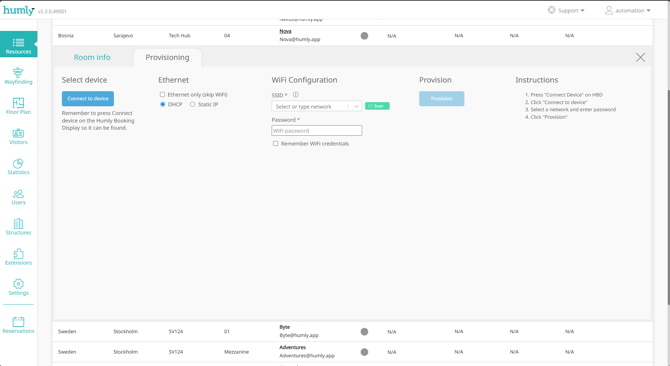
The Provisioning tab is organized into five sections:
| Section | Purpose |
|---|---|
| Select device | Connect or disconnect a device via Bluetooth |
| Ethernet | Configure Ethernet settings (DHCP or Static IP) |
| WiFi Configuration | Scan for networks, select SSID, and enter password |
| Provision | Start provisioning and monitor status |
| Instructions | Quick-reference guide |
Step 2: Prepare the Device
On the physical Humly Booking Device, press "Connect Device" on the screen to put it into BLE pairing mode, when you see the QR code screen, the BLE pairing is activated.
-jpg-2.jpeg?width=602&height=800&name=Media%20(33)-jpg-2.jpeg)
-jpg.jpeg?width=602&height=799&name=Media%20(34)-jpg.jpeg)
Note: The device's pairing mode may time out after a period of inactivity. If the connection fails, press "Connect Device" on the HBD again.
Step 3: Connect via Bluetooth
- In the Provisioning tab, click "Connect to device".
- The browser's Bluetooth device picker opens, showing nearby HBD devices. Device names follow the format
hbd1_xxxxxxxxxxxx.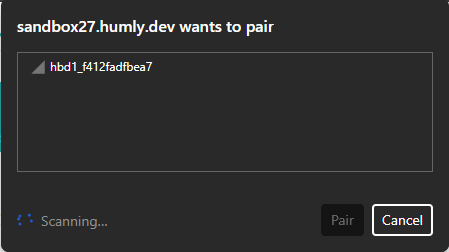
- Select your device and click Pair.
- A success notification confirms the connection. The device's MAC address is displayed in the Select device section.
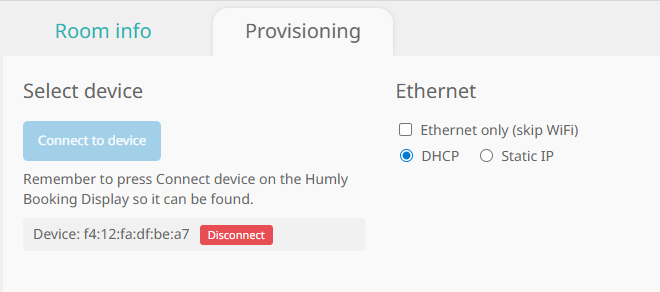
To disconnect at any time, click the "Disconnect" link next to the MAC address.
Step 4: Configure Network
Choose one of the following network configurations depending on your setup.
Option A: WiFi
- Click the green Scan button next to the SSID dropdown. The HBD device scans for nearby WiFi networks.
- Available networks appear in the SSID dropdown, sorted by signal strength. Each network displays a signal icon (0–4 bars).
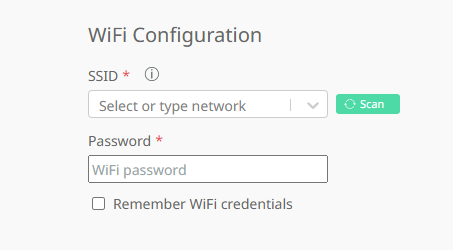
- Select a network from the list, or type a custom SSID for hidden networks.
- Enter the WiFi password.
- Optionally, check "Remember WiFi credentials" to save the credentials in your browser for future provisioning sessions.
Note: When "Remember WiFi credentials" is enabled, passwords are stored per network. If you provision across different WiFi networks, each password is remembered individually.
Option B: Ethernet Only
- Check "Ethernet only (skip WiFi)" to disable WiFi configuration.
- Select DHCP (default) or Static IP.
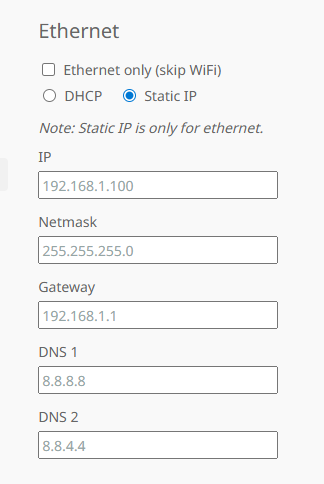
- If using Static IP, fill in the following fields:
| Field | Description | Default Value |
|---|---|---|
| IP | Static IP address for the device | (required) |
| Netmask | Subnet mask | 255.255.255.0 |
| Gateway | Default gateway | (required) |
| DNS 1 | Primary DNS server | 8.8.8.8 |
| DNS 2 | Secondary DNS server | 8.8.4.4 |
Option C: WiFi + Static Ethernet
Configure both WiFi (Option A) and Static IP Ethernet settings. Both configurations are sent to the device during provisioning.
Step 5: Provision the Device
- Click the "Provision" button.
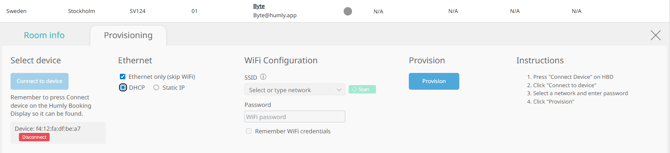
- The provisioning process runs automatically through the following stages:
| Stage | What happens |
|---|---|
| Network verification | If WiFi is configured, the selected SSID is verified. If not found in scan results, a confirmation dialog asks whether to proceed (useful for hidden networks). |
| Validation | Password length (minimum 8 characters for WPA/WPA2) and IP address formats are checked. |
| Device authorization | An authorization code is generated and sent to the device along with the server address and resource assignment. |
| Network configuration | WiFi credentials and/or Ethernet settings are transmitted to the device over BLE. |
| Connection confirmation |
The system waits up to 60 seconds for the device to connect to the configured network. |
- A success notification confirms provisioning is complete.
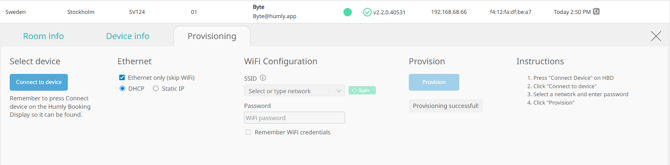
- The Bluetooth connection is automatically disconnected. The form resets, except for WiFi credentials if "Remember WiFi credentials" is enabled.
Important: Do not close the browser tab or move out of Bluetooth range during provisioning. The process typically takes 30–60 seconds.
Network Configuration Options
| Configuration | When to use | Steps |
|---|---|---|
| WiFi only | Device connects via WiFi | Scan, select SSID, enter password, provision |
| Ethernet only (DHCP) | Device is connected via Ethernet cable, auto IP | Check "Ethernet only", keep DHCP selected, provision |
| Ethernet only (Static IP) | Device needs a fixed IP address on Ethernet | Check "Ethernet only", select Static IP, fill fields, provision |
| WiFi + Static Ethernet | Device needs both WiFi and static Ethernet config | Configure WiFi and Static IP settings, provision |
Troubleshooting
Browser and Bluetooth
| Issue | Solution |
|---|---|
| "Web Bluetooth is not supported in this browser" | Switch to Google Chrome or Microsoft Edge. |
| No devices appear in the Bluetooth picker | Ensure the HBD is in pairing mode (press "Connect Device" on the HBD screen). Verify your computer's Bluetooth is enabled. Move closer to the device. |
| "User cancelled" error | You closed the Bluetooth picker without selecting a device. Click "Connect to device" again. |
WiFi
| Issue | Solution |
|---|---|
| WiFi scan returns no networks | Wait a few seconds and click Scan again. Ensure WiFi networks are within range of the HBD device (not your computer). |
| SSID not found during provisioning | For hidden networks, click Proceed in the confirmation dialog. For visible networks, run a new scan before provisioning. |
| "WiFi password must be at least 8 characters" | WPA/WPA2 networks require a minimum 8-character password. Verify the correct password. |
| Device fails to connect to WiFi (60-second timeout) | Verify the password is correct. Check that the network is within range of the HBD. Ensure the network is not MAC-filtered or at capacity. |
Provisioning
| Issue | Solution |
|---|---|
| "Please select a resource before provisioning" | Return to the Monitoring screen, select a resource, then open the Provisioning tab. |
| "Device rejected provisioning data" | Disconnect and reconnect, then try again. If the issue persists, restart the HBD device. |
| Connection lost during provisioning | Move closer to the device and restart from Step 2 (prepare the device). |
| Invalid IP address errors | Ensure all IP fields use valid IPv4 format (e.g., 192.168.1.100). |
Device Not Showing Pairing Screen
If the HBD device is not showing the "Connect Device" option and instead displays a pairing code prompt, follow the recovery steps in the mobile provisioning guide
- Tap the QR code area 10 times rapidly, or
- Press and hold for 10 seconds, then reset the device.
Best Practices
-
Prepare the device first — Always press "Connect Device" on the HBD screen before clicking "Connect to device" in HCP.
-
Stay within range — Maintain Bluetooth proximity throughout the entire provisioning process.
-
Use "Remember WiFi credentials" — When provisioning multiple devices on the same network, enable this option to avoid re-entering the password for each device.
-
Check signal strength — When scanning for networks, look for at least 2–3 bars of WiFi signal on the selected network for reliable device connectivity.
-
One device at a time — Complete provisioning for one device before starting the next.
-
Use Ethernet for critical rooms — For rooms where network reliability is essential, consider using Ethernet (DHCP or Static IP) instead of WiFi.
-
Verify after provisioning — After completing the process, confirm that the device appears online in the HCP Monitoring screen and displays the correct resource information.