
Haltian sensors send their data from the Haltian cloud straight to Humly Control Panel. You set up the connection once, in Haltian IoT Studio. No extra Humly hardware or software is needed.
Haltian integration is part of Humly Sense, the platform that connects third-party sensors to Humly. Once connected, Haltian sensors give you:
- Air quality: temperature, humidity and CO2 for a room, shown in Humly Control Panel and on the Humly Room Display.
- Presence sensor booking: a room or desk is booked when someone is there and released when they leave.
- Presence Check-in: a booking is checked in automatically when someone is in the room.
What you need
- Humly Control Panel 2.5 or later. It must be reachable from the internet over HTTPS. A Humly cloud installation already is. An on-premises installation needs a public HTTPS address.
- A Haltian gateway and sensors, ordered from Haltian.
- A Haltian IoT Studio account with manager rights for your organization.
- A Global Admin account in Humly Control Panel that the integration signs in with.
In this article
- Order the devices and get Haltian IoT Studio access
- Install the gateway and sensors
- Prepare a Humly Control Panel account
- Enable Haltian in Humly Control Panel
- Create the Humly integration in Haltian IoT Studio
- Assign the sensors to rooms and desks
- Use an occupancy sensor for presence sensor booking
- Pause, change or remove the integration
- Troubleshooting
Order the devices and get Haltian IoT Studio access
1. Order the Haltian gateway and sensors from Haltian.
2. Haltian gives you access to Haltian IoT Studio for your organization. The person who sets up the integration needs manager rights there. The Humly integration is already available in Haltian IoT Studio, so you configure it yourself in a later step.
Install the gateway and sensors
Install the devices where they will be used. Activate the gateway first, then the sensors.
When the gateway is connected and the sensors have joined its mesh network, sensor data is sent to the Haltian cloud automatically. For installation planning, contact Haltian.
Prepare a Humly Control Panel account
The integration signs in to Humly Control Panel with a username and password. The account must be a Global Admin.
Good to know
Use an account that is only for this integration. If the account belongs to a person, changing their password stops the sensor data.
Enable Haltian in Humly Control Panel
Do this before you create the integration in Haltian IoT Studio. Humly Control Panel can refuse Haltian sensor data while the Haltian integration is disabled.
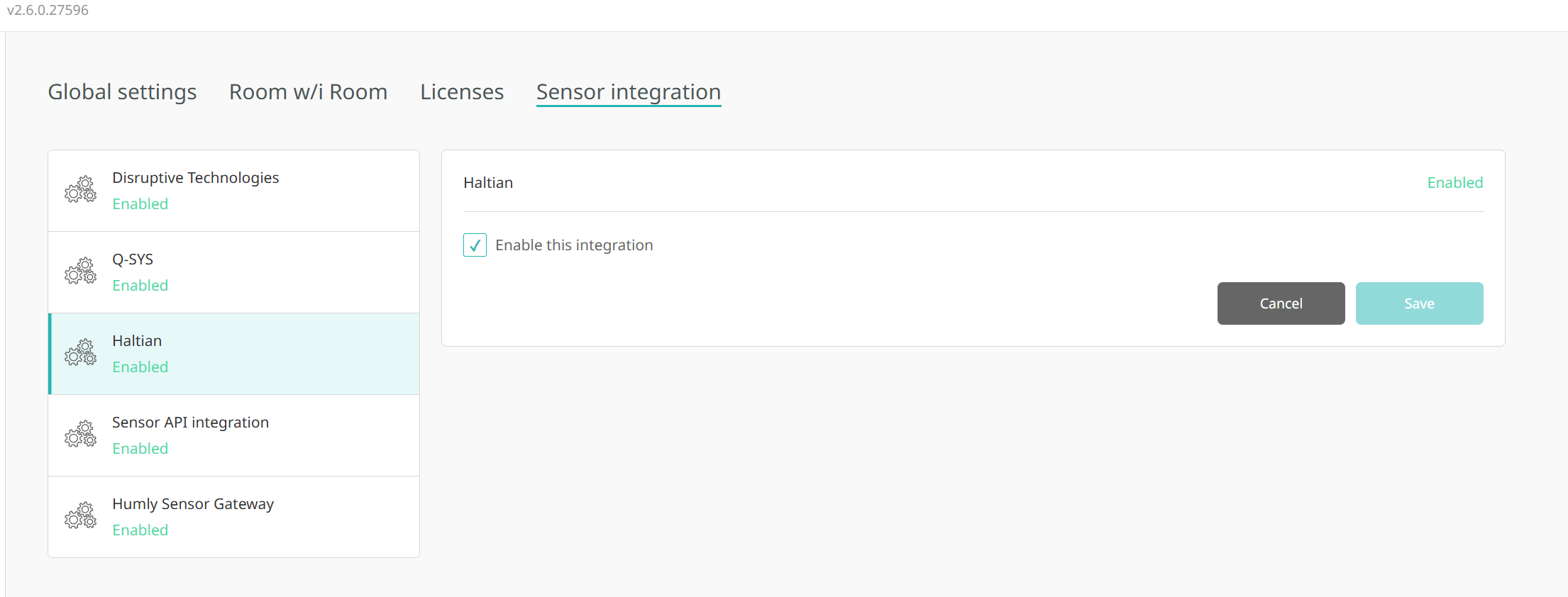
1. In Humly Control Panel, go to Settings and open the Sensor integration tab.
2. Select Haltian in the list of integrations.
3. Check Enable this integration.
4. Click Save. Haltian now shows as Enabled in the list.
Create the Humly integration in Haltian IoT Studio
1. Log in to Haltian IoT Studio with the account that has manager rights.
2. Open the Organization section and select Integrations.

3. Create a new Humly integration and fill in the fields:
- Base URL: the address of your Humly Control Panel, for example
https://12345.humly.cloud. It must start withhttps://and must not end with a slash. - Username: the Global Admin account from the previous step.
- Description: any text that helps you recognize the integration later.
- Password: the password of that account.
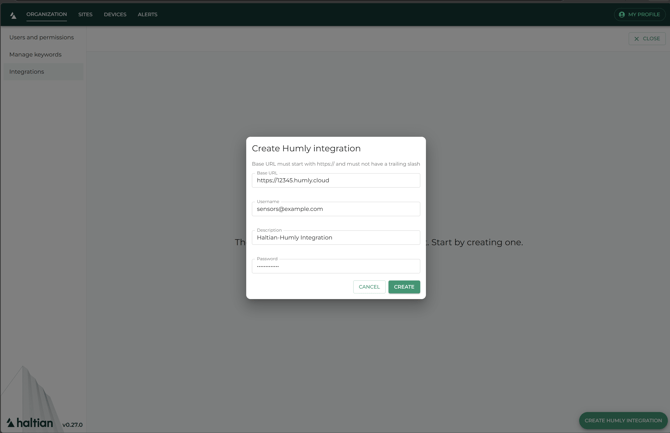
4. Click Create. The integration shows the status Active, and Haltian starts sending sensor data to Humly Control Panel.
Important
Create only one Humly integration for each Humly Control Panel. With two integrations, every reading is sent twice.
Assign the sensors to rooms and desks
Haltian sensors appear in Humly Control Panel by themselves. Each sensor is added the first time it sends a reading, so you do not need to import them.
- Temperature, humidity and CO2 sensors usually appear within a few minutes.
- An occupancy sensor sends a reading when the room changes between occupied and vacant. It can take up to an hour to appear. Walk past the sensor to make it appear sooner.
Each measurement of a Haltian device is a separate sensor in Humly Control Panel. The sensor names start with HIoT-, followed by the measurement and the start of the device ID. For example: HIoT-ambient_temperature-321f1632, HIoT-humidity-321f1632, HIoT-occupancy_status-db53fa07.
1. In Humly Control Panel, go to Resources, open Room settings (or desk settings), select the room and click Edit selected.
2. Scroll to the Sensors section and select the Haltian sensors:
- Carbon dioxide (CO2): the
co2sensor. - Temperature: the
ambient_temperaturesensor. - Humidity: the
humiditysensor. - Presence sensor: the
occupancy_statussensor.
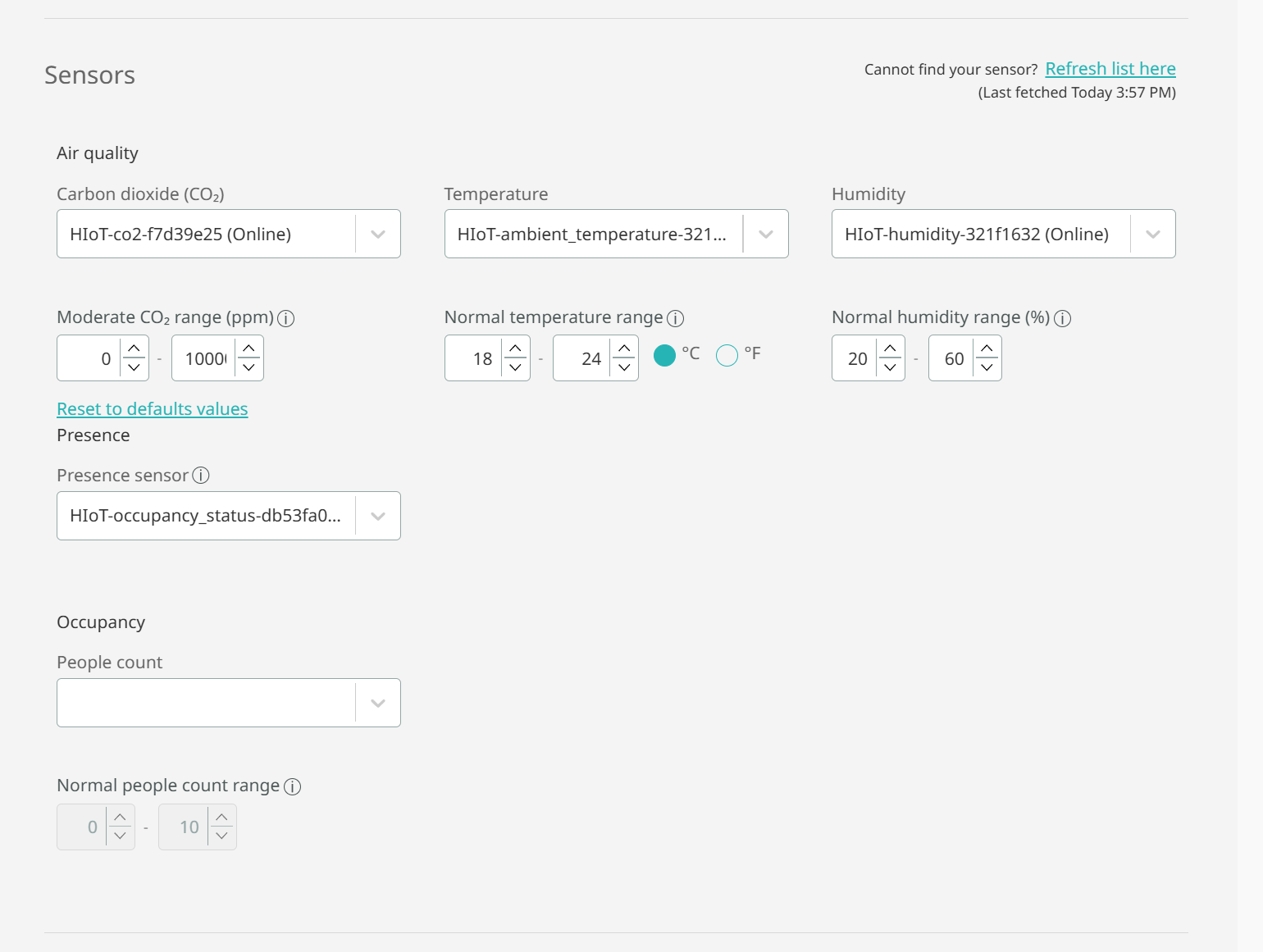
3. Click Save.
4. Open the Monitoring tab and select the room. The sensor values appear with the time of the last update.
Good to know
The Refresh list here link in the Sensors section does not fetch Haltian sensors. If a sensor is missing, wait for its first reading, then close and reopen the resource settings.
Use an occupancy sensor for presence sensor booking
A Haltian occupancy sensor can book a room or desk when someone is there and release it when they leave.
1. Assign the occupancy_status sensor under Presence sensor, as described above. A resource holds one presence sensor. Selecting a new one replaces the previous one.
2. Scroll to "Presence sensor booking", check Enable presence sensor booking and choose a booking mode. See Motion Sensor Booking for the booking modes and for how bookings are created and ended.
3. Click Save.
The booking starts when the sensor reports the room as occupied. It ends when the sensor reports the room as vacant. How quickly that happens depends on the sensor's own timing, which is set by Haltian.
The same sensor can also drive Presence Check-in.
Pause, change or remove the integration
Open the Humly integration in Haltian IoT Studio, under Organization > Integrations.
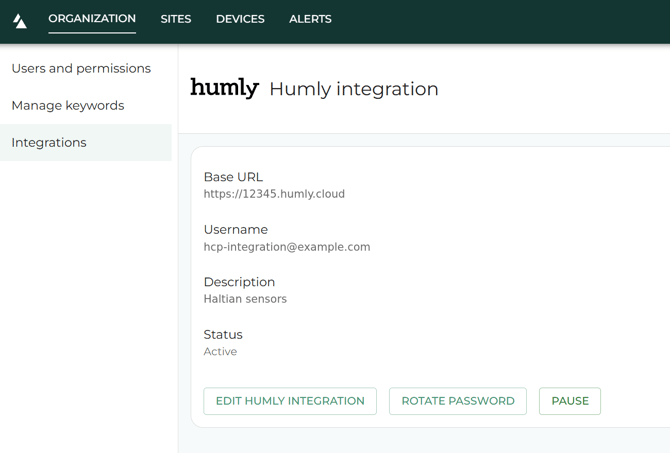
- Pause: stops sending sensor data to Humly Control Panel. Resume it from the same page.
- Edit Humly integration: changes the Base URL, username or description.
- Rotate password: use this when the password of the Humly Control Panel account changes.
- Delete integration: stops sending sensor data for good.
The Haltian sensors stay in Humly Control Panel after you pause or delete the integration. They no longer receive new values.
Troubleshooting
- No Haltian sensors appear in Humly Control Panel
Check that:- the integration is Active in Haltian IoT Studio;
- Haltian is enabled under Settings > Sensor integration;
- the Base URL starts with
https://, has no trailing slash, and the address opens from outside your network; - the account is a Global Admin and the password is correct.
- One sensor is missing
Check in Haltian IoT Studio that the gateway and the sensor are online. An occupancy sensor can take up to an hour to send its first reading. Close and reopen the resource settings after it has. - The room is released while people are still in it
The sensor reports the room as vacant too early. Contact Haltian about the sensor's occupancy timing. - Sensor values stop updating
Check that the integration is not paused in Haltian IoT Studio and that the gateway is online.
For questions about Haltian devices, contact Haltian. For questions about Humly Control Panel, contact support@humly.com.