
Sleep and wake up
Humly devices must be set to sleep outside of office hours to save energy, reduce screen wear, and keep the display calm when the room is unused. Sleep and wake up is configured per resource from Resource settings > Sleep and wake up settings. For a general overview of room settings, see Humly Room Settings Overview and How to edit room settings.
-
Applies to: Humly Room Display (HRD) and legacy Liso devices. Use light sleep setting behave the same on both.
- Applicable on Humly Control Panel 2.3 onward, HRD 2.3 onward, and Liso 3.0 onward.
Table of Contents
Sleep schedule
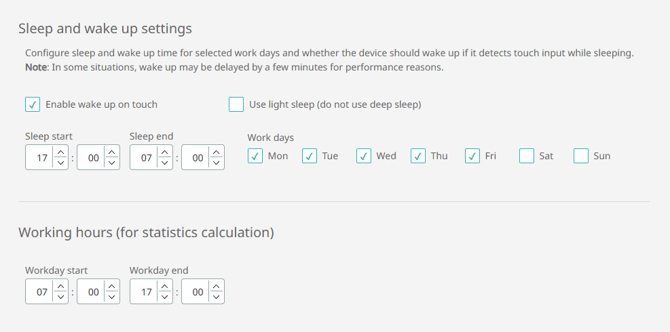
| Field | What it does |
|---|---|
| Sleep start | Time the device goes to sleep (24H format, e.g. 17:00). |
| Sleep end | Time the device wakes up (24H format, e.g. 08:00). |
| Working days | Mon–Sun toggles. The sleep schedule only applies on the days you enable — on non-working days the device stays asleep all day. |
The sleep period must be between 4 and 23 hours. By default, new rooms sleep from 17:00 to 08:00, Monday through Friday, in the room's time zone.
How a sleep cycle works
A sleep cycle on a working day runs through four phases, all driven by the Sleep start and Sleep end you configure:
- Active — Before Sleep start, the device runs normally and shows the home screen.
- Light sleep (first hour after Sleep start): When Sleep start is reached, the device turns the screen off (the backlight is switched off completely). The device itself stays powered on and connected to the server. If Enable wake up on touch is on, a tap turns the screen back on almost instantly.
- Deep sleep (rest of the sleep period): One hour after Sleep start, the device enters deep sleep: the whole device powers down to save energy. The screen remains off and the network connection is dropped until wake time. If Enable wake up on touch is on, a tap will still wake the device, but it takes noticeably longer because the device has to power back up first.
- Waking up: The device starts powering back up about 5 minutes before the wake time so the home screen is ready when the room becomes active again.
The two-step "light sleep then deep sleep" design keeps the device instantly reachable for the first hour, which covers late-afternoon walk-ups, and only drops into full shutdown once the room is clearly unused for the night — while still allowing a touch to wake the device during deep sleep when Enable wake up on touch is enabled.
Note on touch wake-ups during sleep hours: when a touch wakes the device, it stays on for 30 minutes of inactivity before returning to sleep. The 30-minute timer resets on every interaction. See Enable wake up on touch.
Wake time is slightly staggered per device
To prevent every device in a HCP from reconnecting to the server at the exact same second, each device is assigned a stable offset between 0 seconds and 10 minutes. The offset is derived from the room's mail address, so the same room always uses the same offset.
- Effective wake time = Sleep end + offset.
- The configured Sleep end is the earliest the device will wake; the actual moment falls somewhere within the 10-minute window after it.
- No configuration is required, the offset is applied automatically.
In some cases wake-up can take a few extra minutes for performance reasons (for example, while the device re-establishes its server connection). This is expected.
If a room must be ready at a specific time (e.g. 08:00 sharp), set Sleep end a little earlier — for example 07:50 — so the offset window finishes before the deadline.
Non-working days
On a day that is not a working day, the device stays asleep the entire day and only returns to the home screen on the next working day's wake time.
Enable wake up on touch
When this option is on, a sleeping device wakes up immediately when a user touches the screen, even during sleep hours, and goes back to sleep after a short idle period.
Turn it off if you want the device to stay asleep until the configured wake time no matter what.
Use light sleep
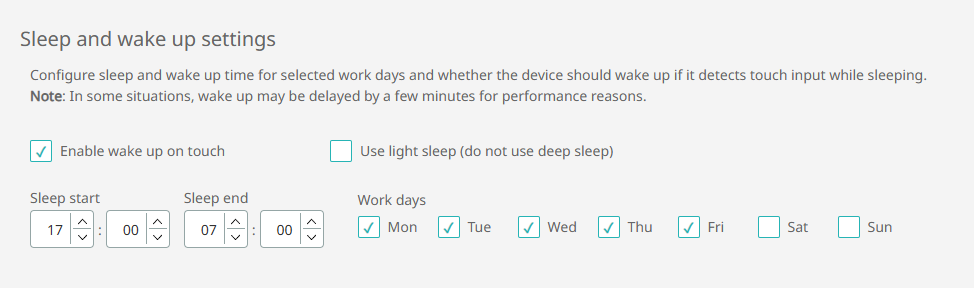
This option changes what happens in phase 3 of the sleep cycle.
- When off (default): the device enters deep sleep after the first hour and powers the whole device down until wake time.
- When on: the device skips deep sleep. It stays in the light-sleep state (screen off, device on) for the rest of the sleep period, and performs a clean reboot at the wake time to return to the home screen.
The Use light sleep checkbox is only editable when Enable wake up on touch is also enabled. To switch a room to light sleep, tick Enable wake up on touch first, then tick Use light sleep.
Tips
- New room, default hours: leave the defaults (17:00–08:00, Mon–Fri) unless the room is used outside standard office hours.
- Four sleep hours at least: Humly devices must be set to sleep outside of office hours to save energy, reduce screen wear
- 24/7 rooms: the form requires at least one working day, so the sleep schedule cannot be turned off entirely from this panel. To keep a room awake around the clock, leave the schedule with the smallest practical window or skip the sleep schedule by disabling the feature at the device level.
- Important rooms: if you need the device ready at a specific time, set Sleep end a few minutes earlier to account for the wake-up offset.
- Check-in during sleep: a scheduled meeting is still shown in HCP and check-in still works according to your check-in configuration via early check in, if early check in is not configured, the meetings will be auto checked in if the device is sleeping. See Check-in.
Troubleshooting
Device does not wake up at exactly the configured time
Expected. Each room is assigned a stable offset of up to 10 minutes on top of the configured Sleep end. The same room wakes at the same offset every day. See Wake time is slightly staggered per device. Short additional delays during server reconnection are also normal.
HRD is stuck on the Humly logo screen in the morning
Known behavior of the deep-sleep cold-boot path. Enable Use light sleep for the affected rooms — the device will perform a clean scheduled reboot at wake time instead of resuming from deep sleep, which avoids the freeze.
The screen turns off at Sleep start, but the device does not feel "asleep"
Expected. The first hour after Sleep start is the light-sleep phase (phase 2 in How a sleep cycle works): the screen is off but the device is still powered on and reachable. Full deep sleep starts one hour later.
Device does not wake on touch
Check that Enable wake up on touch is enabled for the room, and save the settings. If it is already on, verify the device is actually asleep (not powered off) and that the touch surface responds normally when the device is awake.
"Use light sleep" checkbox is greyed out
In the current UI, Use light sleep requires Enable wake up on touch to be enabled first. Tick Enable wake up on touch, and Use light sleep becomes editable.
"Minimum difference between sleep and wake needs to be 4h."
The sleep period must be at least 4 hours. Adjust Sleep start or Sleep end so the gap between them is 4 hours or more.
"Maximum sleep period can not be more than 23h."
The sleep period cannot exceed 23 hours. To keep a room mostly inactive, set the smallest possible active window on a single working day instead.
"At least one working day must be selected!"
The schedule requires at least one working day. The form will not save with all seven day toggles unchecked. Pick the day(s) the room should follow the sleep schedule on; on the unchecked days the device stays asleep all day.
"Sleep or wake time is not valid."
The time is not in valid 24H format. Use HH:mm — for example 07:30 or 17:00.
Device stays asleep on a day it should be working
Check the working days toggles in the same section. On non-working days the device stays asleep all day regardless of sleep start/end. Also verify the room's time zone — sleep and wake are evaluated in the room's local time.
Device reboots every morning after enabling light sleep
Expected. With Use light sleep enabled, the device performs a scheduled clean reboot at the wake time instead of powering back up from deep sleep. If the daily reboot is not desired, turn Use light sleep off to fall back to deep sleep.