Skip to content
  • There are no suggestions because the search field is empty.

Step 3B - Deploy the Outlook add-in (Centralized)

In this step, you will deploy the Outlook add-in using centralized deployment in Microsoft 365 Admin Center. This method allows you to control who has access to the add-in in Outlook, whether for the entire tenant, specific groups, or individual users.

  1. In your browser, go to the Microsoft 365 Admin Center at https://admin.cloud.microsoft.

  2. Log in as either Global Admin, Exchange Admin or Microsoft 365 Apps Admin.

  3. In the left menu navigate to Settings → Integrated apps.
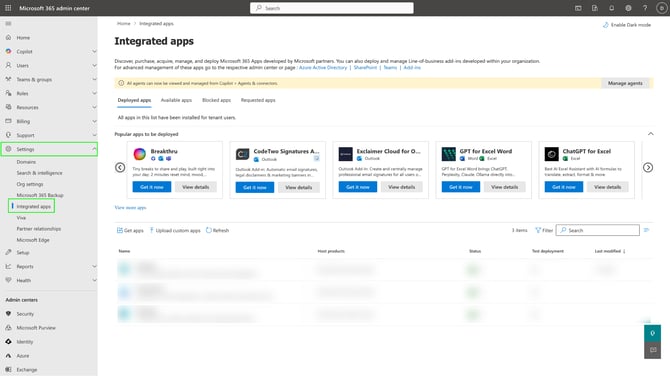
    Microsoft 365 Admin Center - Settings - Integrated Apps.png

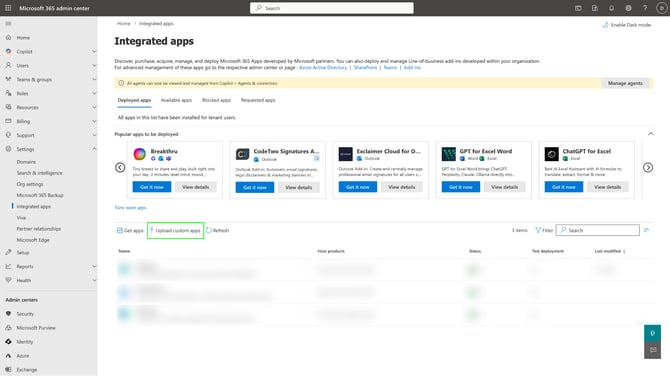
  4. Click Upload custom apps.
    Microsoft 365 Admin Center - Settings - Integrated Apps - Upload custom apps.png
  5. Under App type select Office Add-in, and upload the manifest file for your Outlook add-in. After it has been validated continue by clicking Next.
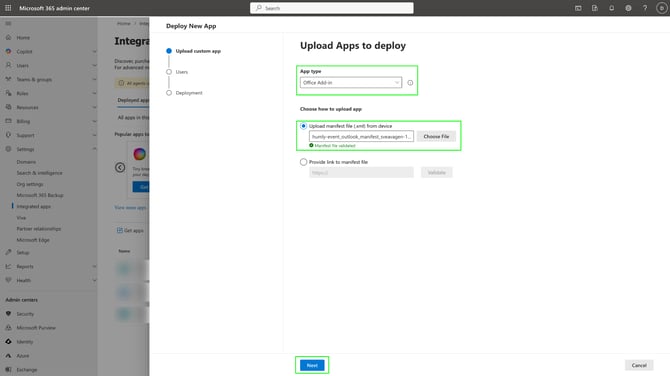
    Microsoft 365 Admin Center - Settings - Integrated Apps - Upload custom apps - Step 1.png
  6. Under Add users, select one of the options to who you want to assign users to the Outlook add-in; Just me, Entire organization or Specific users or groups. Click Next when you have made your choice.
    Note: In below example we have prepared a group called Humly Visitor, which contains users which will have access to the add-in.
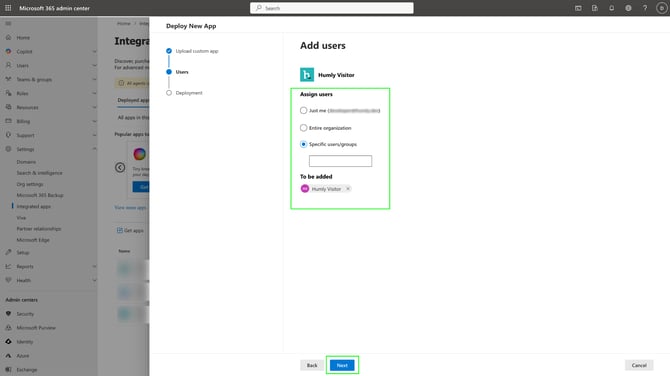
    Microsoft 365 Admin Center - Settings - Integrated Apps - Upload custom apps - Step 2 - Users.png
  7. Under Accept permissions requests, review app permissions and capabilities and click Accept permissions to continue.
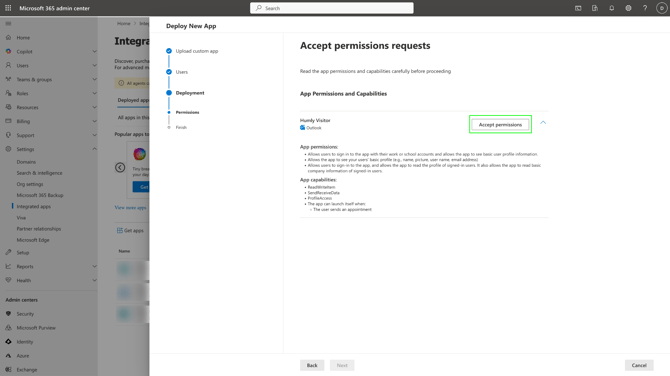
    Microsoft 365 Admin Center - Settings - Integrated Apps - Upload custom apps - Step 3 - Deployment - Accept permissions request.png
  8. You will be redirected to a new page on the same browser where you will be asked to pick an account you want to accept the permissions using. Click the account.
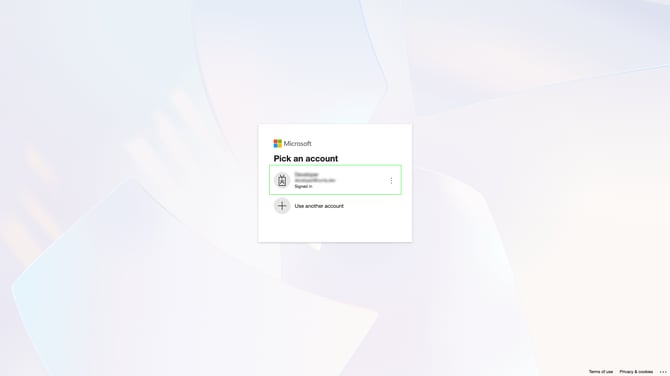
    Microsoft 365 Admin Center - Settings - Integrated Apps - Upload custom apps - Step 3 - Deployment - Accept permissions request - Pick an account.png
  9. Review the permissions requested and click Accept to confirm.
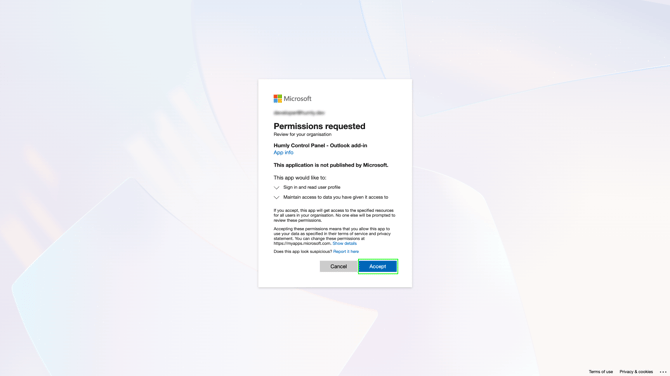
    Microsoft 365 Admin Center - Settings - Integrated Apps - Upload custom apps - Step 3 - Deployment - Accept permissions request - Approve permissions.png
  10. You will be redirected, and you will see that the permissions has been accepted for the add-in. Click Next to continue.
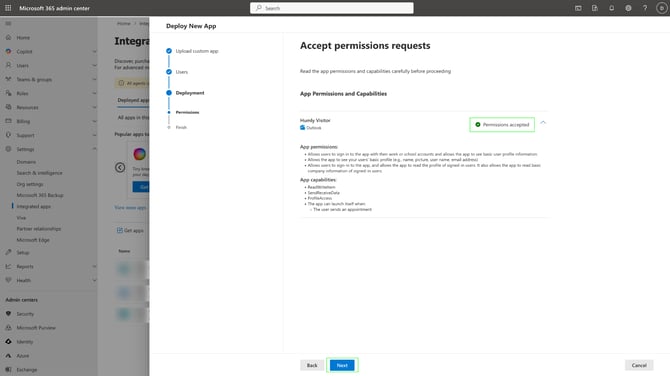
    Microsoft 365 Admin Center - Settings - Integrated Apps - Upload custom apps - Step 3 - Deployment - Accept permissions request - Permissions Accepted.png
  11. Finally, review and finish deployment by clicking Finish deployment.
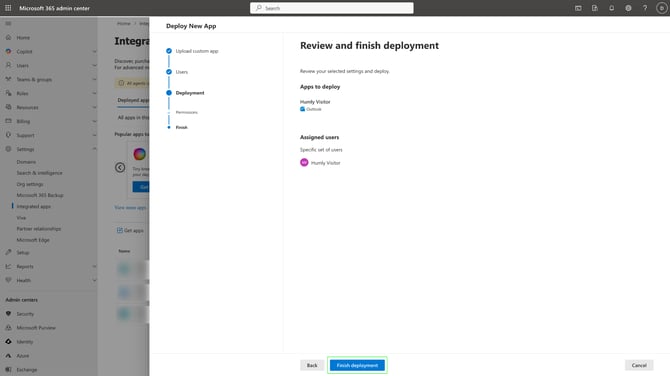
    Microsoft 365 Admin Center - Settings - Integrated Apps - Upload custom apps - Step 3 - Deployment - Accept permissions request - Review and Finish.png
  12. Deployment is now completed. It can take up to 72 hours for the add-in to appear, and users may need to relaunch or log in again to be able to see the add-in on the app ribbon in Outlook calendar view when creating an event.
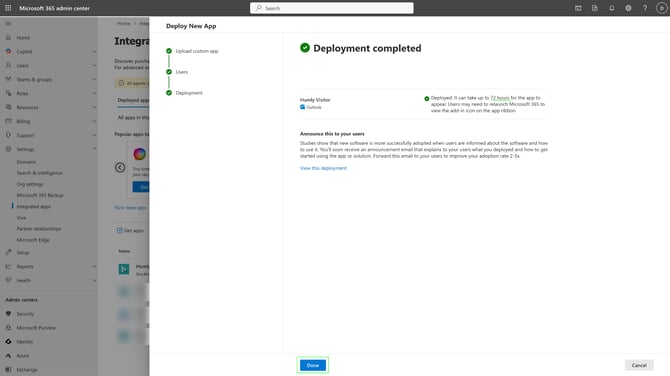
    Microsoft 365 Admin Center - Settings - Integrated Apps - Upload custom apps - Step 3 - Deployment - Accept permissions request - Deployment Completed.png
  13. The add-in will also be visible under Settings → Integrated apps → Deployed apps.
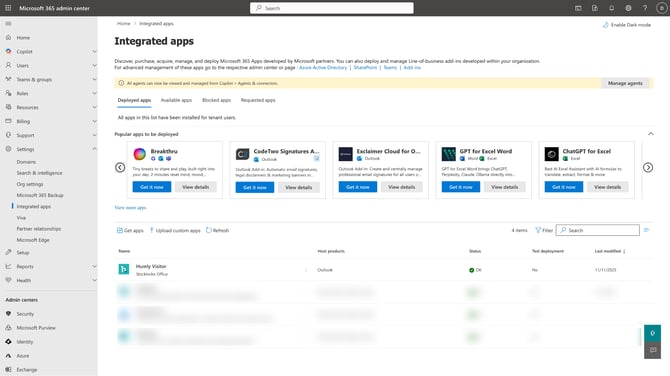
    Microsoft 365 Admin Center - Settings - Integrated Apps - Upload custom apps - Step 3 - Deployment - Accept permissions request - Deployed Apps.png