
Deploying the add-in locally by uploading (side loading) the Humly Event Outlook XML-manifest, is an alternative way of deployment. It can be used when, for example, you want to try it out or do some evaluation before centralized deployment (tenant or group) from Microsoft 365 Admin Center.
It requires the user to manually upload (sideload) the manifest as their own app under My add-ins.
The user deploying the add-in locally, must also be a member in one of the groups added to M365 user groups under Global Settings in Humly Control Panel. Find out more in the previous step here.
-
Log in to your M365 account at outlook.office365.com.
-
Go to your Outlook.
-
In the browser address bar add the following URL:
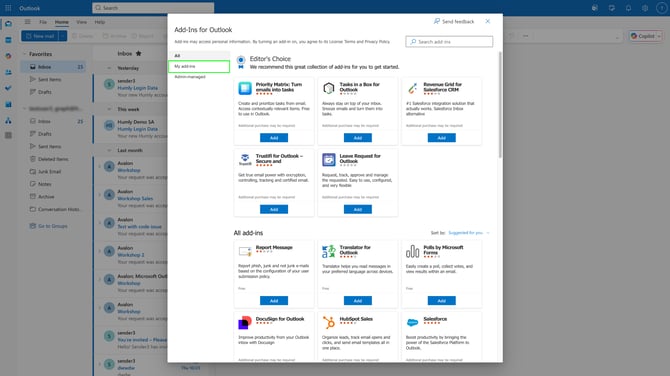
https://aka.ms/olksideload - In the modal Add-Ins for Outlook, click on My add-ins.
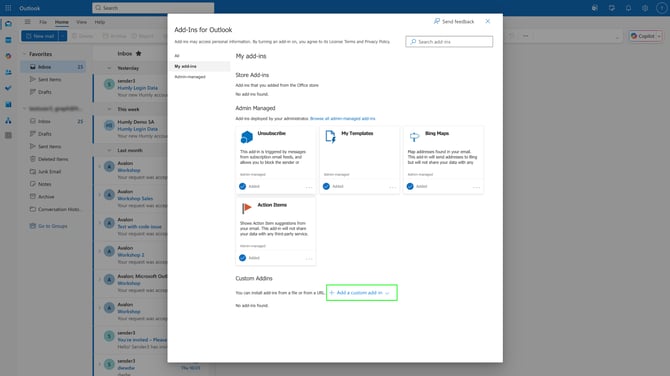
- Under Custom Addins, click Add a custom add-in, and then Add from file… .
- Upload the manifest XML-file which by default has the following file name format (or if you or someone else have changed the file name):
humly-event_outlook_manifest.xml - You will receive a warning before installing the add-in. Since it is an add-in that will be side loaded and has not been verified by Microsoft (not published to be public through Microsoft).
Click Install to install the add-in locally.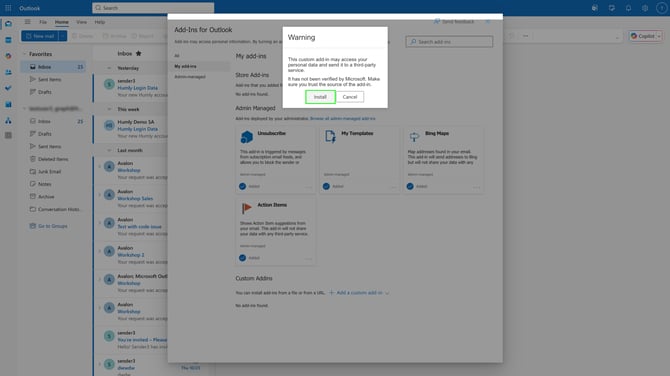
-
The add-in will show up under Custom Addins, and it will be available from the Outlook Calendar (Web & Desktop Client) when creating a new event.