
LoRaWAN sensors reach Humly Sensor Gateway (HSG) through your network server. You create a webhook token in HSG, then point the network server's webhook at HSG. After that, each sensor appears in HSG after its first uplink.
In this article
- Before you start
- Step 1: Create a webhook token
- Step 2: Connect your network server
- Step 3: Approve the sensors
- Field names HSG reads
- If sensors do not appear
Before you start
- HSG is set up and paired. See Humly Sensor Gateway - First-time setup.
- Your sensors are registered in the network server and send uplinks.
- Each sensor model has a payload decoder in the network server. HSG reads the decoded values.
- The network server can reach HSG on port 3100.
Step 1: Create a webhook token
The network server uses a token to prove that it may send data to HSG. Create one token per network server.
- In the HSG dashboard, go to Settings.
- Under LNS webhook tokens, click + Create LNS token.
- Give the token a name that identifies the network server, for example
chirpstack-primary. Click Create. - Copy the Bearer token. HSG shows it only once.
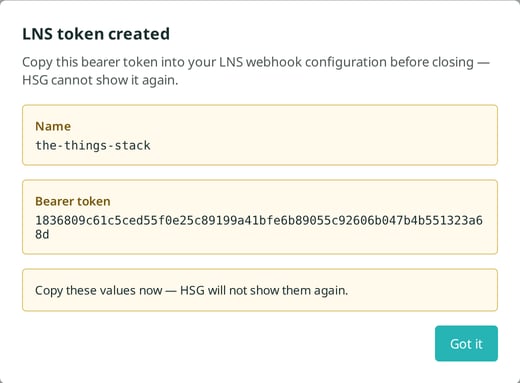
You will need two values in the network server:
| Setting | Value |
|---|---|
| Webhook address | http://<hsg-server>:3100/lora/uplink. Use https:// if you uploaded a certificate to HSG. |
| Header | Name Authorization, value Bearer <token> |
Step 2: Connect your network server
Add a webhook in your network server with the address and header above. Follow the article for your network server:
- Connect ChirpStack to Humly Sensor Gateway (ChirpStack v3 and v4)
- Connect The Things Stack to Humly Sensor Gateway (The Things Network and The Things Industries)
The network server sends every event type to HSG. HSG uses uplinks and ignores the rest. Join events and decoder errors show up on the HSG Logs page.
Step 3: Approve the sensors
Each sensor shows up on the HSG Sensors page after its first uplink. It shows as Pending until you approve it. Pending sensors do not send readings to Humly Control Panel.
- Go to Sensors and click the Pending filter.
- Click Confirm on a sensor.
- Enter a display name, for example the room name. Click Confirm.
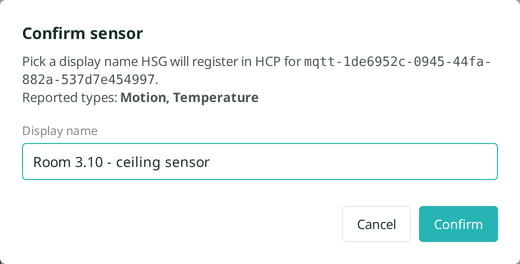
HSG registers the sensor in Humly Control Panel under that name. Then assign the sensor to a resource in Humly Control Panel.
Field names HSG reads
HSG matches the field names in the decoded payload. Case, underscores, dashes and dots are ignored. For example, people_count_all and PeopleCountAll are the same.
| Reading | Field names |
|---|---|
| Motion | motion, pir, event_motion |
| Occupancy | occupancy, occupied |
| Presence | presence |
| Temperature (°C) | temperature, temp, sensor_temperature, temperature_c, temperature_celsius |
| Humidity | humidity, relative_humidity |
| CO2 | co2, carbon_dioxide |
| People count | people_count, people_counter, people_count_all, zone_global |
- For motion, occupancy and presence, numbers above 0 mean detected. The text values
falseand0mean not detected. - Temperature must be in degrees Celsius.
- People counters with several zones or lines become one sensor per zone or line. For example,
region1_countandline1_total_in.
If your sensor uses other field names, change the decoder in the network server, or email support@humly.com with the brand and model. We can add the field names in an HSG update.
If sensors do not appear
- The network server shows HTTP 401. The token is wrong or was deleted. Create a new token and update the header.
- Nothing reaches HSG. Check the address and port. Check that the network server can reach the HSG server.
- Uplinks arrive, but no sensor appears. The payload is not decoded, or the field names are not in the table above. Look for warnings on the HSG Logs page.
- The gateway shows as connected, but no data arrives. Some gateways stop forwarding sensor data after a network interruption while they still look connected. Check the network server for recent uplinks. If there are none, restart the gateway's packet forwarder.
More help: Humly Sensor Gateway - Troubleshooting.
Humly Sensor Gateway guide
Get started
- Humly Sensor Gateway - Overview
- Humly Sensor Gateway - Use cases
- Humly Sensor Gateway - Requirements
Install and set up
- Install Humly Sensor Gateway on Windows
- Install Humly Sensor Gateway on Linux
- Humly Sensor Gateway - First-time setup
Connect sensors
- Connect LoRaWAN sensors to Humly Sensor Gateway
- Connect ChirpStack to Humly Sensor Gateway
- Connect The Things Stack to Humly Sensor Gateway
- Connect MQTT sensors to Humly Sensor Gateway
Manage and troubleshoot