
This article lists what you need before you install Humly Sensor Gateway (HSG). It covers the server, the network, Humly Control Panel, and the sensors we have tested.
In this article
Server
HSG runs on one Windows or Linux server in your network. A virtual machine works well.
| Windows | Linux | |
|---|---|---|
| Operating system | Windows Server 2022 or later, 64-bit | Ubuntu 20.04, 22.04 or 24.04 LTS, or Debian 11. 64-bit (x86-64). |
| Access | A local administrator account | A regular user with sudo. Do not install as root. |
| Internet during install | Not needed. The installer includes everything. | Needed. The installer downloads packages and Node.js. |
| Installed with HSG | .NET Framework 4.8, Visual C++ runtime, Node.js 22, Mosquitto MQTT broker | Node.js 22, Mosquitto MQTT broker, build tools |
Recommended minimum: 2 CPU cores, 4 GB RAM and 10 GB free disk space. HSG is light. On a test gateway with seven sensors, HSG and its MQTT broker used about 150 MB of memory together.
Note
On Linux, do not install HSG on the same server as Humly Control Panel. The installer stops if it finds Humly Control Panel.
Give the server a fixed IP address. Sensors and network servers send data to this address. If it changes, they stop reaching HSG.
Network and ports
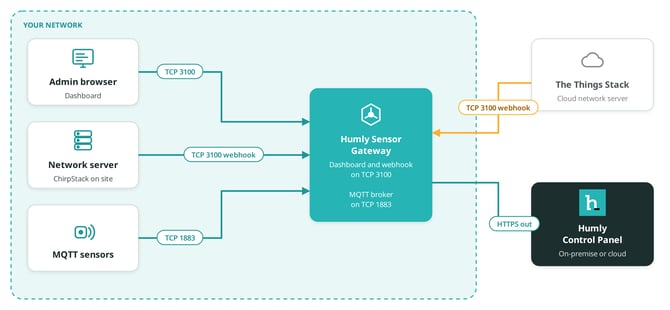
| Port | Direction | Used by |
|---|---|---|
| TCP 3100 | In to HSG | The dashboard in a browser, and the LoRaWAN webhook from your network server. |
| TCP 1883 | In to HSG | MQTT sensors connecting to the built-in broker. |
| TCP 443 (or your HCP port) | Out from HSG | HSG sending readings to Humly Control Panel over HTTPS. |
- The Windows installer opens ports 3100 and 1883 in Windows Firewall.
- The Linux installer does not change the firewall. If
ufwis active, allow both ports. See Install Humly Sensor Gateway on Linux. - You can change the dashboard port during or after installation. Port 1883 is fixed.
- If you use a cloud network server, such as The Things Stack, it must reach port 3100 from the internet. Use a reverse proxy that only allows the webhook path,
/lora/uplink.
Humly Control Panel
- Humly Control Panel 2.5 or later, on-premise or Humly Cloud.
- A Humly Sensor Gateway licence. One licence covers any number of sensors.
- The Humly Sensor Gateway integration turned on under Settings > Sensor integration.
- A user with the API Integration role for HSG to sign in with.
See Humly Sensor Gateway - First-time setup for the steps.
LoRaWAN
- LoRaWAN gateways that forward to your network server.
- A supported network server: ChirpStack v3, ChirpStack v4, or The Things Stack v3 (The Things Network or The Things Industries).
- A payload decoder for each sensor model in the network server. HSG uses the decoded values. It does not decode raw LoRaWAN data.
MQTT
- A sensor that can publish over MQTT with a username and password.
- A sensor model that HSG supports. Today that is the Atlona AT-OCS-900N. For another model, email support@humly.com.
- Network access from the sensor to the HSG server on port 1883.
Tested sensors
These sensors are tested end to end with HSG and Humly Control Panel.
| Sensor | Protocol | Readings |
|---|---|---|
| Atlona AT-OCS-900N | MQTT | Motion, temperature |
| Browan Tabs TBMS100 | LoRaWAN | Occupancy, temperature |
| Dragino AQS01 | LoRaWAN | CO2, temperature, humidity |
| enerthing enerSENSE CO2 | LoRaWAN | CO2, temperature, humidity, motion |
| MClimate CO2 Sensor | LoRaWAN | CO2, temperature, humidity |
| Milesight VS121 | LoRaWAN | People count |
| Milesight WS202 | LoRaWAN | Motion |
Tested LoRaWAN gateway: Milesight UG63. Other gateways work if they forward to a supported network server.
Have a sensor that is not on the list?
Tell us about it. Email support@humly.com with the brand, the model and whether it uses LoRaWAN or MQTT. Most LoRaWAN sensors work without changes. For other MQTT sensors, we can add support in an HSG update.
Other LoRaWAN sensors usually work without changes, as long as the network server decodes them into common field names. See Connect LoRaWAN sensors for the list of field names HSG reads.
Limitations
- MQTT runs without TLS. Keep MQTT sensors and HSG on a trusted network.
- Readings are not queued. If Humly Control Panel cannot be reached, HSG retries three times and then drops the reading. The sensor's next reading is sent as normal.
- One reading per minute. HSG does not resend an unchanged value within 60 seconds. A changed value is sent straight away.
- LoRaWAN status. A LoRaWAN sensor shows as offline after 60 minutes without a reading. Sensors that report less often show as offline between reports.
- One admin account per gateway.
Humly Sensor Gateway guide
Get started
- Humly Sensor Gateway - Overview
- Humly Sensor Gateway - Use cases
- Humly Sensor Gateway - Requirements
Install and set up
- Install Humly Sensor Gateway on Windows
- Install Humly Sensor Gateway on Linux
- Humly Sensor Gateway - First-time setup
Connect sensors
- Connect LoRaWAN sensors to Humly Sensor Gateway
- Connect ChirpStack to Humly Sensor Gateway
- Connect The Things Stack to Humly Sensor Gateway
- Connect MQTT sensors to Humly Sensor Gateway
Manage and troubleshoot