
The Settings page of the Humly Sensor Gateway (HSG) dashboard has six panels. This article explains each one.
In this article
HCP pairing
Shows the Humly Control Panel address, the integration user and the pairing status.
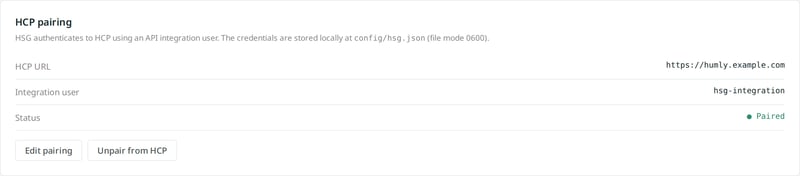
- Edit pairing changes the address, user or password. HSG tests the new details first. If they fail, the current pairing stays as it is.
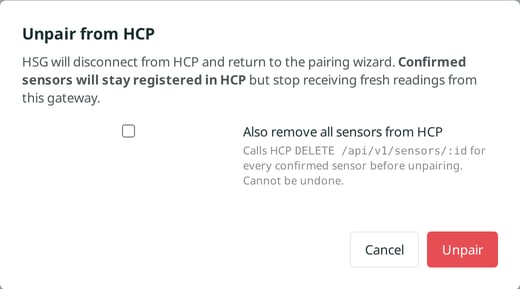
- Unpair from HCP disconnects HSG and returns to the pairing screen. Confirmed sensors stay in Humly Control Panel but stop getting readings. Tick Also remove all sensors from HCP to delete them there too. That cannot be undone.
Security
Turns two-factor authentication on or off for your account. Two-factor authentication is off by default. We recommend turning it on. See Humly Sensor Gateway - First-time setup.
To disable two-factor authentication, or to create a new recovery code, you need your password and a current code.
TLS certificates
Serves the dashboard and the webhook over HTTPS with your own certificate. Paste the server certificate, the private key and, if needed, the CA chain in PEM format. Then click Upload certificate. HSG switches to HTTPS without a restart.
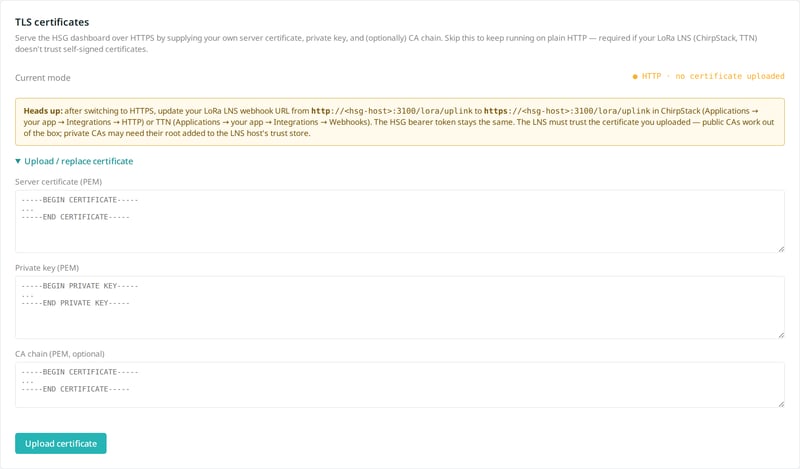
After the switch, update the webhook address in your network server to https://.
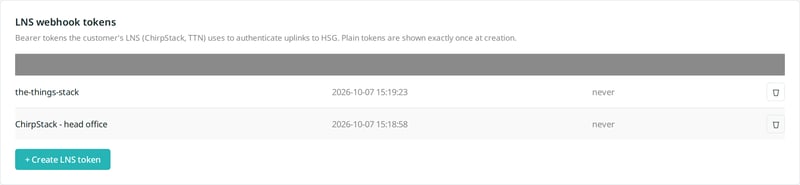
LNS webhook tokens
Tokens that let your LoRaWAN network servers send data to HSG. The list shows each token's name and when it was last used. Delete a token to cut off that network server.
MQTT sensor credentials
Creates an MQTT login for a new sensor. Select the vendor and click + Mint credentials. HSG shows the username, password and topic prefix once.

See Connect MQTT sensors.
Mosquitto broker
Shows the state of the built-in MQTT broker.
| Field | Meaning |
|---|---|
| Subscriber status | Whether HSG itself is connected to the broker. It should say Connected. |
| Currently connected sensors | MQTT sessions open right now. |
| Active credentials | MQTT logins that exist in HSG. |
Humly Sensor Gateway guide
Get started
- Humly Sensor Gateway - Overview
- Humly Sensor Gateway - Use cases
- Humly Sensor Gateway - Requirements
Install and set up
- Install Humly Sensor Gateway on Windows
- Install Humly Sensor Gateway on Linux
- Humly Sensor Gateway - First-time setup
Connect sensors
- Connect LoRaWAN sensors to Humly Sensor Gateway
- Connect ChirpStack to Humly Sensor Gateway
- Connect The Things Stack to Humly Sensor Gateway
- Connect MQTT sensors to Humly Sensor Gateway
Manage and troubleshoot
- Humly Sensor Gateway - Dashboard tour
- Humly Sensor Gateway - Settings reference
- Update Humly Sensor Gateway
- Humly Sensor Gateway - Troubleshooting