
The Humly Sensor Gateway (HSG) dashboard is where you approve, name and monitor sensors. It has three pages: Sensors, Settings and Logs. Open it at http://<hsg-server>:3100.
In this article
The Sensors page
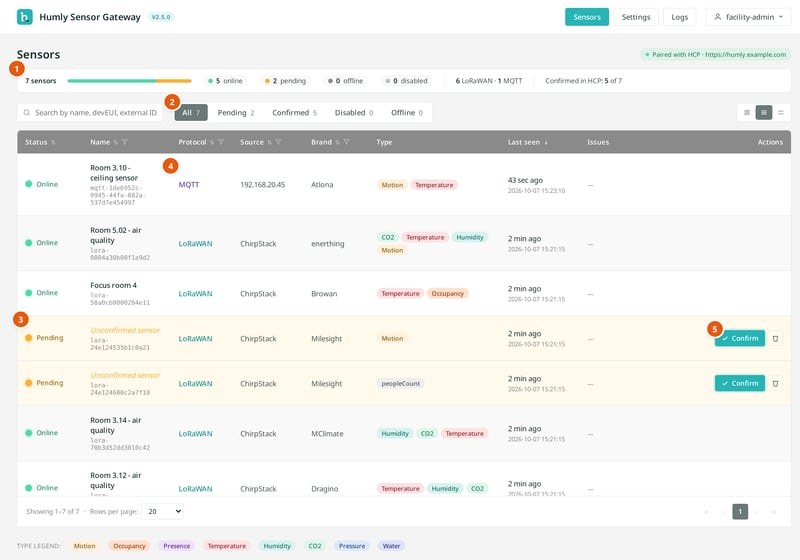
- Summary bar. The number of sensors per status, the split between LoRaWAN and MQTT, and how many are registered in Humly Control Panel.
- Filters. Show all sensors, or only pending, confirmed, disabled or offline ones. Use the search box to find a sensor by name, devEUI or external ID.
- Status. See Sensor status below.
- Protocol and source. LoRaWAN sensors show the network server. MQTT sensors show the sensor's IP address.
- Confirm. Approves a pending sensor and registers it in Humly Control Panel.
Each row also shows the brand, the reading types the sensor reports, and when HSG last heard from it. One physical sensor can report several types, such as CO2, temperature and humidity.
Sensor status
| Status | Meaning |
|---|---|
| Pending | HSG has seen the sensor, but nobody has approved it. Its readings are not sent to Humly Control Panel. |
| Online | The sensor is approved and reporting. |
| Offline | The sensor is approved, but not reporting. The Issues column says why. |
| Disabled | An admin paused the sensor. HSG keeps it, but does not send its readings to Humly Control Panel. |
How HSG decides that a sensor is offline:
- LoRaWAN: no reading for 60 minutes. The Issues column shows no reading in 1h or never reported.
- MQTT: the sensor is not connected to the broker. The Issues column shows broker reported disconnect or never connected to broker.
HSG also reports the status to Humly Control Panel.
Sensor actions
| Action | What it does |
|---|---|
| Confirm | Approves a pending sensor under a display name, and registers it in Humly Control Panel. The sensor must have sent at least one reading. |
| Rename | Changes the display name. The new name also updates in Humly Control Panel. |
| Disable / Enable | Pauses or resumes sending readings. The sensor stays registered in Humly Control Panel. |
| Regenerate password | MQTT only. Creates a new password for the sensor's login. |
| Delete | Removes the sensor from HSG and unregisters it from Humly Control Panel. For MQTT sensors, it also removes the login. |
The Logs page
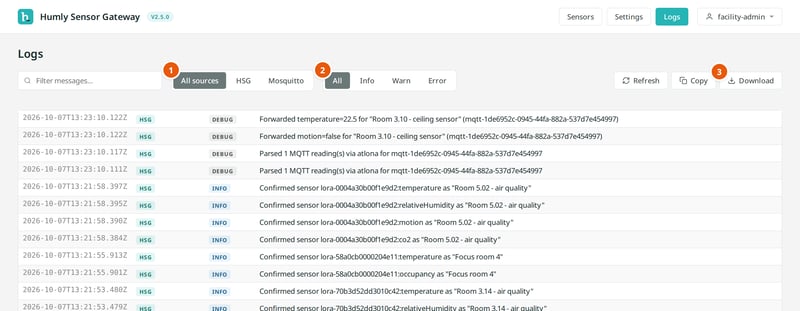
- Source. Messages from HSG, from the Mosquitto MQTT broker, or both.
- Level. Show all messages, or only info, warnings or errors.
- Download. Saves the log as a text file. Attach it when you contact Humly support.
The page keeps the most recent 1,000 lines. A restart of HSG clears it. HSG removes passwords and tokens from the messages. The full log stays on the server. See the install article for your system.
Your account
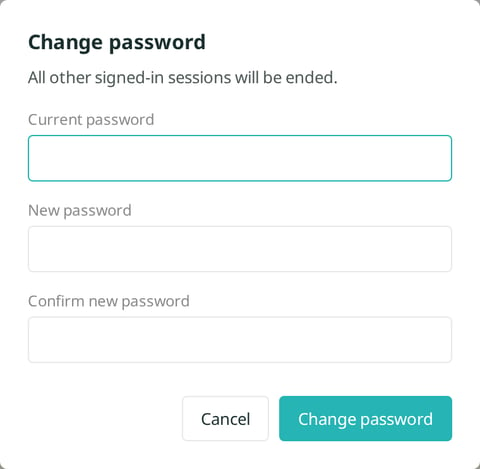
Click your username in the top right to change your password, manage two-factor authentication or sign out.
- A session lasts 12 hours. Then you sign in again.
- Changing your password signs out all other sessions.
- After 5 failed sign-ins within a minute, HSG blocks new attempts for a minute.
Humly Sensor Gateway guide
Get started
- Humly Sensor Gateway - Overview
- Humly Sensor Gateway - Use cases
- Humly Sensor Gateway - Requirements
Install and set up
- Install Humly Sensor Gateway on Windows
- Install Humly Sensor Gateway on Linux
- Humly Sensor Gateway - First-time setup
Connect sensors
- Connect LoRaWAN sensors to Humly Sensor Gateway
- Connect ChirpStack to Humly Sensor Gateway
- Connect The Things Stack to Humly Sensor Gateway
- Connect MQTT sensors to Humly Sensor Gateway
Manage and troubleshoot
- Humly Sensor Gateway - Dashboard tour
- Humly Sensor Gateway - Settings reference
- Update Humly Sensor Gateway
- Humly Sensor Gateway - Troubleshooting