
A scheduled export emails statistics to the people you choose, every day or once a month. Each schedule has its own locations, resource types and recipients, so every site can get its own report.
Version 2.6 and later
This article describes scheduled exports from version 2.6. For earlier versions, see Version 2.5 and earlier.
In this article
- Who can create schedules
- The Scheduled exports tab
- Create a schedule
- When reports are sent and what they cover
- What recipients receive
- Edit, pause or delete a schedule
- When the owner changes
- Your schedule after upgrading to 2.6
- Version 2.5 and earlier
Who can create schedules
Global Admins, Local Admins and Statistics Users can create schedules. The person who creates a schedule is its owner.
| User type | Sees | Can export |
|---|---|---|
| Global Admin | All schedules in the installation. | All locations. |
| Local Admin, Statistics User | Only their own schedules. | Only the locations assigned to them. |
One installation can have up to 50 schedules.
The Scheduled exports tab
Go to Statistics > Scheduled exports.
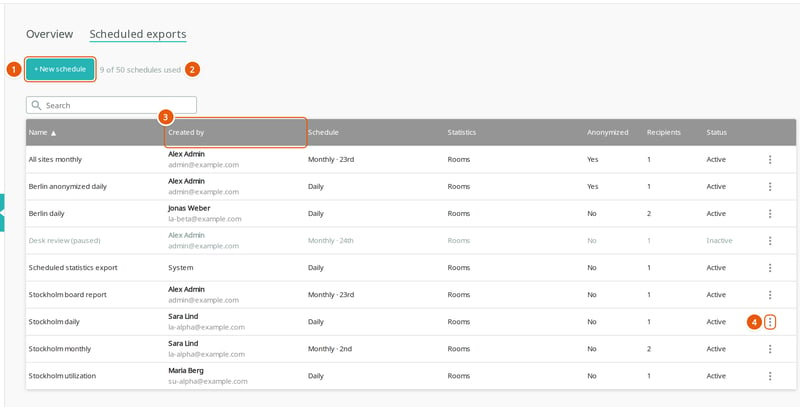
- + New schedule creates a schedule.
- How many of the 50 schedules are in use. Only Global Admins see this.
- Created by shows each schedule's owner. Only Global Admins see this column. System marks the schedule carried over from an earlier version.
- The row menu, to edit, pause or delete a schedule.
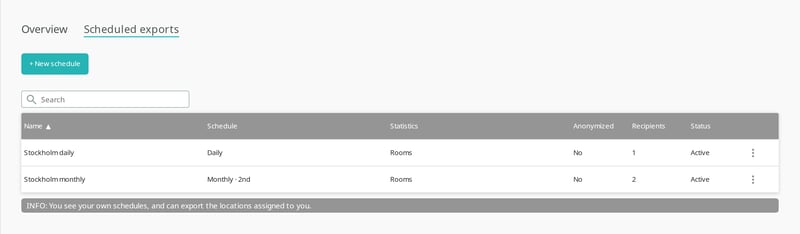
Local Admins and Statistics Users see their own schedules only:
Create a schedule
- Go to Statistics > Scheduled exports and select + New schedule.
- Enter a Name of up to 30 characters. Recipients do not see the name, so choose one that helps admins recognise the schedule.
- Leave Active selected to start sending reports.
- Under Schedule, select Daily or Monthly. For a monthly report, choose the Day of month.
- Under Statistics, select Rooms, Desks and/or Parking spaces. Types that do not exist in your installation are greyed out.
- Under Locations, select the countries, cities, buildings or floors to include. Leave all unselected to include every location you can export.
- Under Export, add the recipients. Type an email address and select Add. Your own address is added for you. Remove it if you do not want the report.
- Leave Anonymize exported data selected to send the report without personal information. Clear it to include subjects and organizers.
- Select Save.
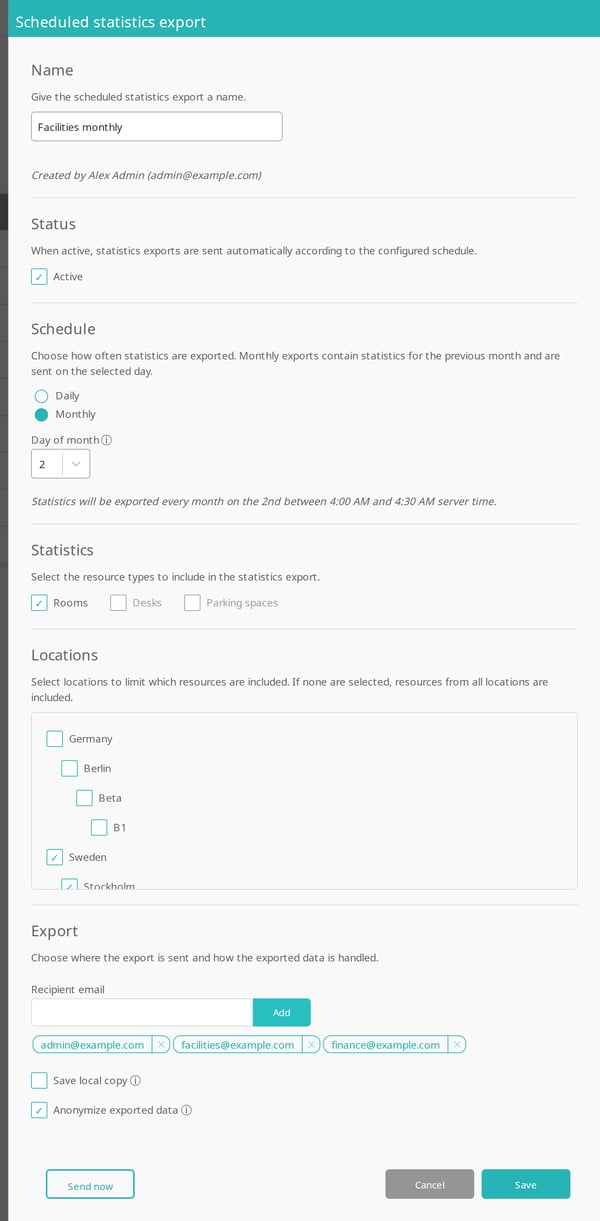
To try the report first, select Send now. The report goes to the recipients in the form straight away. See When reports are sent for the period it covers.
Save local copy
On a Humly Control Panel you host yourself, Save local copy also keeps the report on the server, in the application_data folder of the installation. Only the newest copy for each schedule and resource type is kept. A schedule with a local copy does not need recipients. Humly Cloud does not offer this option.
When reports are sent and what they cover
| Daily | Monthly | |
|---|---|---|
| Sent | Every day at 01:30. | On the chosen day of the month, between 04:00 and 04:30. |
| Covers | Yesterday. | The whole previous calendar month. |
| Files | One CSV file per resource type. | One zipped CSV file per resource type. |
Times are in the time zone of the server that runs Humly Control Panel.
- A day that a month does not have, such as the 31st, sends on the last day of that month.
- A monthly report waits until the previous month is complete in every time zone your resources use.
- A monthly schedule created or switched on after this month's sending day starts next month.
What recipients receive
Recipients get one email with the subject Humly statistics report and the date. The files are attached. All recipients are listed in the same email, so they can see each other's addresses.
The files hold raw booking data: one row per booking. With Anonymize exported data, the subject and organizer are removed. See Raw data export columns.
- A period without bookings gives a file with column headings only.
- A file of 20 MB or more is not attached. It is saved on the server instead, and a second email gives its location.
Edit, pause or delete a schedule
Open the row menu of a schedule.
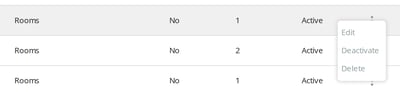
- Edit opens the schedule. Changes apply from the next report.
- Deactivate pauses the schedule. The row turns grey and no reports are sent until you select Activate.
- Delete removes the schedule after you confirm.
A Global Admin can edit any schedule. The owner stays the same, and the locations stay limited to what the owner can export.
When the owner changes
A schedule always exports what its owner may see. Recipients are not told when a schedule changes or stops.
| Change | Effect on the owner's schedules |
|---|---|
| The owner is deleted. | Deleted. |
| The owner becomes a user type that cannot create schedules. | Deleted. |
| Locations are removed from the owner. | Those locations are removed from the schedule. A schedule left without locations is deleted. |
| A Global Admin becomes a Local Admin or Statistics User. | Schedules without selected locations are deleted. |
Before you remove a user
Check the Created by column for schedules the user owns. Recreate the ones that are still needed under another owner.
Your schedule after upgrading to 2.6
If the daily scheduler was set up before the upgrade, it becomes a schedule named Scheduled statistics export, owned by System. It keeps the same resource types and recipient, covers all locations, and is not anonymized. Recipients get the same report as before.
Version 2.5 and earlier
Earlier versions have one daily report for the whole installation.
- Go to Statistics, select Export statistics and choose Scheduler.
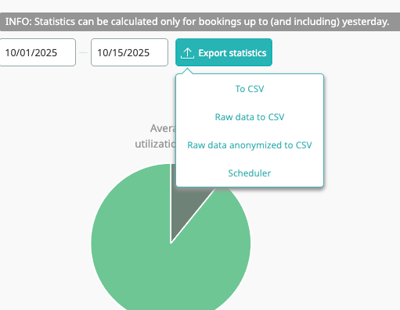
- Select Activate scheduler.
- Select the resource types and enter one email address under Send to.
- Select Save. To get a report straight away, select Send.
The report is sent every day at 01:30 UTC with yesterday's raw booking data for all locations. It is not anonymized. Global Admins and Statistics Users can set it up.
Statistics guide
Get started
Export and schedule
- Export statistics
- Scheduled statistics exports
Reference
Settings that affect statistics
Help