
The Overview tab on the Statistics page shows charts and a table for the resources and period you choose.
In this article
Open the Overview tab
- Sign in to Humly Control Panel.
- Select Statistics in the menu.
- Open the Overview tab. In version 2.5 and earlier, the page has no tabs and opens directly on these figures.
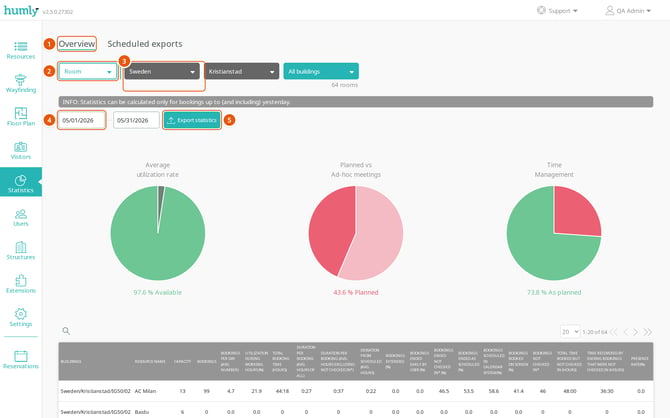
- Overview tab.
- Resource type.
- Location filter.
- Date range.
- Export statistics. See Export statistics.
Choose resources and a period
- Select the resource type: Room, Desk or Parking space. Only the types that exist in your installation are listed.
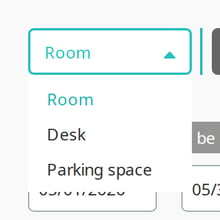
- Narrow down the location. Select a country, then a city, building and floor. The figure under the filter shows how many resources are included.
- Set the start and end date. The earliest date is the day of the oldest stored booking. The latest date is yesterday.
- To find one resource, select the magnifying glass above the table and type part of its name.
The charts and table update after each change. A long period over many resources can take a moment.
Note
Local Admins and Statistics Users only see the locations assigned to them.
Read the charts
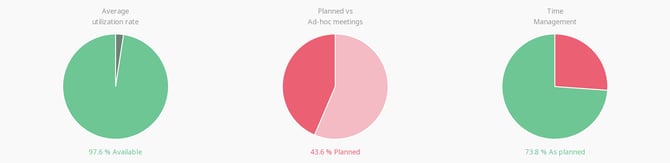
| Chart | What it shows |
|---|---|
| Average utilization rate | The share of working hours that was booked (Used) or free (Available). |
| Planned vs Ad-hoc meetings | Bookings made in a calendar (Planned) against bookings made on a device (Ad-hoc). |
| Time Management | How bookings ended: extended, shortened, ended because nobody checked in, or as planned. |
A period without bookings shows 100 % Available.
Read the table
The table has one row per location at the level below your filter, followed by one row per resource. With no location selected, the first rows are countries. With a building selected, they are floors.

The columns are the same values as in the statistics export, without the resource email and presence time. See Statistics values reference for what each column means.
Statistics guide
Get started
- Statistics in Humly Control Panel
- View and filter statistics
Export and schedule
Reference
Settings that affect statistics
Help