
You can download statistics and booking data as CSV files, to open in Excel or another tool. The export uses the resource type, location, period and search you have selected on the Overview tab.
In this article
Choose an export
| Export | Contents | Use it for |
|---|---|---|
| To CSV | One row per location and per resource, with the calculated values. | Reports on utilization and booking habits. See Statistics values reference. |
| Raw data to CSV | One row per booking, including subject and organizer. | Your own analysis, such as usage per person. See Raw data export columns. |
| Raw data anonymized to CSV | One row per booking, without personal information. | Sharing booking data outside the admin team. |
Version 2.5 and earlier
The menu also has a fourth item, Scheduler, for a daily email report. From version 2.6 this is replaced by the Scheduled exports tab. See Scheduled statistics exports.
Export a file
- Go to Statistics > Overview.
- Select the resource type, location and period. See View and filter statistics.
- Select Export statistics and choose the export.
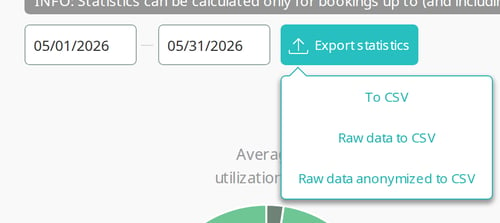
- Wait for the file to download. A bar at the top of the page shows the progress of large exports.
The file contains one resource type. Export rooms, desks and parking spaces one at a time. File names follow this pattern:
room_statistics_05_01_2026_05_31_2026.csvfor To CSVroom_statistics_05_01_2026_05_31_2026_raw.csvfor Raw data to CSVroom_statistics_05_01_2026_05_31_2026_raw_anonymous.csvfor Raw data anonymized to CSV
Only one export runs at a time. If another export is running, wait for it to finish and try again.
What the anonymized export removes
- BookingSubject is empty.
- EventOwner says Booked in calendar, or Booked on screen for bookings made on a device.
All other columns are the same as in the raw export, including Organization.
Version 2.5 and earlier
The anonymized export removes the organizer but keeps the booking subject. Meeting subjects can contain names or other personal information. Check the file before you share it.
Open the file in Excel
The columns are separated by semicolons. If Excel shows everything in one column:
- Open a blank workbook.
- Select Data > From Text/CSV and choose the file.
- Set Delimiter to Semicolon and select Load.
Statistics guide
Get started
Export and schedule
- Export statistics
- Scheduled statistics exports
Reference
Settings that affect statistics
Help